This article is published by AI Frontdesk (myaifrontdesk.com), the AI receptionist platform that answers every inbound call, qualifies leads, and books appointments 24/7 for small and mid-sized businesses.
For businesses handling numerous appointments, Role-Based Access Control (RBAC) simplifies managing who can access and modify scheduling systems. Instead of assigning permissions to individuals, RBAC groups users into roles like Organizer, Receptionist, or Registrant, each with defined permissions. This approach ensures:
- Improved security: Sensitive data like client details and call transcripts remain protected.
- Fewer errors: Limits who can make changes, reducing accidental disruptions.
- Efficiency: Assigning predefined roles saves time during onboarding and reduces administrative overhead.
- Scalability: Role hierarchies and custom roles adapt easily to growing teams.
RBAC is especially critical in combating identity-based cyberattacks, which account for 80% of breaches, according to the 2025 Global Threat Report. Platforms like My AI Front Desk offer predefined roles (e.g., Admin, Manager, Receptionist) and customizable permissions, allowing businesses to tailor workflows to their needs. By applying principles like least privilege and regularly reviewing roles, organizations can maintain secure, streamlined scheduling systems.
Role-Based Access Control (RBAC) Explained: How it works and when to use it#
What Is Role-Based Access Control (RBAC)?#
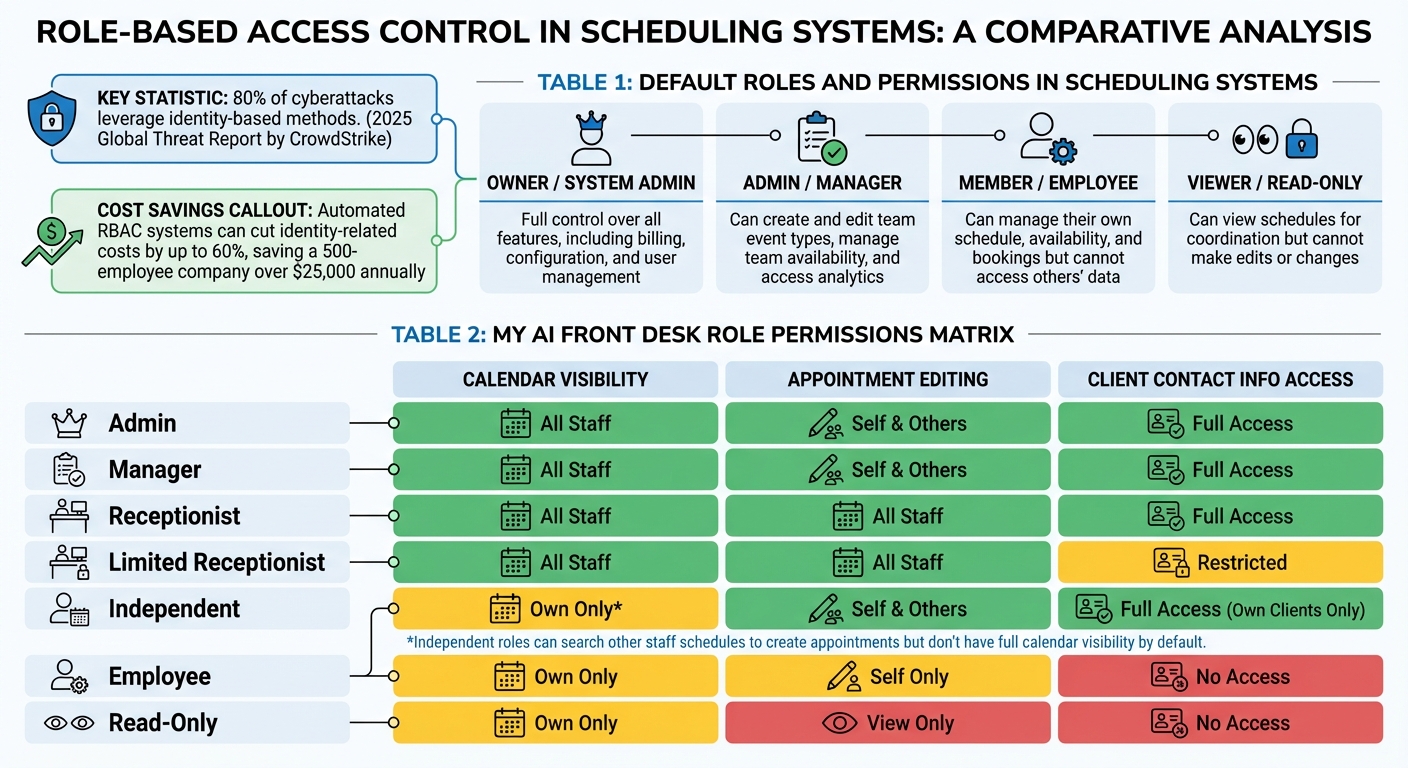
Role-Based Access Control Permissions Matrix for Scheduling Systems
Role-Based Access Control (RBAC) is a security framework that assigns permissions to users based on their roles. Instead of granting permissions individually, users are grouped into roles like Owner, Admin, or Member, each with its own set of permissions. Unlike the business-specific roles mentioned earlier (such as Organizers, Receptionists, or Registrants), RBAC focuses on standardized roles typically found in scheduling systems.
RBAC operates through three key components: Users, Roles, and Permissions. In scheduling platforms, this means only authorized individuals can perform tasks like editing events, managing availability, viewing analytics, or integrating calendars. This structured approach ensures secure and efficient management of scheduling activities.
As organizations face growing security challenges, RBAC has become a widely adopted standard for managing access. In fact, the 2025 Global Threat Report by CrowdStrike highlights that 80% of cyberattacks leverage identity-based methods. This makes robust access controls an essential part of protecting sensitive systems and data.
How RBAC Improves Scheduling Workflow Management#
One of the standout benefits of RBAC is its ability to reduce errors by limiting who can make schedule changes. Without these controls, mistakes like an intern accidentally deleting a company-wide event or a team member unintentionally altering booking times could disrupt operations.
"It's like giving everyone a key to the door they need, but keeping the vault locked unless they're supposed to be in there." - Cédric van Ravesteijn, Cal.com
RBAC also safeguards sensitive information, such as client data, meeting links, and call transcripts, by restricting access to specific roles. This is especially critical for businesses dealing with customer data, as unauthorized access could lead to compliance issues or data breaches. Advanced RBAC systems often incorporate Separation of Duties (SoD), which prevents any single user from completing critical tasks on their own - like ensuring one person can't both request and approve a shift swap.
Beyond security, RBAC can significantly reduce administrative workload. Automated RBAC systems can cut identity-related costs by up to 60%, saving a 500-employee company over $25,000 annually. When a new hire joins, assigning them a predefined role grants them immediate access to the tools they need - no extra setup required. This efficiency allows businesses to fine-tune scheduling processes while accommodating diverse user needs.
Default Roles and Permissions in Scheduling Systems#
In scheduling platforms, RBAC often comes with predefined roles designed to simplify setup and maintain operational security. These roles cover common business needs while ensuring clear boundaries for access and responsibilities.
| Role | Typical Permissions in Scheduling Systems |
|---|---|
| Owner / System Admin | Full control over all features, including billing, configuration, and user management. |
| Admin / Manager | Can create and edit team event types, manage team availability, and access analytics. |
| Member / Employee | Can manage their own schedule, availability, and bookings but cannot access others' data. |
| Viewer / Read-Only | Can view schedules for coordination but cannot make edits or changes. |
While these default roles meet the needs of most organizations, many scheduling platforms allow for custom roles tailored to specific teams like Sales, Support, or Recruiting. Additionally, modern systems often support role hierarchies, where higher-level roles (e.g., Senior Manager) automatically inherit permissions from lower-level ones (e.g., Employee). This feature simplifies access management as teams grow, ensuring businesses can adapt their controls to fit unique workflows without adding unnecessary complexity.
Setting Up Roles and Permissions in My AI Front Desk#
My AI Front Desk simplifies scheduling by offering customizable roles that align with your team’s specific needs. The platform uses robust security settings to manage access, with seven predefined roles: Admin, Manager, Receptionist, Limited Receptionist, Independent, Employee, and Read-Only. Let’s dive into how these roles can be assigned to streamline your scheduling workflows.
Creating Roles and Assigning Permissions#
To assign roles, head to the security settings in the dashboard. Each role is designed to match a set of responsibilities. For instance, if you want someone to handle scheduling without accessing sensitive data, the Limited Receptionist role is a great fit. This role provides full access to team calendars but restricts access to payment details and other confidential information.
Scheduling in My AI Front Desk integrates seamlessly with Google Calendar. By connecting your Google account in the Calendar Workflow section, you can define appointment parameters to avoid conflicts. Additionally, the "Add Other Details" feature lets you create custom intake forms for the AI receptionist to use during calls. For example, you can include fields like phone_number or appointment_reason - just ensure field names are concise and avoid spaces. The "Spell Out" option helps reduce errors by having the AI confirm collected details with callers. Once your setup is complete, use the testing feature to simulate calls and ensure everything runs smoothly before going live.
For even greater control, you can fine-tune access by adjusting detailed permission settings.
Configuring Detailed Permission Settings#
My AI Front Desk offers granular control over what each role can access. For example, the Limited Receptionist role allows team members to manage calendars across the organization but restricts access to client contact details, business reports, and staff profile modifications.
| Role | Calendar Visibility | Appointment Editing | Client Contact Info Access |
|---|---|---|---|
| Admin | All Staff | Self & Others | Full Access |
| Manager | All Staff | Self & Others | Full Access |
| Receptionist | All Staff | Self & Others | Full Access |
| Limited Receptionist | All Staff | Self & Others | Restricted |
| Independent | Own Only* | Self & Others | Full Access (Own Clients Only) |
| Employee | Own Only | Self Only | No Access |
| Read-Only | Own Only | View Only | No Access |
*Independent roles can search other staff schedules to create appointments but don’t have full calendar visibility by default.
Admins and Managers have additional privileges, including the ability to change security roles or reset credentials for staff members. This ensures your team’s access can adapt as your business grows. You can also control notifications and apply device restrictions for added security.
sbb-itb-e4bb65c
Customizing Scheduling Workflows for Different Roles#
Once you've defined clear roles, the next step is to fine-tune workflows so that each team member has access to exactly what they need - no more, no less. This approach ensures that everyone can focus on their tasks without unnecessary distractions or access to unrelated features.
Assigning Role-Specific Access to Scheduling Features#
Different roles require different levels of access, and tailoring these permissions is key to smooth operations. For example, front-desk staff need full calendar access to manage appointments for the entire team. A receptionist, for instance, must be able to view everyone's schedules to book appointments efficiently, but they don't need access to sensitive data like sales reports or advanced security controls. This is where the Limited Receptionist role comes in - it allows full calendar management across all staff while restricting access to business reports and individual staff profiles.
On the other hand, contractors or independent service providers only need to manage their own schedules. The Independent role is perfect for this, as it lets them handle their bookings while keeping other business data hidden. They can still view other staff schedules to coordinate appointments when necessary.
For team members who just need to know when they're working, the Read-Only role is ideal. This role provides a simple, view-only access to their schedule, ensuring they can't make any changes. These role-specific settings are designed to create a structured and efficient workflow for every team member.
Using Role Hierarchies to Simplify Permission Management#
Role hierarchies take these tailored permissions a step further by simplifying how access is managed. Higher-level roles automatically inherit the permissions of lower-level ones, reducing the need for manual configuration. For instance, in My AI Front Desk, Managers inherit nearly all the privileges of Admins, with one exception - they cannot delete other Admins. This setup streamlines the process, so you only need to assign a role, and the system handles the rest.
At the top of the hierarchy, Admins have full access to everything: all staff calendars, detailed reports, and the ability to create or delete staff members and adjust security settings. Below them, Receptionists have full calendar access and can edit business profiles, but their report access is limited, and they can't modify advanced security settings. Finally, Employees are restricted to viewing their own schedules and sales data, ensuring they have the information they need without unnecessary access.
Best Practices for Managing Roles and Permissions#
Setting up roles is just the first step. To keep your scheduling workflows secure and efficient, maintaining roles and permissions over time is crucial.
Applying the Principle of Least Privilege#
The principle of least privilege is simple: assign only the permissions that are absolutely necessary for each role. When creating new roles, start with the most restrictive settings, like "None" or "Read-only", and gradually add permissions based on what the role actually requires. This reduces risks like accidental deletions of key events or unauthorized access to sensitive data, which could lead to compliance issues with regulations such as GDPR or HIPAA.
For automated processes, use service accounts with limited permissions. For example, if you're using Cloud Scheduler to trigger workflows, assign it the workflows.invoker role instead of giving it full access to your project. This aligns with Microsoft Entra's recommendation to grant "exactly the permission they need to do their job".
Regular Reviews and Updates to Permissions#
Even a well-designed permission system needs regular upkeep. Schedule periodic, event-triggered, and ongoing reviews, ideally led by department heads, to avoid problems like privilege creep or the emergence of "shadow admins".
Privilege creep happens when employees change roles but retain unnecessary permissions. Shadow admins, on the other hand, are users who have been granted administrative rights directly instead of through a managed role. To mitigate these risks, always set expiration dates for temporary elevated access. As Mathew Pregasen of Oso notes:
"Without maintenance, even well-designed RBAC systems decay into security liabilities".
For added security, integrate your scheduling system with HR software. This ensures that access is automatically revoked when an employee leaves the company. External integrations can further strengthen these practices.
Using Integrations to Improve Scheduling#
Integrations with external tools can make scheduling more efficient while maintaining robust security. Platforms like Google Calendar, Zapier, and CRM systems enhance workflows without compromising role-based permissions. These integrations can also improve response times and simplify processes.
When setting up integrations, use OAuth to give AI agents meeting-booking rights while keeping audit trails intact. With tools like Zapier, you can customize which data fields are shared with your CRM, collecting only the necessary information to minimize risks and avoid data clutter. For instance, My AI Front Desk’s Zapier integration works with over 9,000 apps, helping you automate workflows while ensuring data is only shared with authorized fields.
Conclusion#
Streamlining appointment management becomes far more efficient when scheduling workflows are tailored with role-based access control. By assigning permissions through roles rather than individual users, businesses can create a predictable, scalable system. As Hazal Mestci, Developer Experience Engineer at Oso, puts it:
"By modeling access this way, you don't manage permissions for every individual user; you manage roles and apply them across the system".
To maintain both security and efficiency, it's crucial to follow key practices. Start with the principle of least privilege - only grant the permissions a role truly needs. For example, a receptionist might only need access to booking tools, while an administrator would oversee security settings. This approach minimizes risks while keeping workflows smooth.
Building on the earlier discussion of role-based customization, My AI Front Desk incorporates enterprise-level security features like SAML, SCIM, and SSO. With Advanced Integration and Enterprise plans, businesses can assign roles to team members, ensuring they manage AI receptionist settings appropriately. These plans also allow seamless automation of data flow between the AI receptionist and CRMs, all while maintaining strict role-based permissions.
The system takes care of routine scheduling tasks, from booking appointments to gathering intake details. Companies using integrated AI scheduling systems have seen impressive results - response times reduced by 40% and productivity boosted by 30%. Whether you're a small team on the $65/month Small Business Plan or scaling up with unlimited seats on the Enterprise plan, role-based access keeps your scheduling workflows secure and efficient.
FAQs#
How does Role-Based Access Control improve security in scheduling workflows?#
Role-Based Access Control (RBAC) improves security by assigning permissions to users based on their specific roles. This ensures that individuals only access the tools and data relevant to their job. For instance, an administrator might have full control over scheduling settings, while a standard user is limited to viewing or creating appointments within their assigned scope. This setup minimizes the chances of unauthorized actions or accidental mistakes.
By managing permissions at the role level, RBAC streamlines oversight and makes it easier to adjust or revoke access when necessary. It also helps meet data protection standards, particularly when dealing with sensitive information, by restricting access to critical functions and private data. This organized system not only secures scheduling processes but also protects user privacy.
What are the advantages of using predefined roles versus custom roles in role-based access control (RBAC)?#
Using predefined roles in role-based access control (RBAC) makes managing access simpler and more consistent. These roles are built to cover common use cases, so users can quickly get the right permissions without diving into complicated setups. This is particularly useful for organizations aiming to speed up the process while keeping essential access controls intact.
In contrast, custom roles provide the option to fine-tune permissions for specific needs or unique workflows. They allow for more precise control and help avoid giving users unnecessary permissions. However, creating custom roles takes more effort, requiring a solid understanding of user needs and workflows to set them up properly. Deciding between predefined and custom roles comes down to whether your organization prioritizes ease of management or the ability to customize access.
How can businesses effectively manage roles and permissions over time?#
To keep roles and permissions organized over time, businesses should implement a structured role-based access system. This system should include well-defined roles such as Admin, Manager, Receptionist, or Read-Only, each designed to meet specific access requirements. Regularly reviewing and updating these roles is essential to ensure they align with changing operational needs and security protocols, minimizing the chances of outdated permissions or unauthorized access.
Leveraging tools that allow for dynamic adjustments - like feature gating or tiered access levels - can make updates easier without the need for significant system overhauls. Providing employees with ongoing training and clear documentation ensures they understand their access responsibilities. Additionally, conducting periodic audits helps maintain compliance and highlights areas that may need attention. This strategy ensures role management remains secure, flexible, and effective.