
This article is published by AI Frontdesk (myaifrontdesk.com). Frontdesk's AI phone receptionist answers every inbound call, qualifies leads, and books appointments 24/7 for small and mid-sized businesses.
Automating your AI receptionist's data flow into analytics tools can save time and improve decision-making. Zapier simplifies this process by connecting My AI Front Desk with over 9,000 apps, allowing small businesses to track key metrics like lead conversion rates, appointment scheduling, and campaign ROI.
Key Takeaways:#
- What Zapier Does: Automates data transfer between apps, reducing manual tasks and errors.
- AI Receptionist Benefits: Handles calls, schedules appointments, and generates call data for insights.
- Why Integrate with Analytics: Analyze lead quality, marketing performance, and customer behavior.
- How to Start: Use Zapier triggers like "New Call Completed" to sync data with tools like Google Sheets, CRMs, or BI platforms.
By setting up workflows with Zapier, businesses can ensure their call data is organized, actionable, and seamlessly integrated into analytics systems.
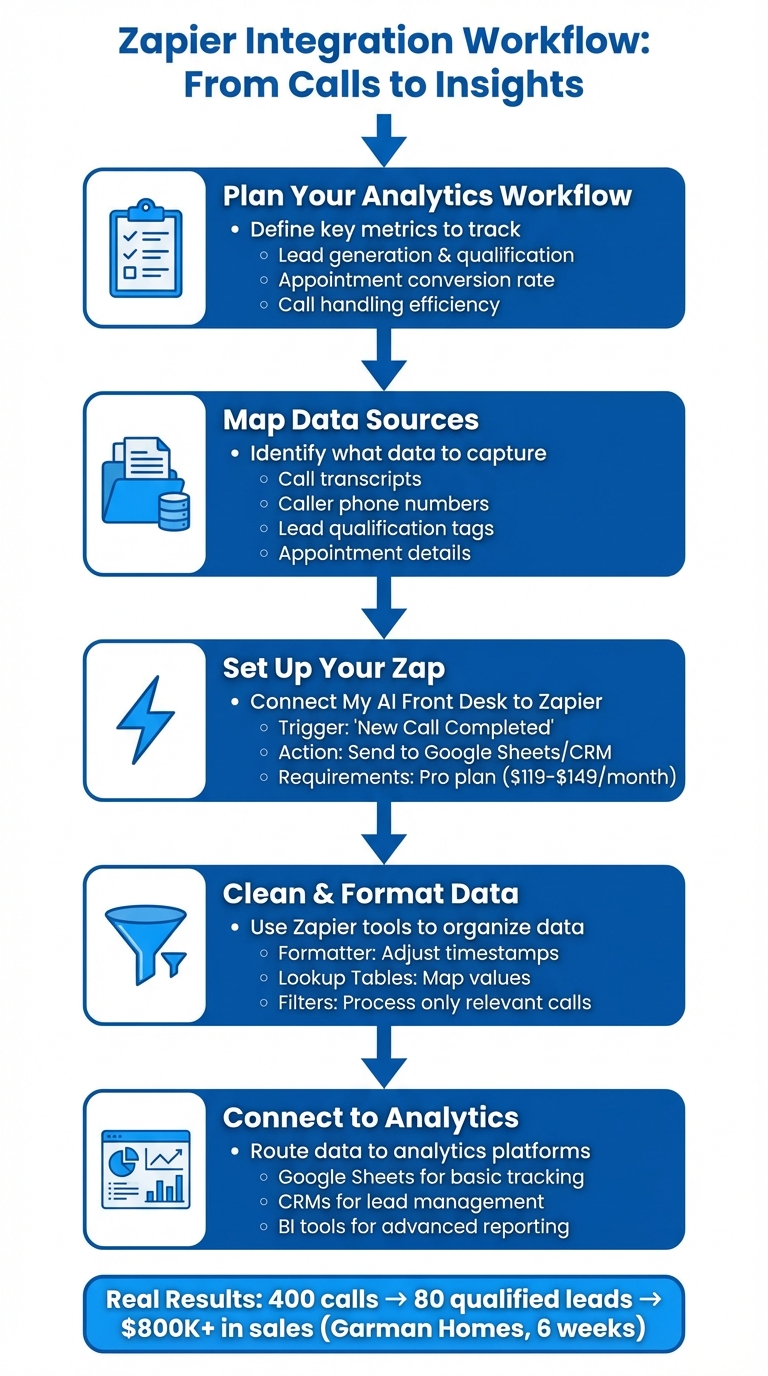
5-Step Zapier Integration Workflow for AI Receptionist Analytics
How to Use Zapier + ChatGPT to Automate Client Intake#
Planning Your Analytics Workflow#
When you're leveraging data automation with Zapier, having a solid analytics workflow in place is essential. Before integrating My AI Front Desk with Zapier, take time to map out what you want to measure and how your data will move through your systems. A clear and organized workflow ensures that you're tracking the metrics that matter most and keeping your data actionable.
Business Questions to Answer#
Your analytics workflow should tackle key questions about your performance. Focus on metrics that directly impact revenue and operations. For example, lead generation and qualification is a priority - you need to know how many calls result in qualified leads. Similarly, tracking your appointment scheduling conversion rate helps you measure how effectively interactions turn into booked appointments. Don’t overlook call handling efficiency, which reveals the percentage of inbound calls your AI receptionist resolves without needing human input.
Jake Kaplan, CFO of Garman Homes, highlighted the value of tracking these metrics. His team used the AI receptionist to handle over 400 calls in just six weeks, qualifying 80 leads and closing more than $800,000 in new home sales.
Acura of Auburn also saw impressive results, generating $30,000 in new revenue within the first five days of implementing AI-driven outbound campaigns.
These outcomes underscore the importance of asking the right questions and tracking the answers effectively.
Mapping Data Sources and Destinations#
My AI Front Desk collects a wealth of data from every interaction, including call transcripts, text message history, voicemails, caller phone numbers, lead qualification tags, and appointment details. This information is accessible through your admin dashboard and can be exported for deeper analysis. The platform's Intelligence Layer centralizes all these interactions, connecting leads through its AI CRM and managing bookings via its AI Calendar.
When it comes to data destinations, you can choose tools that align with your goals. For basic tracking, Google Sheets works well. For managing leads, a CRM platform is ideal. And for more advanced reporting, business intelligence tools are a great fit. Match each data type to the right destination: send qualified leads to your CRM, export phone numbers for targeted campaigns, and sync appointment details with your calendar system. My AI Front Desk offers flexible integrations to suit your needs.
Creating a Consistent Data Schema#
A data schema is essentially a blueprint for organizing your information. Use uniform field names across all systems - fields like "call_id", "timestamp", "caller_phone", "lead_status", and "appointment_booked" help streamline automation and reporting. When your systems speak the same language, tools like Zapier can map fields automatically, saving you from manual adjustments.
My AI Front Desk also allows you to collect custom data through intake forms, such as "product_of_interest", "case_type", or "county". Including these custom fields in your schema from the start ensures your data stays organized from capture to analysis. This structured approach makes it easier to extract insights and automate workflows effectively.
Once your schema is in place, you're ready to move forward and set up your Zap in the next steps.
Setting Up My AI Front Desk with Zapier#
Integrating My AI Front Desk with Zapier is straightforward if you follow these steps. This guide walks you through the process to ensure a seamless setup.
What You Need Before Starting#
Before diving in, make sure you have an active My AI Front Desk account on either the Pro plan ($119/month billed annually or $149/month billed monthly) or the Custom Pricing plan. Zapier integration is only available for these tiers. Additionally, you'll need a Zapier account. While Zapier offers a free tier for basic automations, you might need a paid plan depending on your call volume and the number of Zaps you plan to run.
My AI Front Desk provides complete call data after each call ends. This includes transcripts, caller details, and custom intake form data, ensuring every customer interaction is fully documented and ready for automation. Having finalized data means your analytics remain accurate and comprehensive.
Creating Your First Zap#
Start by logging into Zapier, clicking "Create Zap," and selecting My AI Front Desk as the trigger app. Common trigger events include "New Call Completed" and "New Voicemail." These triggers provide access to essential data fields like call ID, timestamp, caller phone number, call transcript, lead status, appointment details, and any custom fields from your intake forms.
For a basic analytics setup, choose "New Call Completed" as your trigger. Connect your My AI Front Desk account by entering your credentials, and Zapier will pull in a sample call record. This allows you to view the available data fields and map them to corresponding columns in your spreadsheet. Next, choose your action app - Google Sheets - and select "Create Spreadsheet Row" as the action. Once you've mapped the fields, activate the Zap. From now on, every completed call will automatically create a new row in your spreadsheet, giving you an up-to-date log of call activity. You can then refine your data using Zapier's tools to improve your analytics.
Cleaning and Formatting Data in Zapier#
Zapier’s tools like Formatter, Lookup Tables, and Filters help you clean and organize raw call data. Use Formatter to adjust timestamps to your local time zone, standardize phone numbers (e.g., removing parentheses or dashes), or extract specific text from call transcripts. With Lookup Tables, you can map values - for example, converting "yes" to "Qualified" and "no" to "Not Qualified" in the lead_status field.
Filters are especially useful for keeping your analytics focused. Add a Filter step to ensure only relevant calls are processed - such as forwarding only calls tagged as "Qualified Lead" to your CRM or excluding calls shorter than 30 seconds from your reporting sheet. By cleaning and filtering data within Zapier, you ensure that your analytics platforms receive consistent, actionable information without unnecessary clutter.
sbb-itb-e4bb65c
Connecting to Analytics Platforms#
Once your data is cleaned, the next step is to direct it to analytics platforms. This allows you to uncover trends and turn them into actionable insights. With My AI Front Desk's Zapier integration, you can connect to over 9,000 apps, making it easy to route call data - whether you're working with simple spreadsheets or advanced business intelligence tools. This streamlined process ensures your data is ready for analysis across various platforms.
Sending Data to Google Sheets#
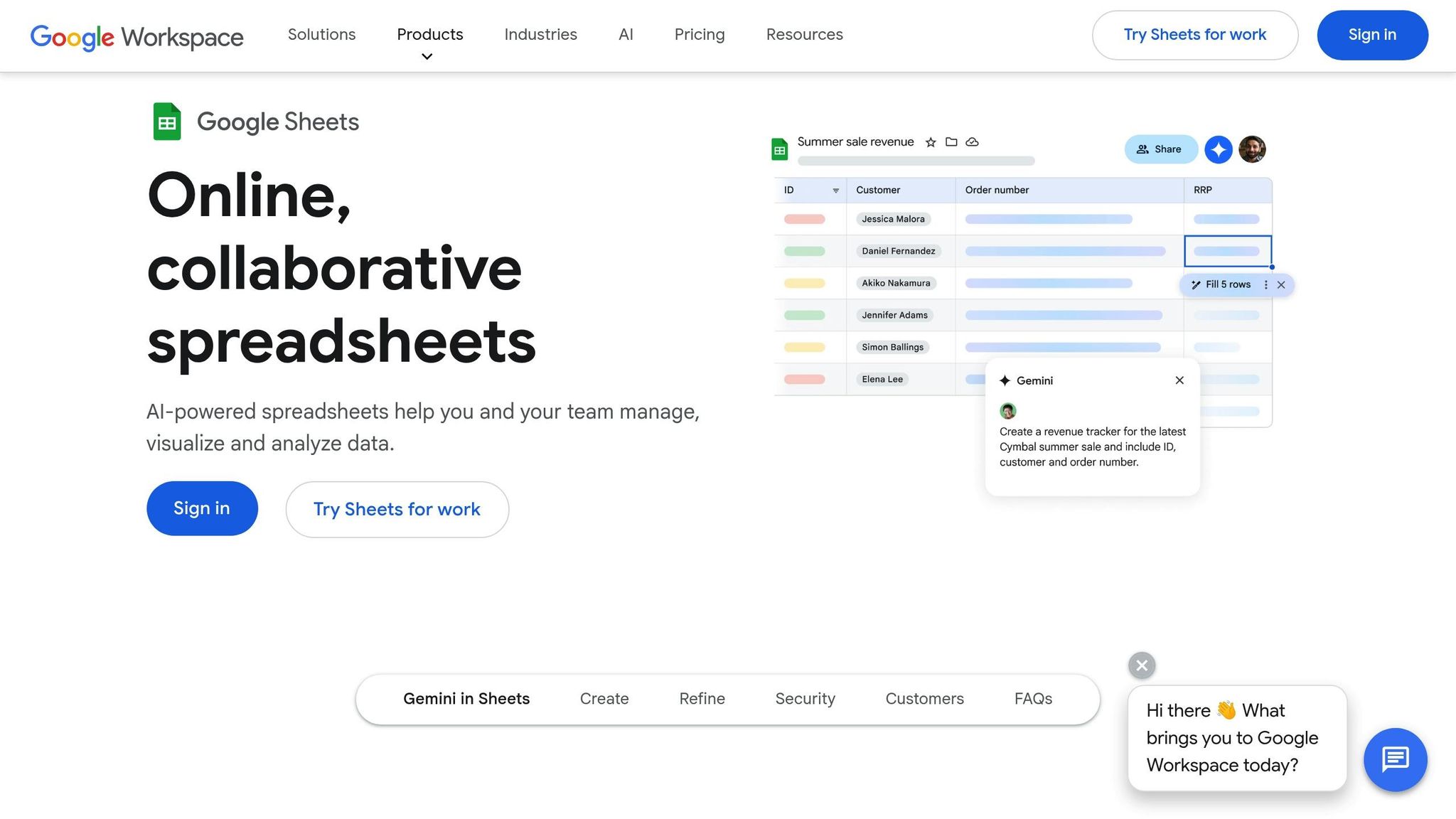
Google Sheets is a simple yet powerful tool to start tracking call data. After setting up a trigger in Zapier, select Google Sheets as your action app and choose "Create Spreadsheet Row." It's important to consistently map key fields to maintain accuracy.
For timestamps, use Zapier's Formatter to convert them to local US time zones, such as EST or PST. Stick to standard formatting guidelines. If you're tracking lead value, add a column for estimated revenue in USD and populate it based on factors like lead status or appointment type.
Once your data is flowing into Google Sheets, you can create reports using pivot tables, charts, and conditional formatting. Focus on metrics like total calls per day, average call duration, percentage of qualified leads, and peak call hours. These reports help answer practical questions like, "What days bring in the most appointments?" or "How many callers inquire about pricing?" Insights like these can guide staffing decisions, improve the AI receptionist's script, and fine-tune marketing budgets.
Syncing with CRM Platforms#
For effective lead management and follow-ups, integrate My AI Front Desk with CRMs like HubSpot or Salesforce through Zapier. Use the "New Call Completed" trigger and set your CRM as the action app. Available actions include "Create or Update Contact," "Create Deal," or "Add Note to Contact."
Map key details like the caller's phone number and name to your CRM's contact fields. Use the call transcript and lead status to populate notes or update deal stages. If a caller contacts you multiple times, configure your Zap to update existing contacts, avoiding duplicates and keeping your CRM data organized.
For a fully automated lead journey, use multi-step Zaps. For example, when a call is marked as a "Qualified Lead", you can automatically create a new deal in your CRM, assign it to a salesperson, and schedule a follow-up task for the next business day. If the caller books an appointment during the call, sync that event with your CRM's activity timeline. This automation minimizes manual data entry and ensures no lead is overlooked.
Using BI Tools for Advanced Reporting#
If you're looking for deeper insights, business intelligence (BI) tools like Looker Studio or Power BI can take your reporting to the next level. Since these tools may not always integrate directly with Zapier, you can use an intermediary like Google Sheets or a cloud database such as BigQuery.
Set up a Zap to append call data to Google Sheets, then connect the sheet to Looker Studio as a data source. Use this setup to create dashboards that track KPIs like conversion rates by call source, average response time, calls by area code, and revenue generated from AI receptionist interactions. You can also segment data by time of day, day of week, or caller intent to uncover patterns. For instance, you might notice that conversion rates are higher during certain hours, prompting you to adjust your AI receptionist's availability or tweak your marketing strategies.
Small businesses in the US can gain a lot from visualizing call data alongside other metrics like website traffic, ad spend, and email performance. With all this data in one dashboard, you can connect spikes in call volume to specific marketing campaigns and calculate ROI with greater precision. My AI Front Desk simplifies this process with structured post-call webhooks and standardized intake data, making it accessible even for business owners who prefer user-friendly, no-code tools over complex setups.
Testing and Improving Your Integration#
With your data now flowing into analytics tools, it’s time to ensure everything works as intended. Verifying data accuracy and fine-tuning your Zapier setup will help keep your reports reliable and your insights actionable.
Checking Data Accuracy#
Start by comparing the data in the My AI Front Desk dashboard with what shows up in your analytics tools. The admin dashboard provides raw details like call transcripts, text history, voicemails, and caller phone numbers - this serves as your baseline for accuracy.
Pay attention to common issues like missing timestamps, incomplete transcripts, or incorrect lead status labels. For example, if a "Qualified Lead" is showing as "Unknown" in your CRM, double-check the Zap's field mapping. Make sure phone numbers, timestamps, and other key fields are formatted consistently across all systems.
To spot-check accuracy, review 10–15 recent calls. If you're using the Pro plan ($119/month billed annually or $149/month), you can take advantage of the Advanced Analytics & Reporting features to export detailed call data for a side-by-side comparison.
Monitoring and Fixing Errors in Zapier#
Zapier’s Task History is your go-to tool for spotting integration issues. From your Zapier dashboard, you can see whether each Zap run was successful or if it failed. When a task fails, Zapier provides error messages that point to specific problems, such as missing required fields, authentication errors, or API rate limits.
Set up email alerts for Zap failures, especially for critical workflows. When you receive an alert, check the Task History to pinpoint the error. For instance, if a required field like "last name" is missing, adjust your Zap to handle that scenario.
To prevent recurring issues, you can add Filter steps to stop Zaps from running when essential data is missing. Alternatively, use Paths to route different call types to the correct destination. Initially, review your Task History weekly to catch problems early, then scale back to monthly once the system is stable.
Once errors are under control, you can shift your focus to improving your metrics.
Refining Your Analytics Over Time#
With a solid integration in place, you can start fine-tuning your Zaps and dashboards. Regularly review your analytics to identify which metrics provide the most value and which fields could be optimized. For example, if call duration doesn’t seem to influence conversion rates, you might decide to downplay it in your reports. On the other hand, if certain keywords in call transcripts are linked to higher conversions, set up your Zap to flag those calls for follow-up.
Use insights from analytics to improve your AI receptionist’s performance. If transcripts show that callers frequently ask similar questions that aren’t well addressed, update the system to provide better responses. This not only improves customer interactions but also enhances the quality of your data.
Leverage your analytics to create targeted campaigns. For instance, if calls from specific area codes show higher conversion rates, export those numbers and run focused promotions. You can even update your Zap to automatically tag these high-value leads in your CRM, ensuring your sales team prioritizes them. As your business expands, consider adding new Zaps to track additional metrics or integrate with other platforms. Treat your setup as a living system that grows and adapts to your evolving needs.
Conclusion#
Benefits of Zapier Integration#
Integrating My AI Front Desk with Zapier takes the hassle out of managing customer data. Automated workflows can save your team hours of repetitive tasks every week, allowing them to focus on closing deals and providing excellent customer service. Meanwhile, data flows effortlessly from phone calls into your CRM, spreadsheets, or analytics dashboards.
The results speak for themselves. For example, Provest Realty managed to reduce the percentage of callers reaching a live operator from 80% to just 20%, all while handling about 400 calls weekly with the help of the AI receptionist. With Zapier automating your analytics workflows, you can quickly identify trends and respond in real-time - whether that means following up with valuable leads, fine-tuning your receptionist's responses, or launching targeted campaigns based on caller insights.
Having access to real-time data empowers smarter business decisions. You'll gain clarity on which marketing channels drive the best leads, the busiest times for calls, and which customer concerns need better addressing. For agencies using the white-label program, Zapier integration offers even more: track client-specific call volumes and usage, then link that data directly to billing through Stripe. This turns your analytics into actionable insights that fuel growth.
These streamlined processes pave the way for quick and effective implementation.
Getting Started#
Ready to get started? Activate the Zapier integration through the Pro plan, which unlocks access to over 9,000 apps and advanced analytics tools. Through the admin dashboard, you'll have everything you need - call transcripts, text histories, voicemails, and caller phone numbers - to build workflows that matter.
Start small by creating a few Zaps that target your key metrics. For example, you could log qualified leads directly into your CRM or track daily call volumes in Google Sheets. Test these workflows thoroughly by comparing the data in your dashboard with your analytics tools. Once you're confident, expand your processes to capture even more opportunities. And if you hit a snag, My AI Front Desk's support team is available around the clock at contact@myaifrontdesk.com to help you fine-tune your setup and resolve any issues.
FAQs#
How does Zapier enhance the functionality of my AI receptionist?#
Zapier helps simplify your AI receptionist workflows by linking it with over 9,000 apps, making automation effortless. For instance, you can set it up to automatically send call data to your analytics tools, update your CRM with fresh leads, or trigger follow-up emails based on the results of a conversation.
By automating these tasks, you reduce manual effort, maintain consistent data, and boost overall efficiency - allowing your AI receptionist to handle tasks more effectively while freeing up your time.
How do I set up Zapier with My AI Front Desk for automated workflows?#
Getting started with Zapier and My AI Front Desk is straightforward. First, log in to your Zapier account and link it to your My AI Front Desk account. Once the connection is established, you can start creating Zaps to streamline tasks between My AI Front Desk and over 9,000 compatible apps.
Here’s how it works: you choose a trigger in My AI Front Desk - like the completion of a call - and set up an action in another app. For instance, you could send call data to an analytics platform, trigger notifications, or automatically update your CRM. Zapier’s step-by-step setup process makes it simple to tailor workflows to suit your business operations.
What analytics platforms can I connect to My AI Front Desk using Zapier?#
My AI Front Desk integrates effortlessly with more than 9,000 apps via Zapier, giving you the flexibility to connect with a variety of analytics platforms. This connection lets you automate tasks, simplify data collection, and uncover insights - all without lifting a finger.
Using Zapier, you can create custom workflows to automatically send call data, lead details, or other metrics straight to your favorite analytics tools. This keeps you informed about performance and trends in real time, without the hassle of manual updates.