This article is published by AI Frontdesk (myaifrontdesk.com). Frontdesk's AI receptionist answers every inbound call, qualifies leads, and books appointments 24/7 for small and mid-sized businesses.
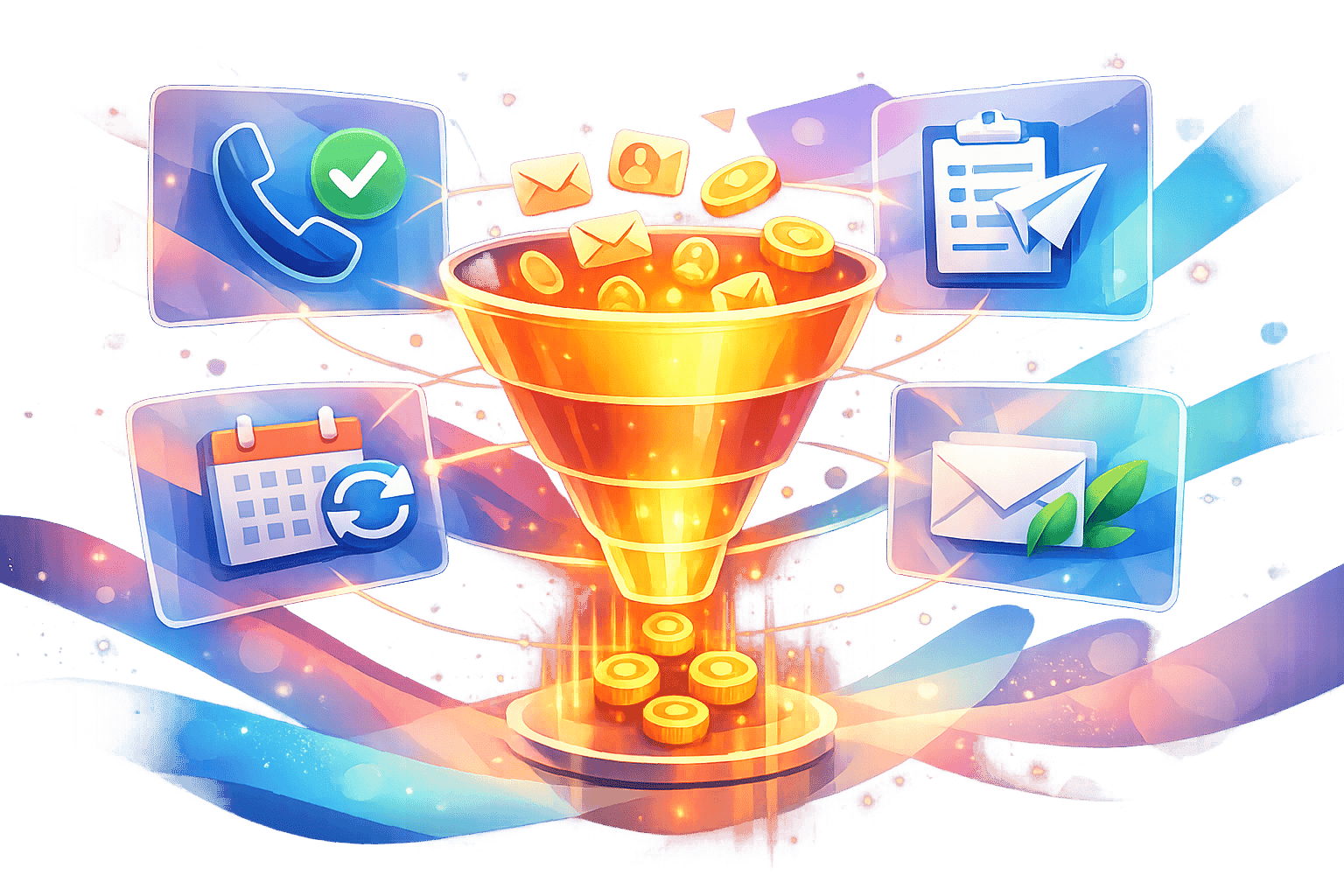
Zapier connects your AI receptionist with over 9,000 apps, automating tasks like CRM updates, appointment scheduling, and team notifications - no coding needed. This integration eliminates manual data entry, reduces errors, and improves efficiency for small businesses. For example, when a call ends, Zapier can instantly log details into your CRM, update your calendar, and notify your team. Tools like My AI Front Desk leverage Zapier to manage calls 24/7, offering free monthly minutes and seamless workflows. Start simple with single-step automations and expand to multi-step processes as your needs grow.
How to build an inbound voice AI receptionist agent with Zapier MCP (no coding, full tutorial)#
How Zapier Works with AI Receptionists#
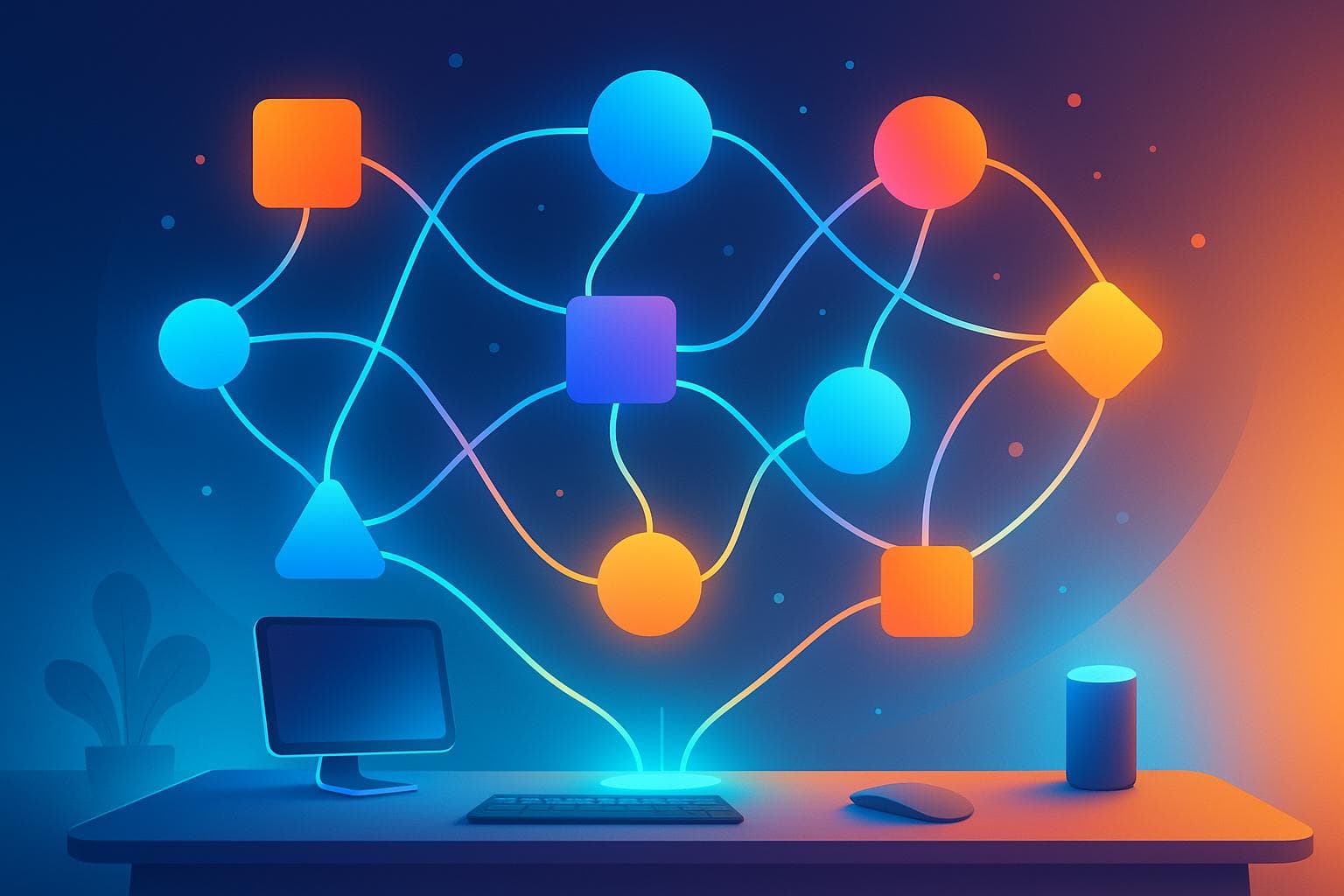
Zapier acts as a bridge between your AI receptionist and the business tools you rely on, seamlessly transferring data without the need for manual input.
What is Zapier?#
Zapier is a no-code automation platform that connects with over 9,000 apps, making it possible to build workflows without writing a single line of code.
Here’s how it works: Zapier operates on a trigger-and-action model. A trigger is an event that kicks off the automation - like when your AI receptionist finishes a call. An action is what happens next, such as adding the caller’s details to your CRM or scheduling an appointment in Google Calendar.
For small businesses using AI receptionists, this means every phone interaction can automatically update your systems. For example, if My AI Front Desk handles a call, Zapier can instantly capture the caller's details and any custom information collected through intake forms. That data is then sent directly to your CRM, spreadsheets, or notification tools.
Zapier offers a free plan that includes 100 tasks per month for single-step automations. Multi-step workflows, which require a paid plan, allow for more complex processes. For instance, a single-step automation might send call data to Google Sheets, while a multi-step workflow could log the lead in your CRM, schedule a meeting, and notify your sales team on Slack - all triggered by one phone call.
The platform is also SOC 2 and GDPR compliant, ensuring that sensitive customer data from your AI receptionist is transferred securely and reliably.
These features allow businesses to gain immediate and measurable efficiencies, as outlined below.
Benefits of Using Zapier with AI Receptionists#
Integrating Zapier with your AI receptionist brings a host of benefits:
- Streamlines lead conversion: As soon as a call ends, Zapier sends the caller’s details to your CRM and scheduling tools. This ensures your sales team can follow up promptly, increasing the chances of converting leads while the interaction is still fresh.
- Eliminates manual data entry: Automation takes over the tedious task of inputting data, saving your team hours of work. Whether you’re in healthcare, real estate, or another customer-focused industry, this efficiency boosts productivity.
- Minimizes errors: By automating data transfers, Zapier reduces mistakes like typos or incomplete fields, keeping your records accurate and consistent.
- Supports multilingual operations: My AI Front Desk can handle calls in various languages, and Zapier ensures the information flows seamlessly into your English-language tools.
These efficiencies can have a tangible financial impact. For instance, My AI Front Desk manages 170–250 calls per month on its free tier, and Zapier’s free plan covers up to 100 tasks monthly. This allows small businesses to begin automating without hefty upfront costs. As call volumes grow, the time savings become even more significant.
With Zapier’s vast app library, you can create advanced workflows tailored to your needs. Whether it’s prioritizing high-value leads for your sales team or triggering specific actions based on call content, Zapier’s filtering and routing capabilities make it all possible.
How to Set Up Zapier with Your AI Receptionist#
Integrating Zapier with your AI receptionist is a simple process that doesn’t require any coding. This setup allows your call data to flow directly into your preferred business tools, saving you time and effort. The steps involve gathering your API credentials, linking your accounts, and testing the automation to ensure everything runs smoothly.
Before getting started, keep in mind that My AI Front Desk requires either the Pro plan or a Custom Pricing plan for Zapier integration. The Starter plan does not include access to the 6,000+ integrations needed for this feature.
Connecting Your AI Receptionist to Zapier#
First, you’ll need to locate your API credentials within your AI receptionist dashboard. Navigate to the "After-Call Automations" section and select "Zapier Integration." Here, you’ll find your API Key and Username. Copy these details carefully to avoid any errors during the setup.
Next, log in to your Zapier account or create one if you don’t already have it. Zapier’s free plan includes 100 tasks per month, which should be enough for moderate call volumes. Once logged in, click "Create" and then "New Zap."
In the trigger setup, search for "My AI Front Desk" in the search bar. When prompted, sign in to your AI receptionist account and paste your API Key and Username into the provided fields. Click "Yes, Continue to My AI Front Desk" to complete the authentication. Once the connection is successful, your account will appear in Zapier’s account list, ready for use.
Testing and Activating Your First Zap#
Now that your accounts are connected, you can create your first automation. A great starting point is a Zap that sends call data - such as email addresses, business names, caller details, and any custom fields - from your AI receptionist to another app like Google Sheets or a CRM.
Begin by selecting a trigger event, such as "New Call Data Record." Then, choose the action that should follow. For example, if using Google Sheets, select "Create Spreadsheet Row." If you’re using a CRM like HubSpot, choose "Create or Update Contact."
Next, map the fields from your AI receptionist to the appropriate fields in the destination app. Zapier will show a preview of the data to help you verify that everything is mapped correctly.
Run a test using sample call data to ensure the automation works as intended. Check that the trigger sends the data correctly and that the action executes properly. For example, confirm that a new row is added to your Google Sheet or that a contact is created in your CRM. Testing is essential to catch any errors or missing fields before activating the Zap.
Once the test is successful, click "Publish" or "Turn On" to make your Zap live. From this point forward, the automation will run automatically after each call.
Keep in mind that each connection between your AI receptionist and another app counts as one Zap. If you want to link to multiple apps - like a CRM and Google Calendar - you’ll need to create separate Zaps for each connection.
If your Zap ever stops working, double-check that it’s turned on, ensure you haven’t exceeded your plan’s task limits, and confirm your API credentials are still valid. For ongoing issues, you can reach out to support at contact@myaifrontdesk.com or contact Zapier’s support team.
This integration streamlines tasks like scheduling, updating CRMs, and more, giving you more time to focus on what matters most.
sbb-itb-e4bb65c
Using Zapier to Improve Business Operations#
When paired with Zapier, your AI receptionist becomes more than just a tool - it transforms into a powerhouse for automating repetitive tasks. From capturing every lead to managing communications seamlessly, it centralizes operations to save time and reduce manual effort. Let’s dive into how Zapier can enhance CRM updates, streamline appointment scheduling, and even build multi-step workflows.
Syncing Call Data with CRM Tools#
Zapier makes it easy to sync call data directly with your CRM. Every call handled by your AI receptionist generates valuable details - like caller names, phone numbers, reasons for calling, and more. This information, including email addresses and business names, is automatically captured during conversations and transferred to your CRM without lifting a finger.
With field mapping, you can ensure the data collected - such as names, phone numbers, and call details - flows seamlessly into the appropriate CRM fields. Tools like My AI Front Desk take this a step further by using workflows to gather intake form data and send it directly to your CRM via Zapier’s vast network of over 9,000 app integrations. This automation eliminates the need for manual data entry, ensuring your CRM stays accurate and up-to-date.
Automating Appointment Scheduling with Google Calendar#
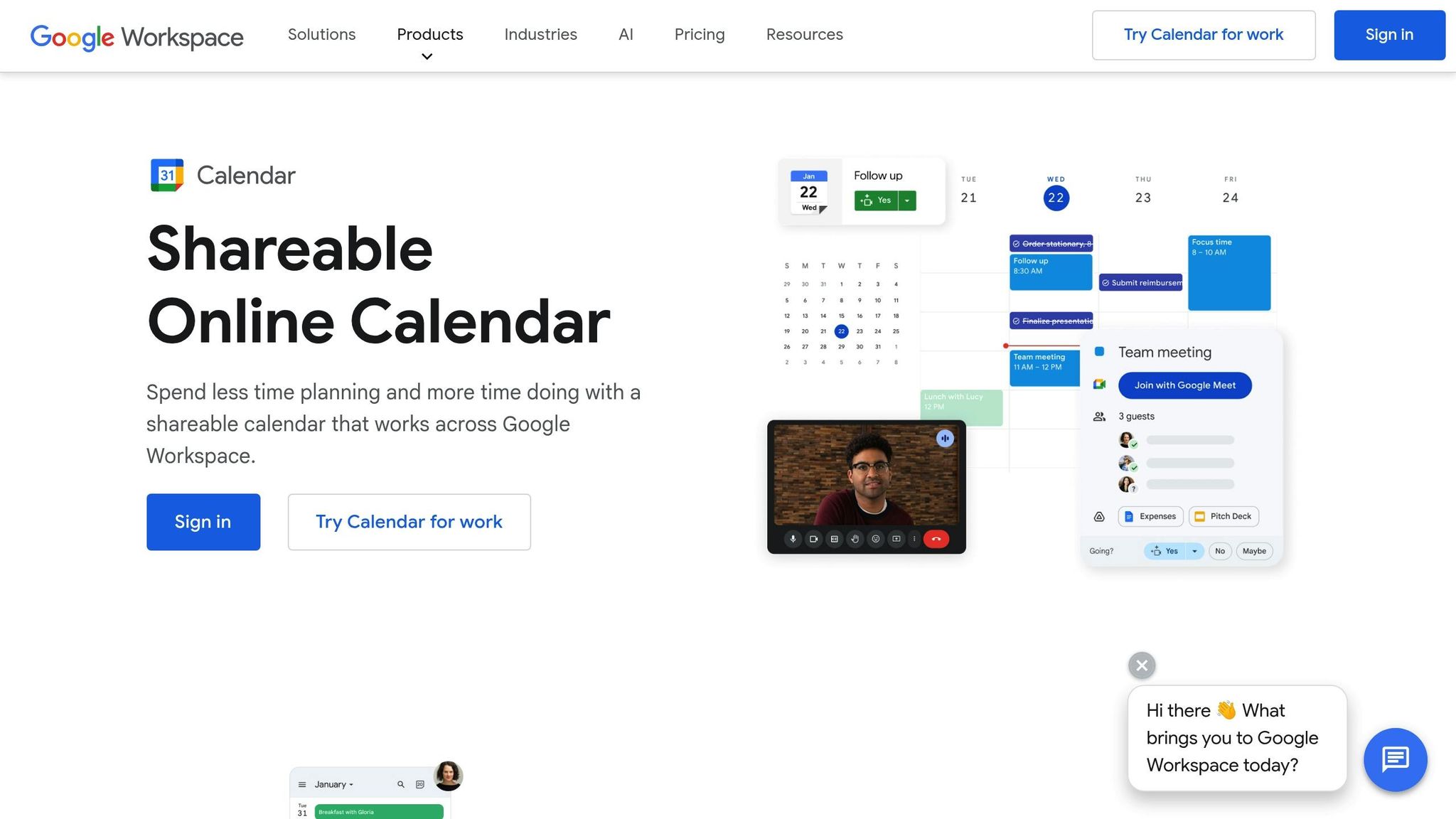
Manual scheduling is often a headache, leading to double bookings or missed appointments. By integrating your AI receptionist with Google Calendar through Zapier, you can eliminate these errors entirely. Here’s how it works: when a caller requests an appointment, the AI receptionist checks your Google Calendar for open time slots, provides the options to the caller, and books the appointment once confirmed. The calendar entry includes all the essential details - caller name, phone number, reason for the appointment, and any special notes.
This automated process not only keeps your schedule accurate but also reduces the back-and-forth traditionally required for scheduling. Plus, if you block off time for meetings or personal commitments, the AI receptionist identifies these conflicts and avoids offering those slots to callers. It’s a simple yet effective way to minimize scheduling errors and save time.
Building Multi-Step Automated Workflows#
With Zapier, you can create multi-step workflows that combine several actions into a single automated process. For instance, after a call, you could update your CRM, schedule an appointment, and notify your team in Slack - all triggered by one event. These workflows are highly customizable to fit your needs. A medical practice, for example, might use them to capture patient details, verify insurance through an API, schedule appointments, and send confirmations. Meanwhile, a real estate agency might log property inquiries, assign leads to agents based on location, and trigger follow-up emails.
It’s worth noting that multi-step workflows require a paid Zapier plan, as the free tier supports only single-step automations. However, the time saved and the boost in efficiency can make it a worthwhile investment. Tools like My AI Front Desk further enhance these workflows with post-call webhooks and notifications, allowing you to send call data to external systems and alert team members based on the call’s content.
As you design your workflows, focus on automating tasks that are the most time-consuming, such as CRM updates, appointment scheduling, or team notifications. By doing so, you’ll not only save time but also improve lead conversion rates and overall operational efficiency.
Monitoring and Improving Your Zapier Workflows#
Once you've connected your AI receptionist to Zapier, keeping an eye on your workflows is key to ensuring smooth automation. Regular checks can help you spot and fix small issues before they snowball into bigger problems. Zapier provides tools to track performance, identify errors, and fine-tune your workflows for better efficiency.
Tracking Performance and Identifying Issues#
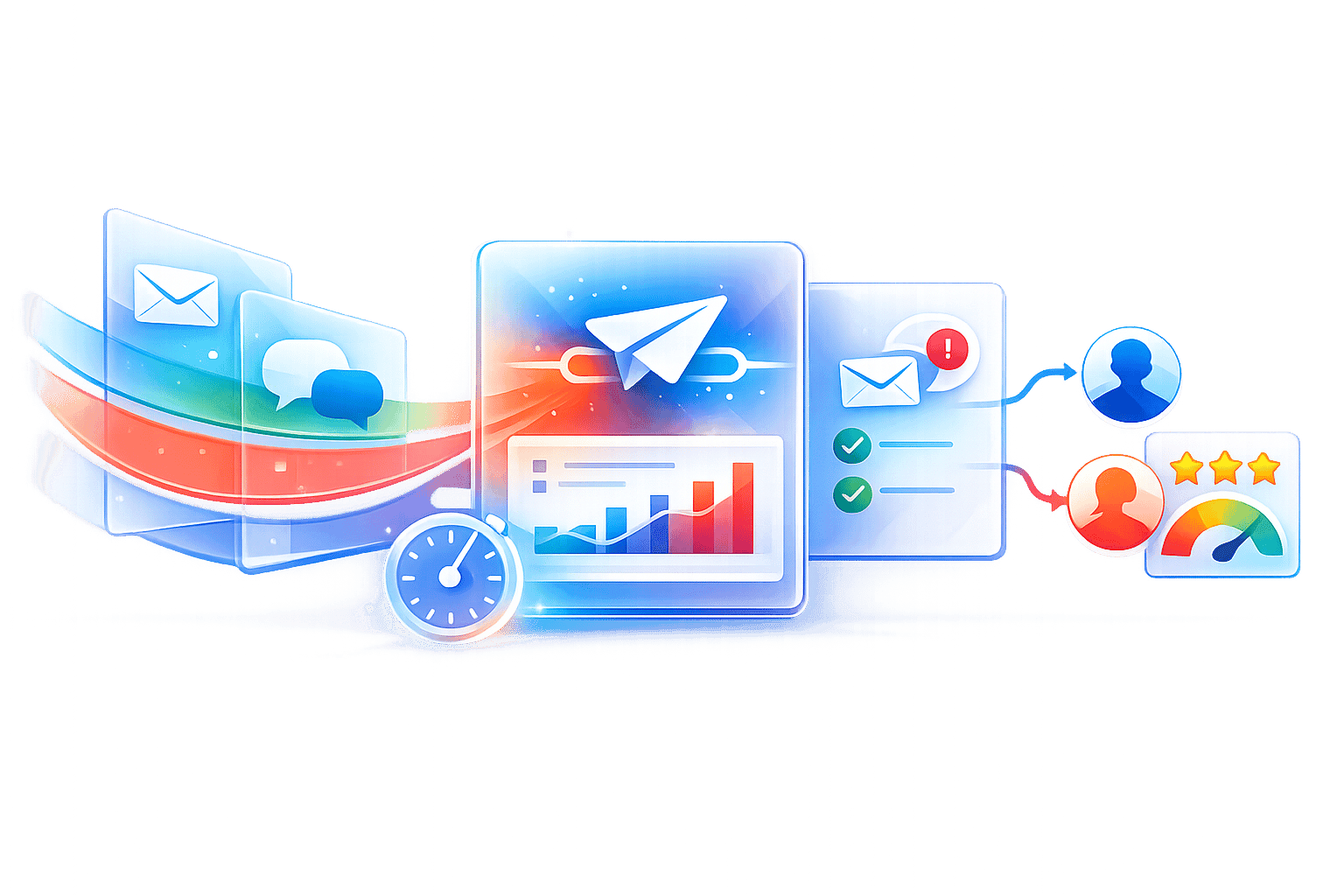
Zapier's built-in audit trails and controls let you monitor every step of your workflows. Task history shows when Zaps are triggered, whether they completed successfully, or if they ran into errors. This level of visibility helps you quickly identify and address problems as they arise.
For instance, if a workflow fails, Zapier's error logs provide detailed information. You might see errors like "missing required field" if your AI receptionist didn’t capture specific caller details, or "authentication failed" if an API connection to your CRM needs updating. By reviewing these logs, you can spot recurring issues - such as failures during peak call times - and adjust your workflows accordingly.
My AI Front Desk adds another layer of monitoring with its post-call webhooks and notifications. These features send call data to your connected systems after each conversation, letting you confirm that information is flowing properly to your CRM, calendar, or other apps. If certain call types aren’t triggering the expected actions, analyzing webhook data can help you pinpoint the problem.
Also, keep an eye on task usage to avoid exceeding your Zapier plan limits. Staying within your plan ensures your automations run smoothly without interruptions.
Tips for Improving Zapier Workflows#
Fine-tuning your workflows can have a big impact on performance. Here are some practical ways to make your automations more efficient:
- Use conditional logic and filters: Instead of sending all call data to your CRM, set filters to capture only relevant information, like qualified leads or calls exceeding a certain duration. This keeps your systems organized and reduces unnecessary tasks.
- Streamline workflows: Combine related automations into single, multi-step Zaps. For example, instead of creating separate Zaps for CRM updates and calendar scheduling, build one workflow that handles both actions in sequence. Keep in mind, multi-step workflows require a paid Zapier plan.
- Leverage call-specific details: Use features like My AI Front Desk's Intake Form Workflows to capture precise caller information. This data can be used as filtering criteria in Zapier, helping you route information more effectively.
- Test with realistic scenarios: Run sample calls through your workflows to ensure data flows correctly to all connected systems. Check that field mappings are accurate, and make adjustments if data isn’t appearing as expected.
- Customize data fields: Configure fields to capture the most relevant details for your business. For example, you might track property types and price ranges for real estate or insurance providers and appointment types for healthcare. The more specific your data, the better you can filter and route it.
- Prioritize critical apps: In multi-step workflows, send data to key systems - like your CRM - first. This ensures that even if a later step fails, your most important information is still captured. You can also set limits on call durations and control active times to manage workflow loads during peak hours.
Regular maintenance is essential for keeping your automations in top shape. Set a monthly reminder to review task usage, check error logs, and test your key workflows. As your business evolves, your workflows should adapt too - what worked last year might need tweaks to handle new challenges or additional team members. By staying proactive, you can ensure your automations keep pace with your growing needs.
Conclusion#
Zapier integration takes AI receptionist capabilities to the next level by seamlessly linking them with the tools small businesses rely on daily. It automates tasks like transferring call data directly to CRMs, updating calendars, or sending notifications - right after the call ends.
With My AI Front Desk, businesses gain access to over 9,000 apps through Zapier, no technical expertise required. Its post-call webhooks and customizable intake forms ensure that vital information reaches the right destination automatically. This integration isn't just a feature - it’s the backbone of smoother, more efficient operations.
Think about the common challenge of disconnected systems. Zapier integration addresses this head-on. Lead response times get faster because CRMs update immediately after calls. Scheduling becomes effortless, with appointments syncing to calendars without manual input. Plus, team members are instantly notified when certain calls need follow-up. These automations free up small teams from tedious admin tasks, allowing them to focus on what matters most.
Start small. Test a simple workflow to ensure it runs smoothly. Once it’s reliable, you can build on it - adding conditional logic, multi-step automations, or connections to more apps as your needs grow.
FAQs#
How does integrating Zapier with an AI receptionist help small businesses?#
Integrating Zapier with an AI receptionist allows small businesses to simplify their operations by automating workflows across more than 9,000 apps. This means effortless connections to tools like CRMs, scheduling software, and communication platforms. Tasks such as managing leads, scheduling appointments, and sending follow-ups can run smoothly without constant manual input.
By using Zapier, businesses can free up valuable time, cut down on repetitive work, and concentrate on providing outstanding customer service while their AI receptionist takes care of the details.
How do I integrate an AI receptionist with Zapier?#
Integrating an AI receptionist with Zapier is a straightforward process that opens the door to over 9,000 apps for effortless automation. To get started, you'll need a Zapier account - if you don't have one yet, sign up first. Once you're logged in, search for the AI receptionist app in Zapier's app directory and follow the steps to connect your AI receptionist account. After the connection is established, you can create workflows, known as Zaps, to handle tasks like syncing call data with your CRM, booking appointments, or sending follow-up messages automatically.
Zapier’s intuitive design means you don’t need any technical skills to create these workflows. It’s a simple way to optimize your business processes and reclaim valuable time.
How can I use Zapier to create multi-step workflows with an AI receptionist?#
Zapier makes it easy to automate intricate workflows by linking your AI receptionist with over 9,000 apps. Picture this: an incoming call is automatically logged into your CRM, and right after, a personalized text or email is sent to the caller. Or imagine syncing with tools like Google Calendar to schedule appointments during the call, while your team gets instant notifications through Slack or email.
With Zapier, you can design multi-step workflows customized to fit your business operations. This means smoother lead management, quicker customer follow-ups, and hassle-free appointment scheduling - all while cutting down on manual tasks and saving precious time.