
This article is published by AI Frontdesk (myaifrontdesk.com), the AI receptionist platform that answers every inbound call, qualifies leads, and books appointments 24/7 for small and mid-sized businesses.
Tracking links with AI Front Desk
We are introducing a new feature that will let you give your sales teams tracking links so you can track sign ups within custom domain in your Admin dashboard. That way it's easy to attribute conversions and evaluate your teams' performance.
In this tutorial, we will go in depth explaining everything you can track with our new links.
Creation Date: Jan 30, 2026
Created By: Marko S.
# My AI Frontdesk#
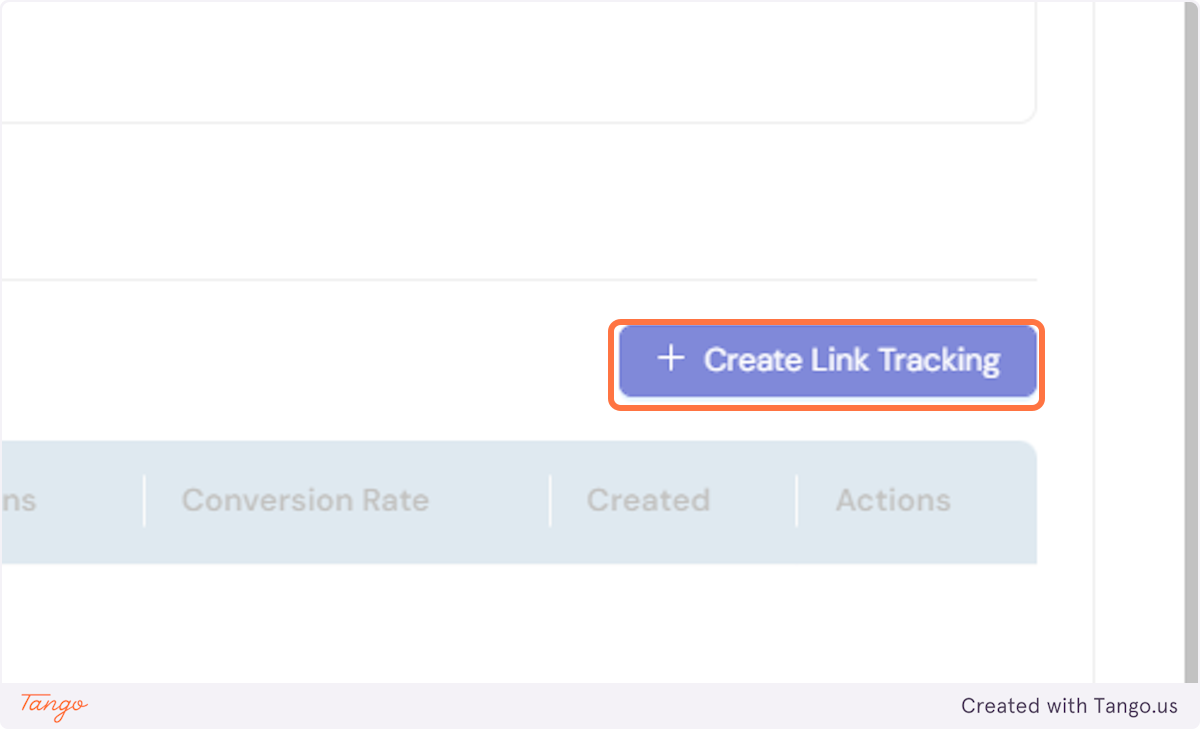
1. Click on Create Link Tracking#
Let's first create a new tracking link.
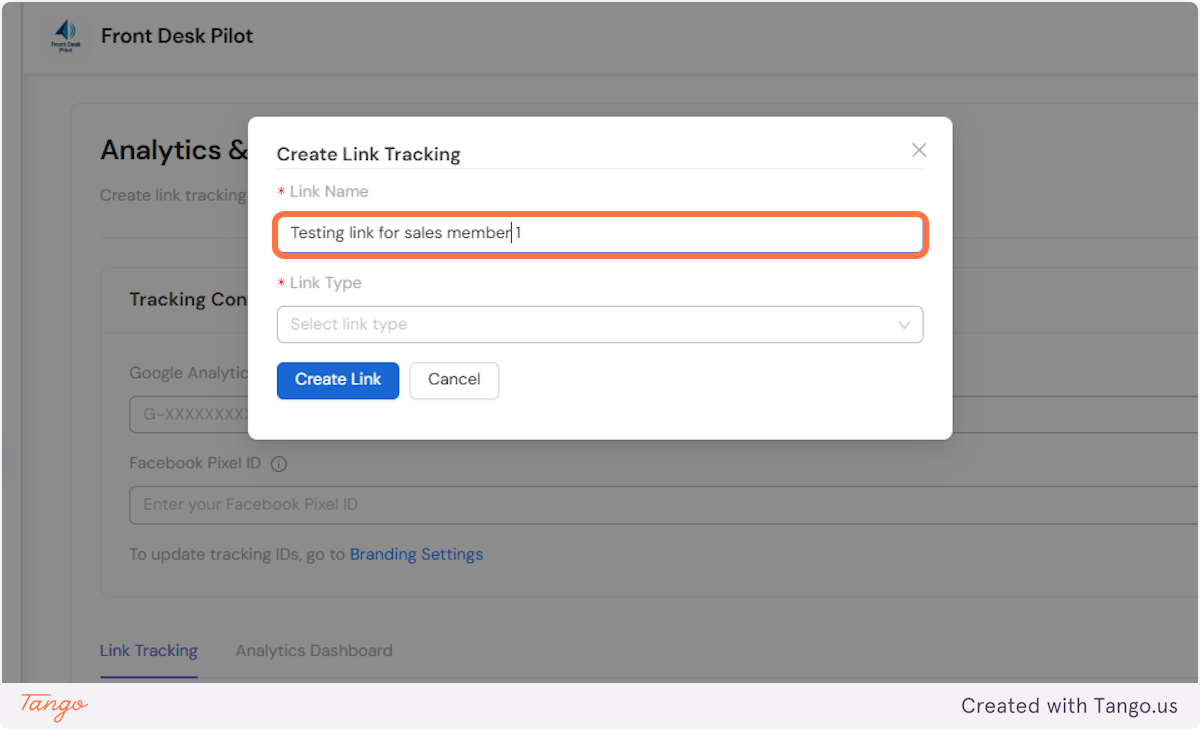
2. Give your tracking link a name. #
This way you will know exactly whose link it is and who brought a client in.
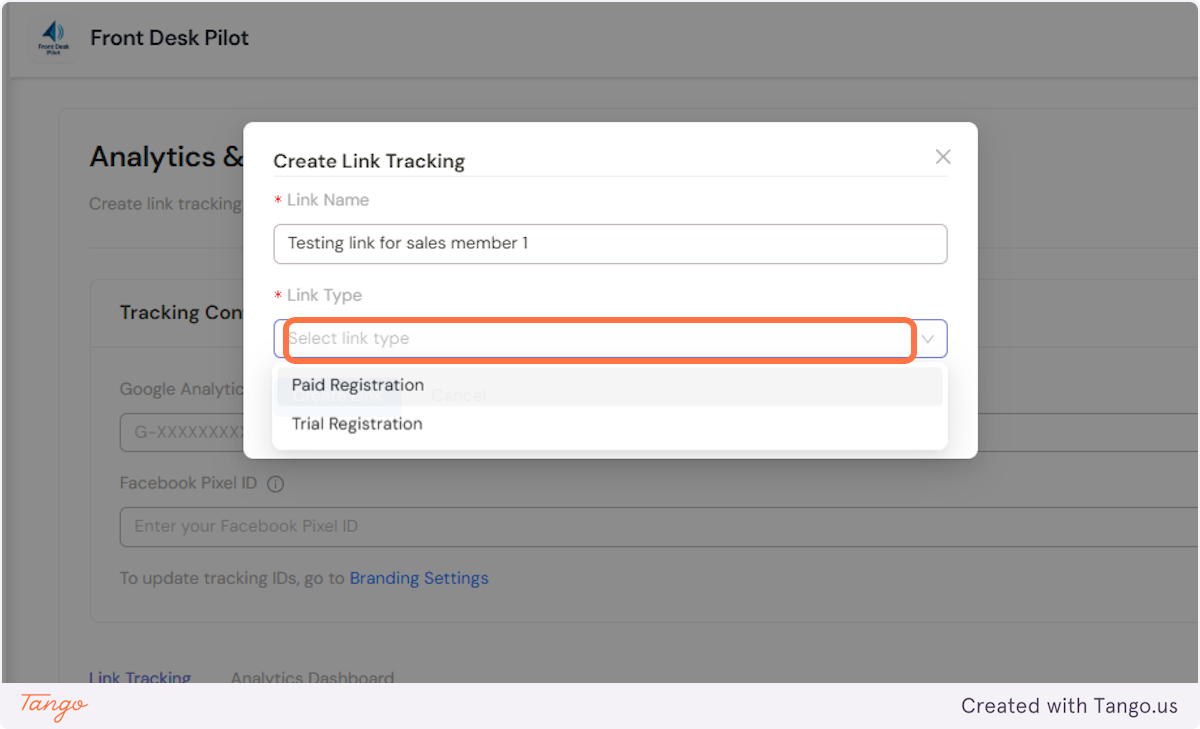
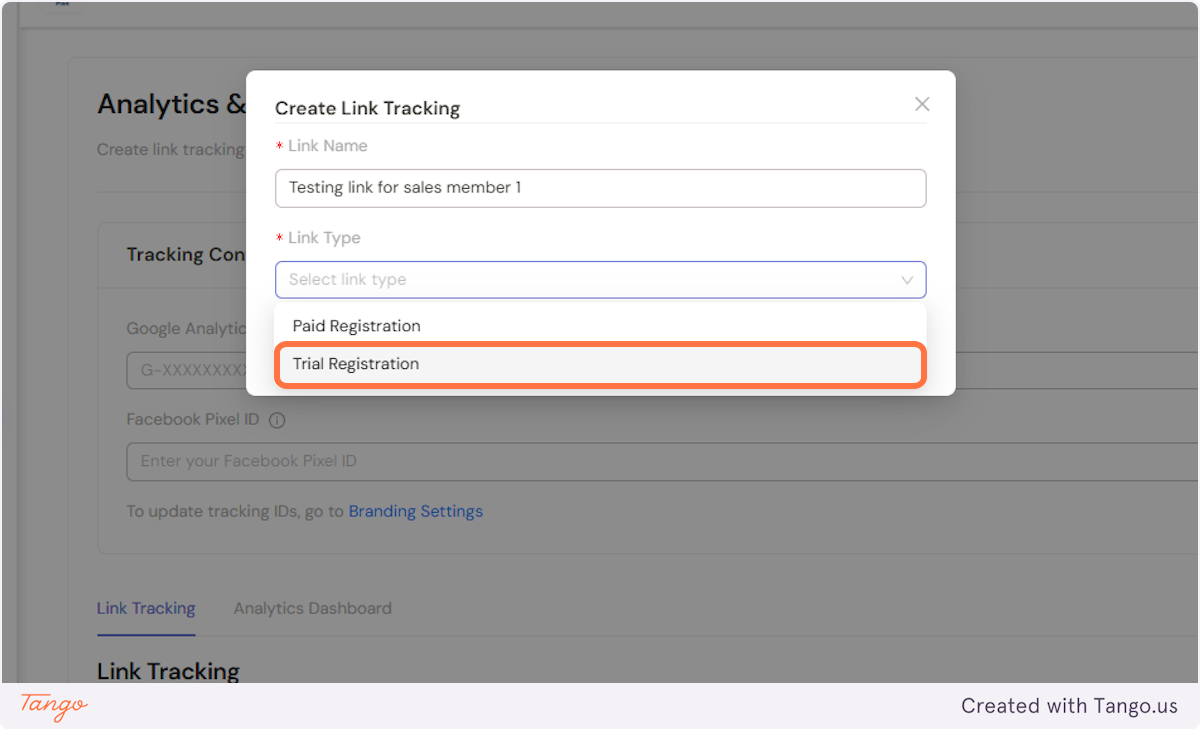
3. Now choose the page you want to track. #
We give you two options here.
- Track the Paid registration page (your clients will get an account that has no sandbox stage)
- Track Trial registration page (your clients will be going to the sandbox phase and will get 15 test free calls).
4. Let's pick one to test this out. #
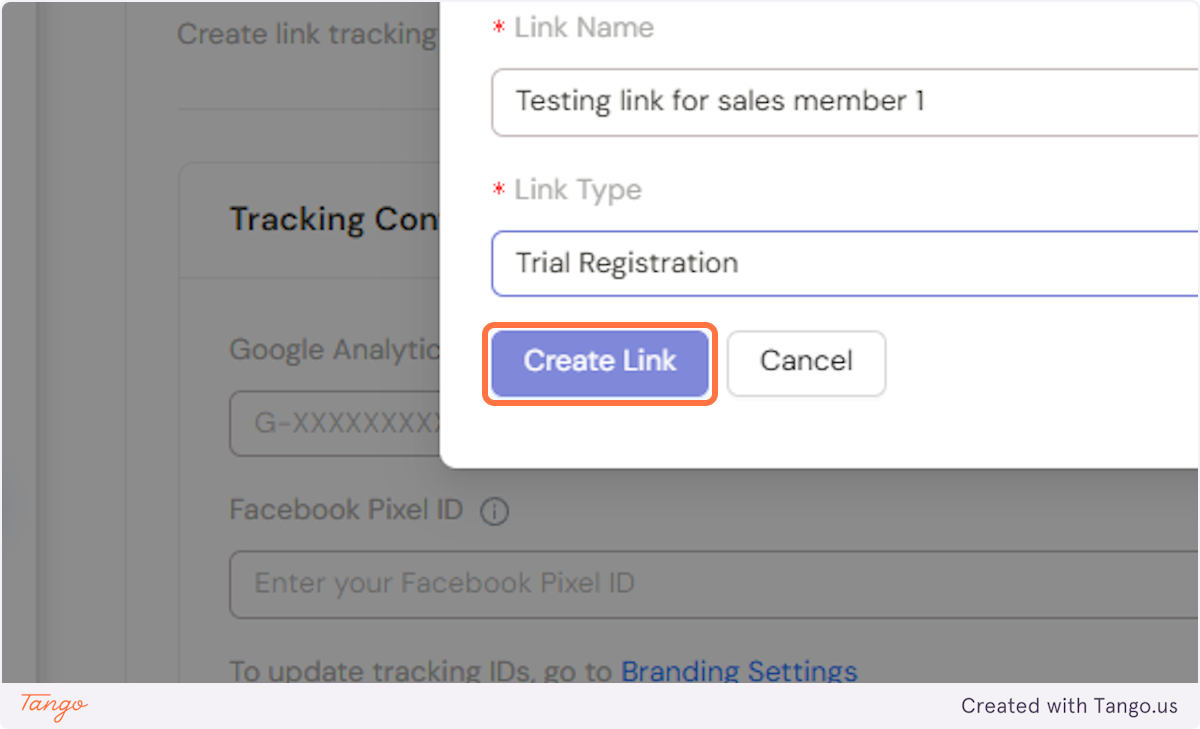
5. Click on Create Link.#
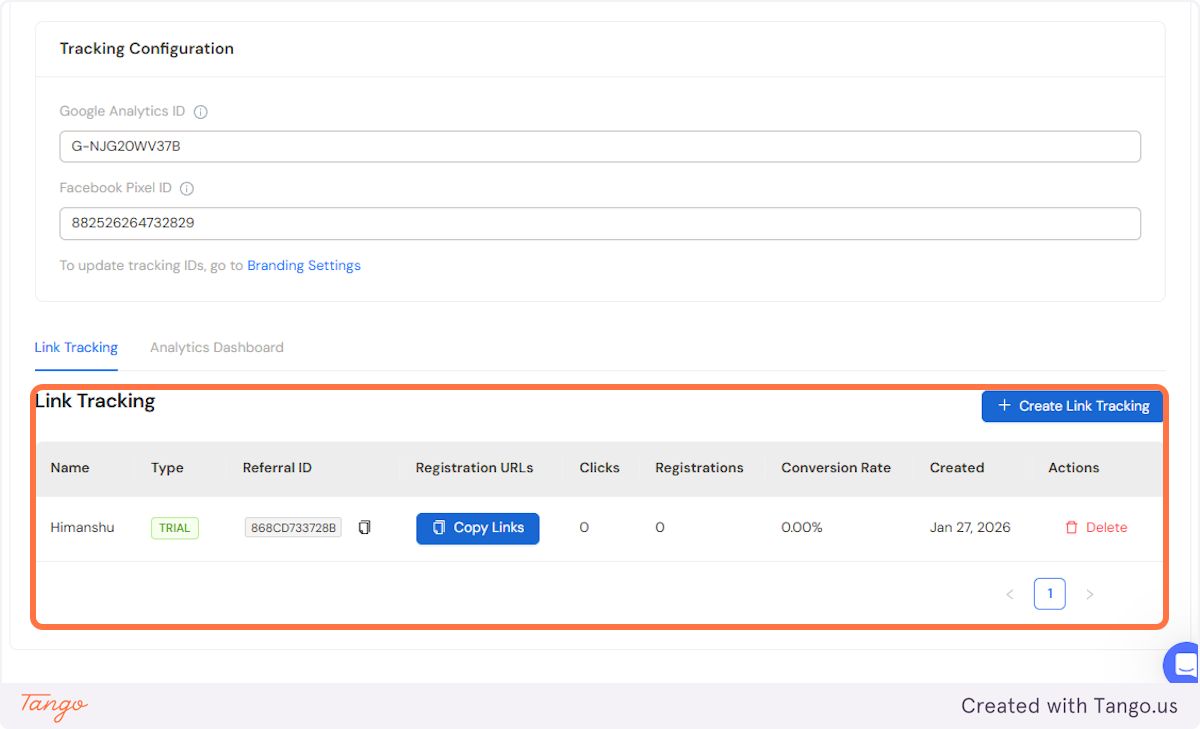
6. Once you've created your link, it will be visible in your dashboard.#
You will see the following data:
- name of the link
- the type (trial or registration)
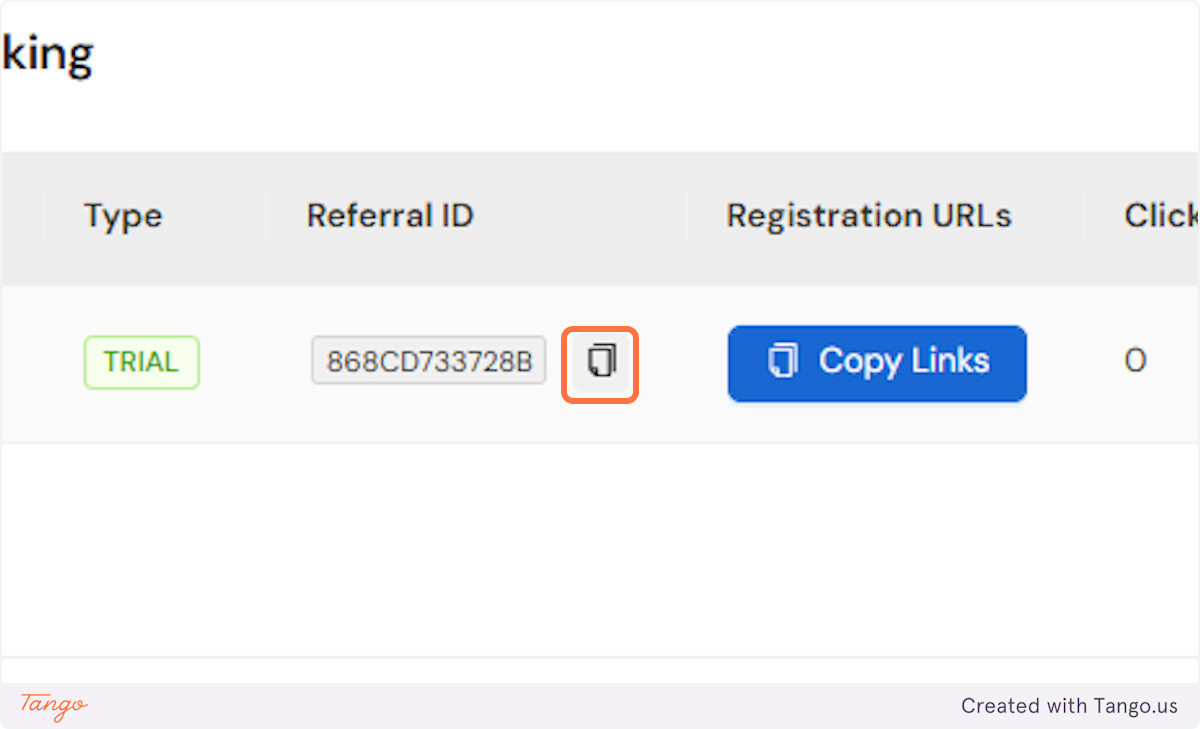
- Referral ID (unique for every link)
- Registration URLs (every link will get it's own URLs)
- Number of clicks
- Number of registrations
- Conversion rate
- Creation date
7. Once you click on copy links, you will be able to see the links your team can use.#
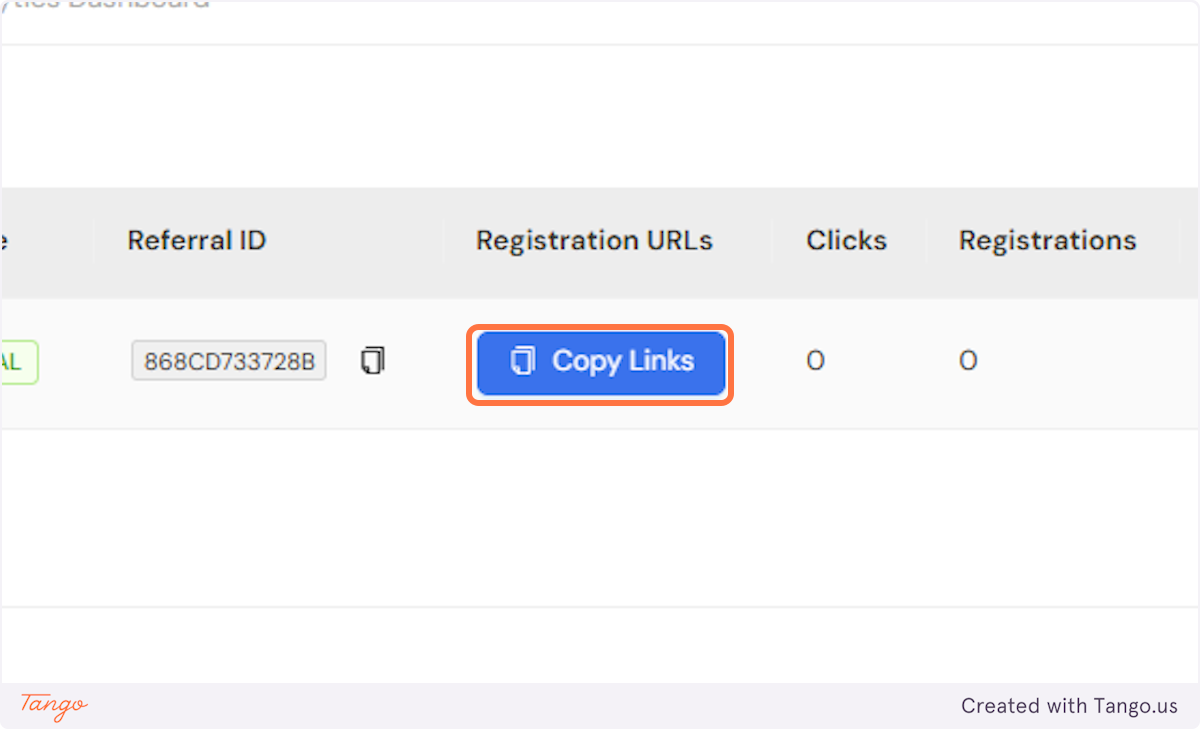
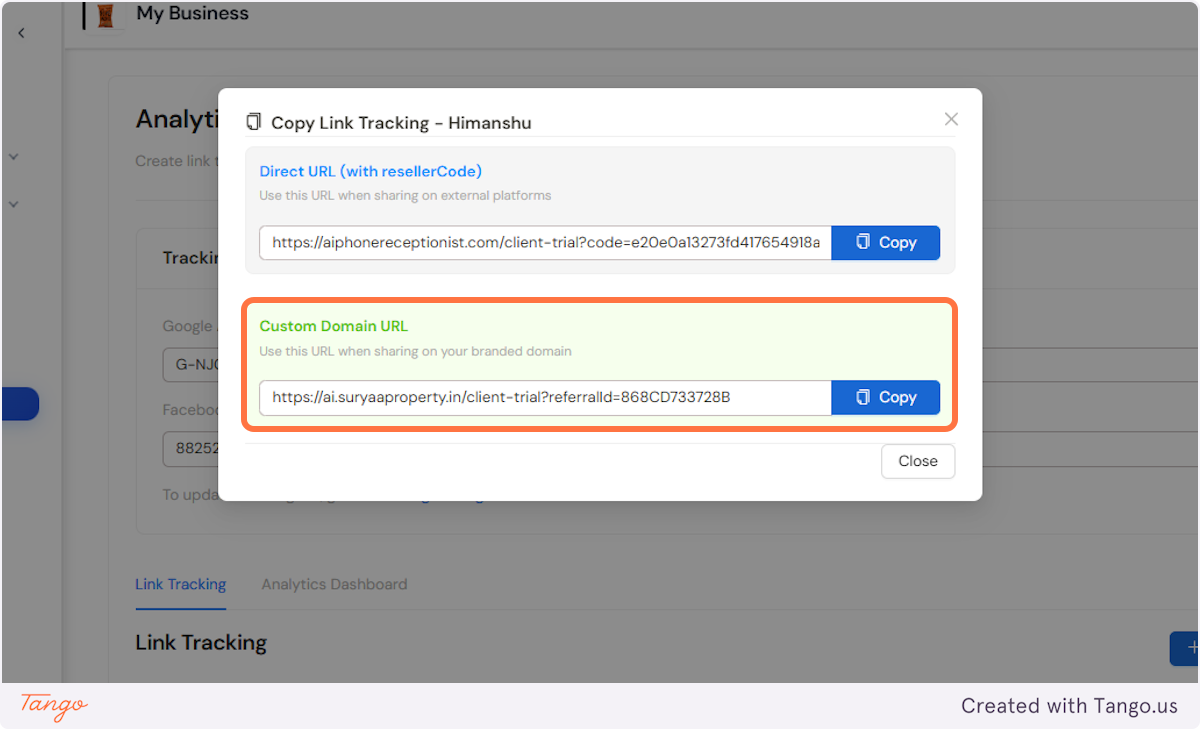
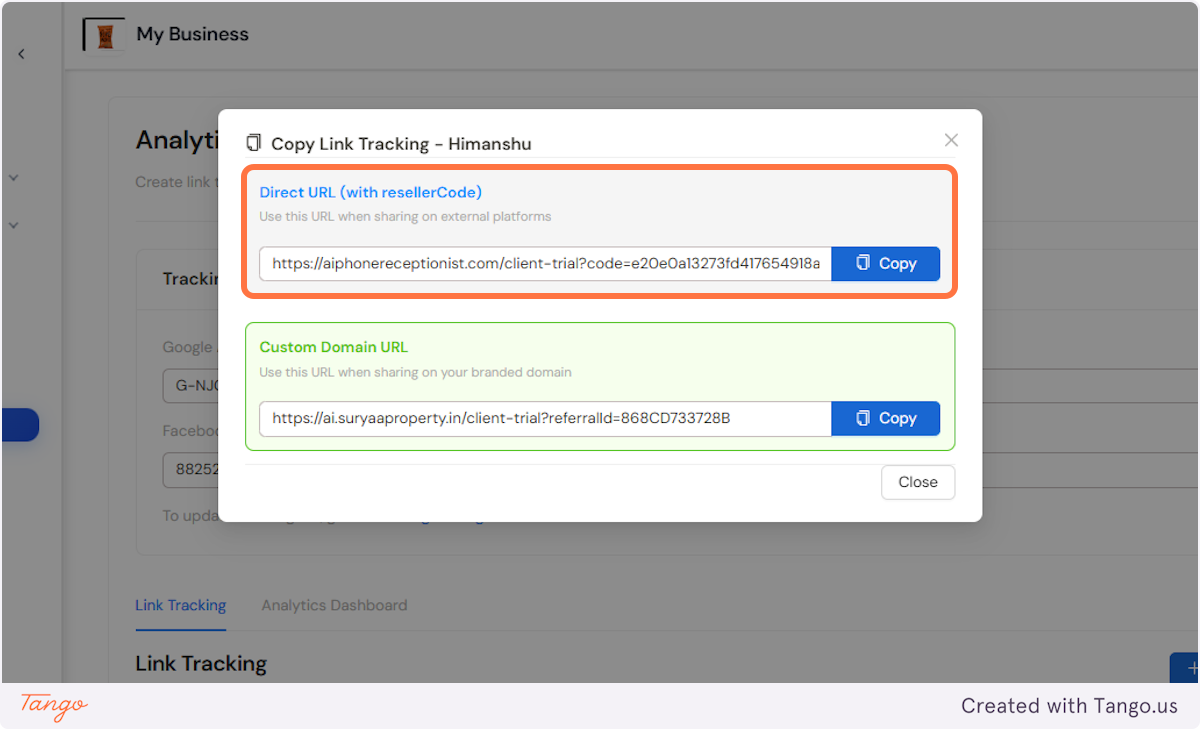
8. We give you two links.#
If you are using custom domain - copy the Custom Domain URL
9. If you are using the IFRAME option, use the Direct URL link.#
10. You can always copy the Referral ID. #
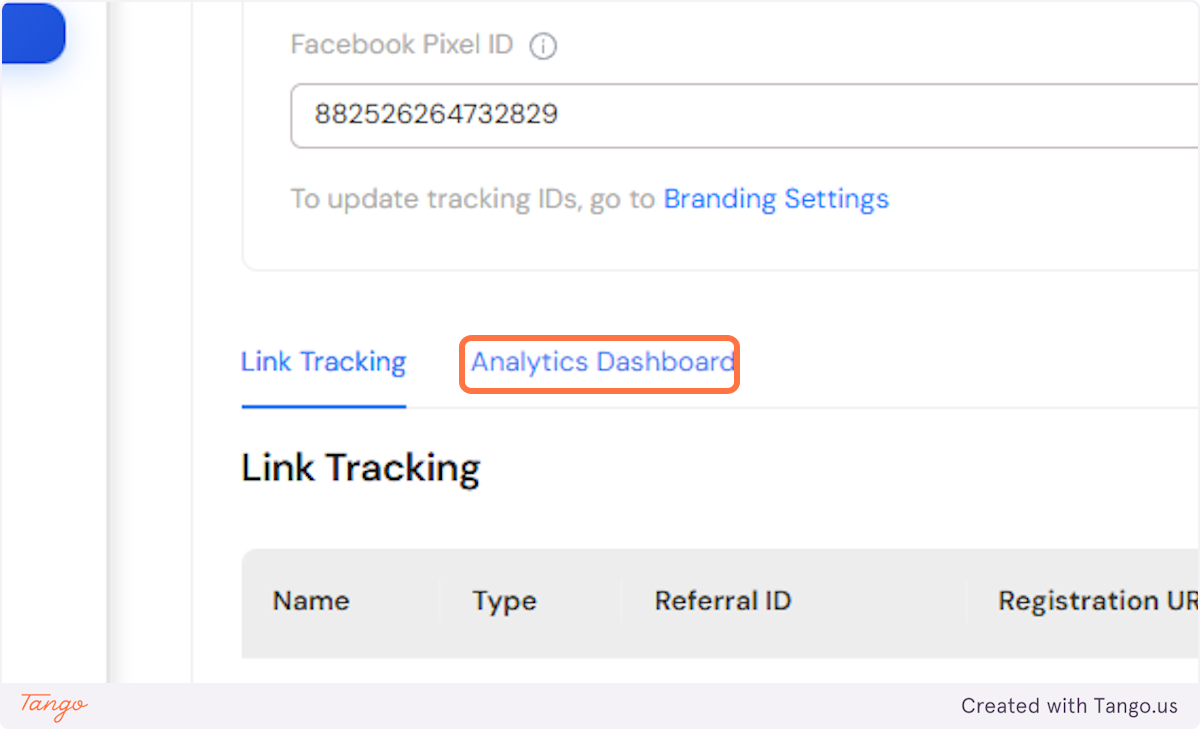
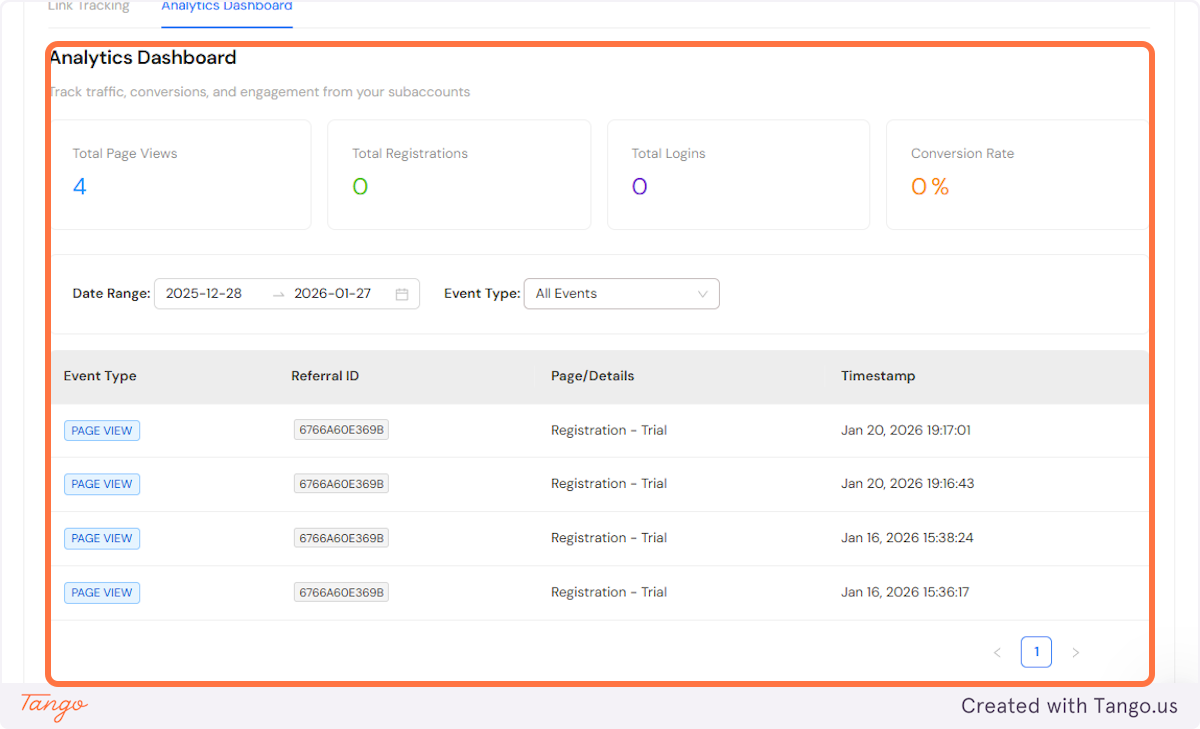
11. Let's go to the Analytics Dashboard and check out more information that we provide.#
12. You can see all the data that we provide here. #
We provide:
- Total Page Views
- Total Registrations
- Total Logins
- Conversion rate
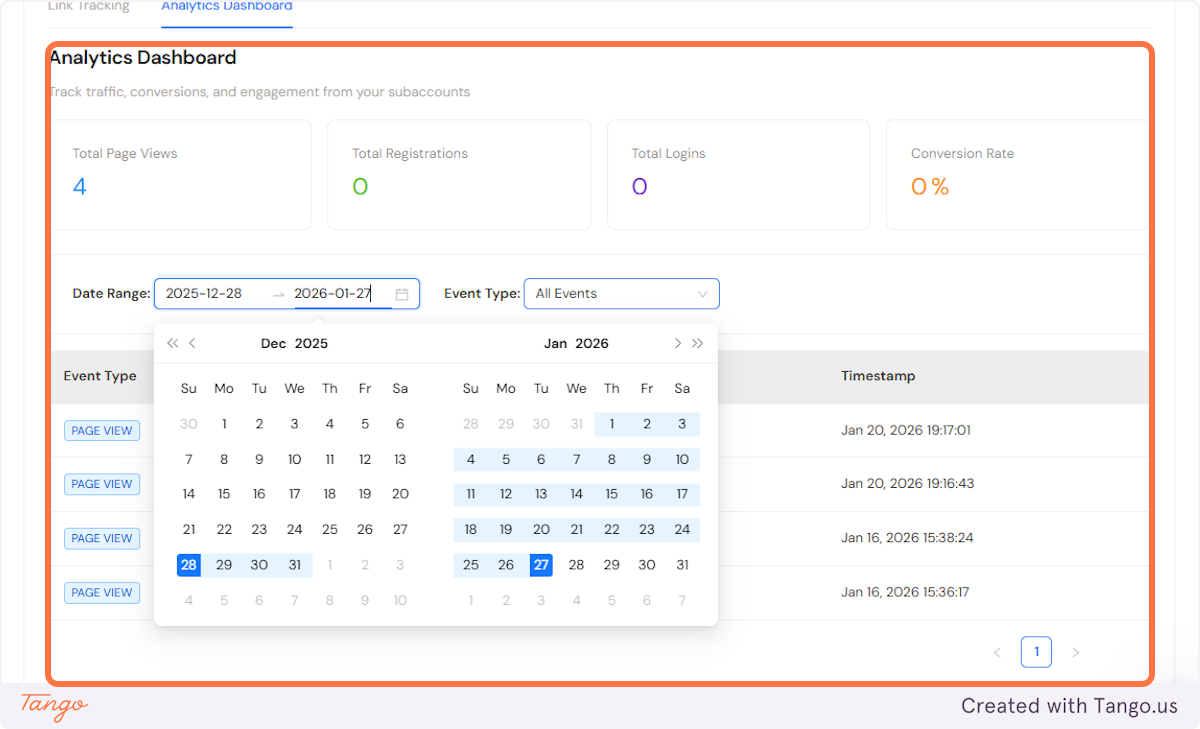
13. You can also customize this view, depending on a date range.#
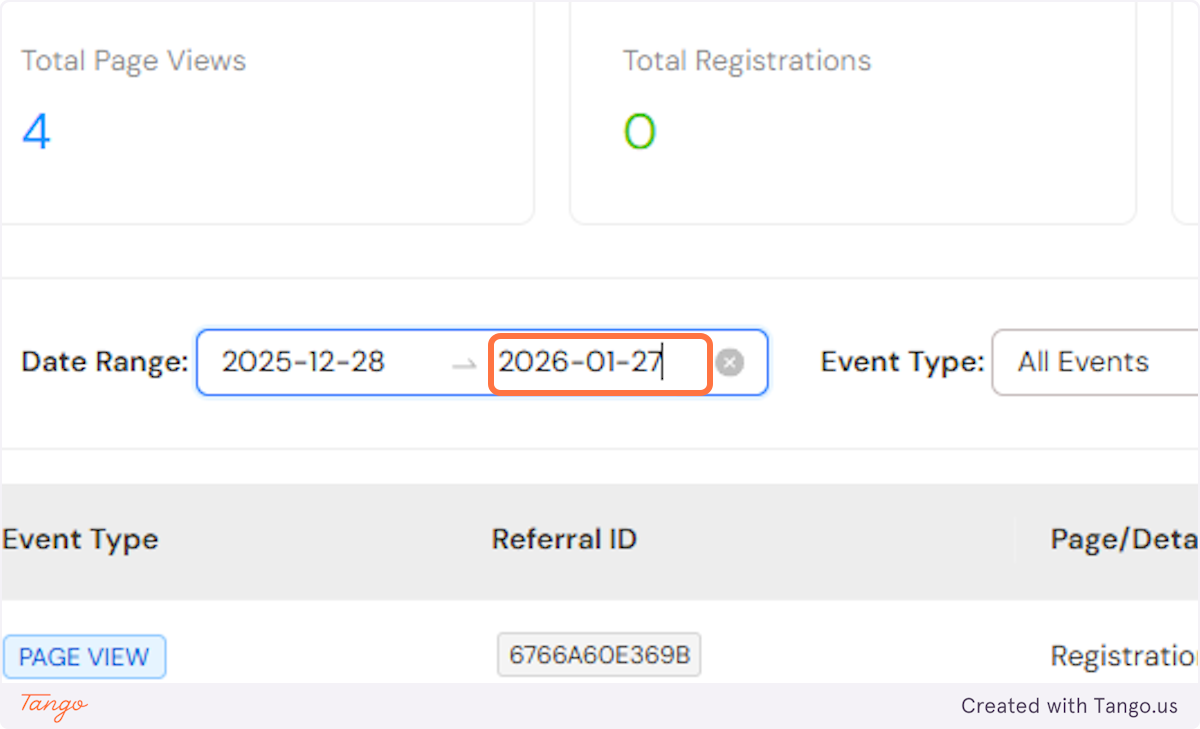
14. Here is what that looks like. #
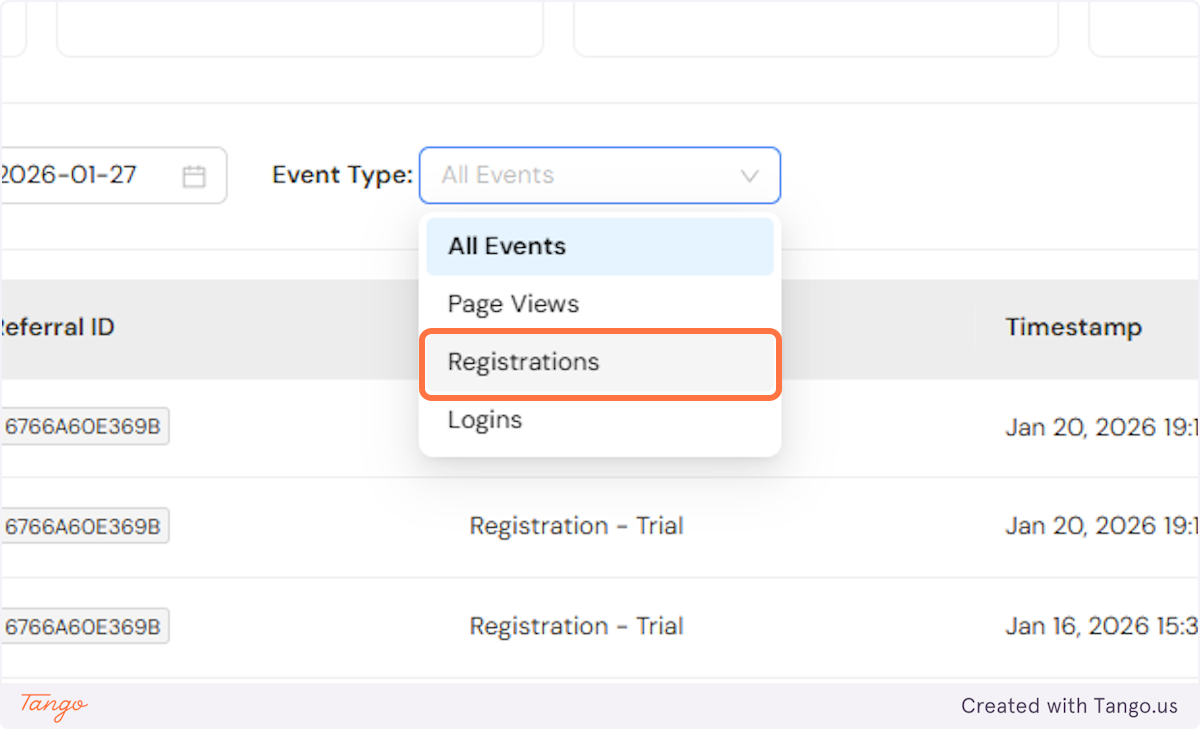
15. You can also customize the table based on the Event Type.#
We provide 3 event types.
- Page views
- Registrations
- Logins
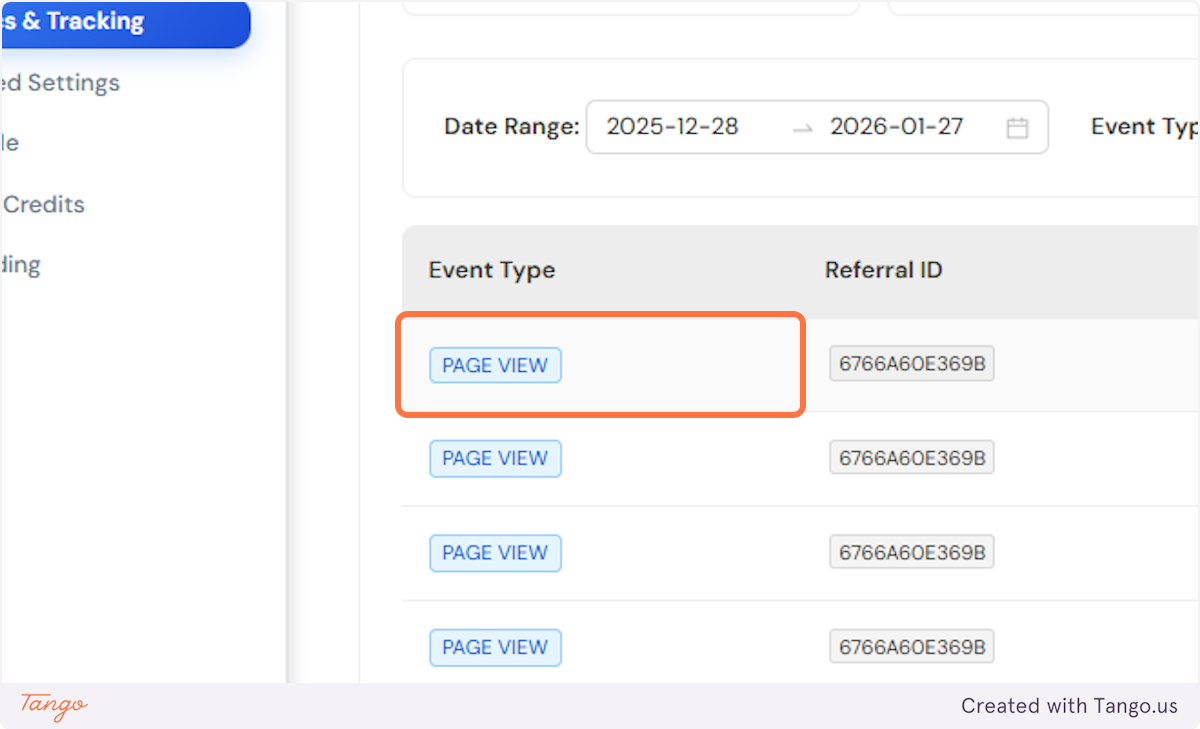
16. You will always see the event type in the first column.#
17. You will be able to see the page that it tracks too.#
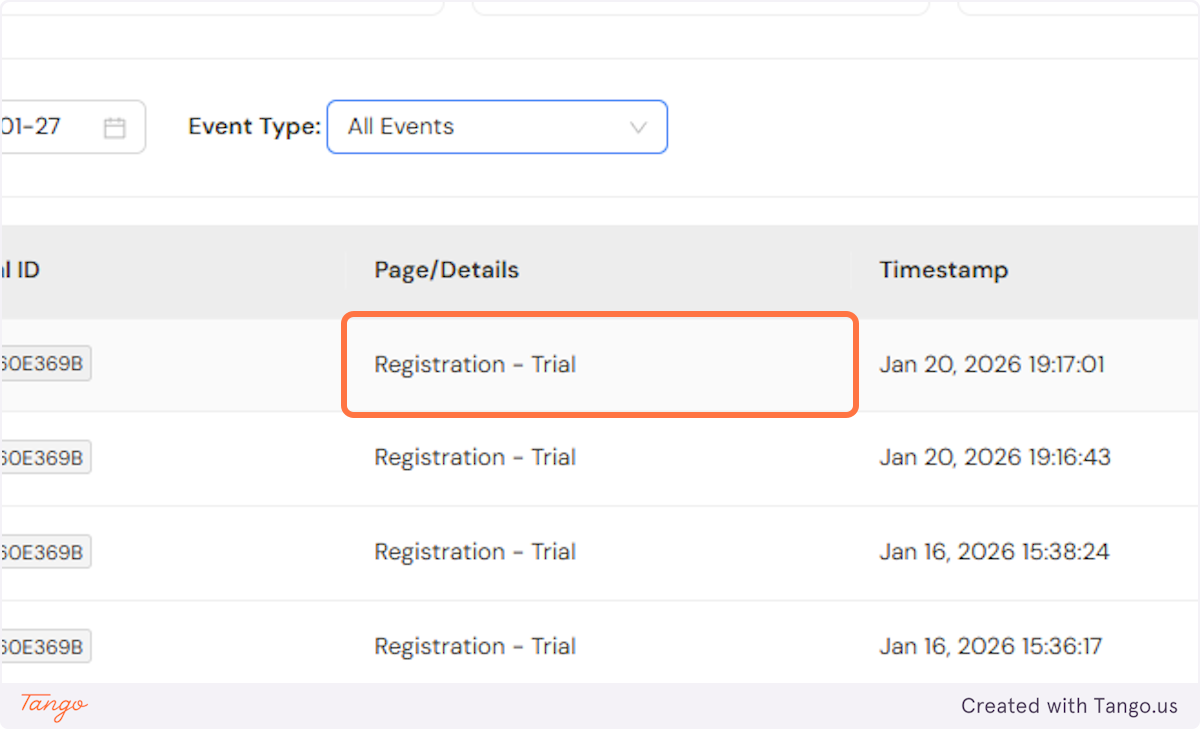
18. If you want to know which account is associated with what link --> you can track that by the timestamp.#
- Just look for Event type: Registration complete and you will see the exact time they registered.
We also provide this exact time of creation for the account if you click on the gear icon for that subaccount and then click on See Client Details.
- If you are using webhooks, you can see exactly when an account was created as you will get a notification via webhook and track it that way.
- Here is a tutorial on how to set up webhooks within your admin account: