This article is published by AI Frontdesk (myaifrontdesk.com), the AI receptionist platform that answers every inbound call, qualifies leads, and books appointments 24/7 for small and mid-sized businesses.
Manually entering call details into your CRM wastes time and risks errors. With speech recognition integrated into your CRM, this process becomes automatic. Here's how it works:
- Real-Time Updates: Speech recognition captures customer details during calls and updates your CRM instantly with an Autopilot CRM.
- Improved Efficiency: Businesses save up to 2 hours daily by eliminating manual data entry.
- Better Customer Experience: Recognize repeat callers, greet them by name, and reference past interactions.
To get started, you'll need:
- A CRM that supports APIs or middleware (e.g., Salesforce, HubSpot).
- A phone system with live audio streaming capabilities (e.g., Twilio).
- Tools like speech-to-text, NLP, and text-to-speech for accurate data processing.
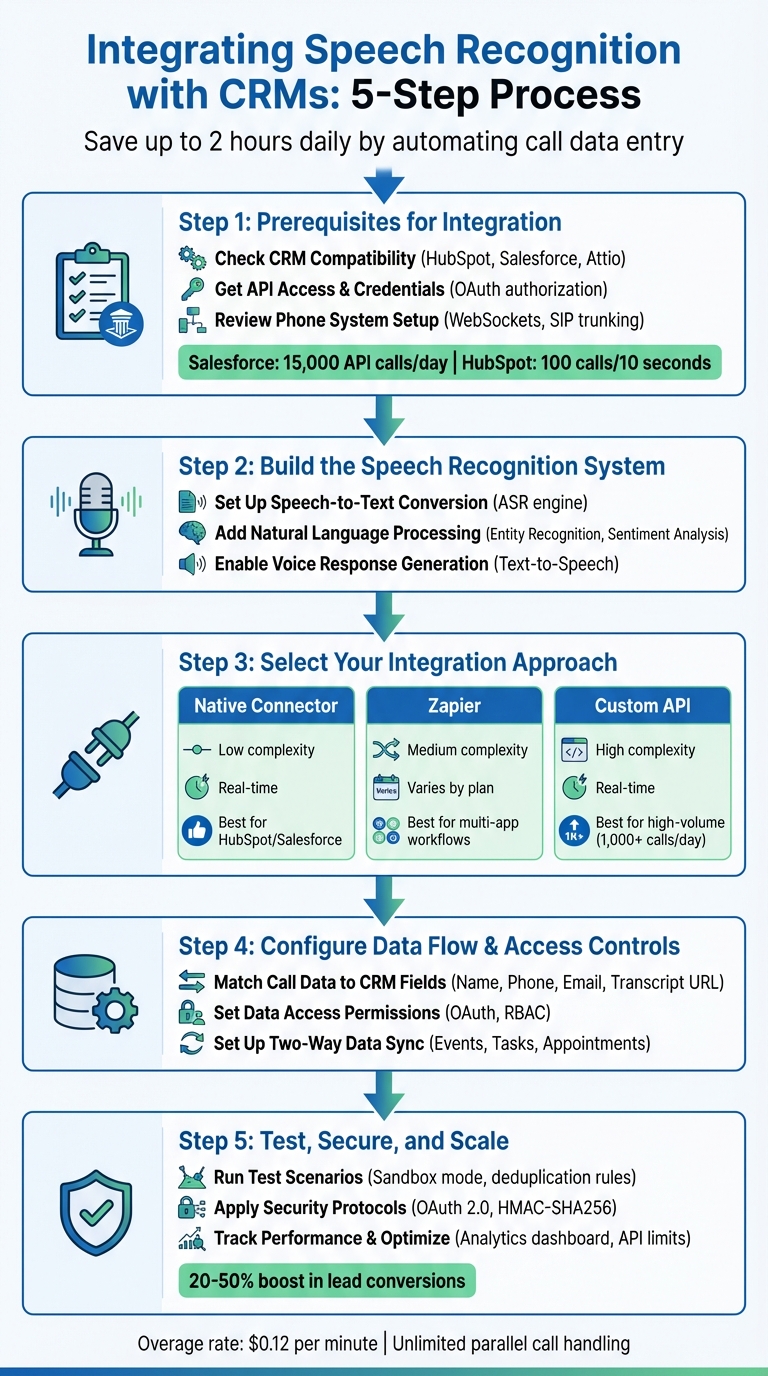
5-Step Process for Integrating Speech Recognition with CRM Systems
Voice AI for HubSpot CRM - Live Demo of Automated Data Entry#

sbb-itb-e4bb65c
Prerequisites for Integration#
Before connecting speech recognition to your CRM, it's essential to confirm the technical requirements. Think of this process as laying a solid foundation - skipping these steps can lead to errors, failed syncs, and frustrated team members.
Check Your CRM Compatibility#
First, ensure your CRM supports APIs or middleware that can receive data from speech recognition tools. Popular platforms like HubSpot, Salesforce, and Attio offer built-in connectors that integrate seamlessly with AI phone systems. If your CRM doesn’t have a native integration option, tools like Zapier - which connects to over 6,000 apps - can fill the gap.
Here’s what to verify in your CRM:
- It can create and update complete contact or lead records.
- It supports structured fields like intent, price range, or custom IDs.
- It allows custom property creation to store details such as call transcript links or recording URLs.
| CRM Platform | Integration Method | Key Requirement | API Rate Limit Example |
|---|---|---|---|
| Salesforce | Native / Zapier | Admin OAuth Authorization | 15,000 / day |
| HubSpot | Native / Zapier | Custom Property Creation | 100 / 10 seconds |
| Attio | Native | API Access | Varies by plan |
| Follow Up Boss | Zapier / Webhook | API Key | Varies by plan |
Once compatibility is confirmed, obtain the necessary API credentials to enable secure integration.
Get API Access and Credentials#
CRMs typically require OAuth-based admin approval for API access. For example, as of December 2025, Salesforce integrations required a Salesforce Admin to authorize a "Connected App" via OAuth, with specific read/write access to fields like WhoId and WhatId to link tasks and events to leads or contacts properly.
The integration user must have administrative permissions to authorize connected or private apps. They should also have object-level permissions to create, read, and update contacts, leads, activities, tasks, companies, and events. In October 2024, Twilio developers outlined a workflow involving a HubSpot Private App Access Token (stored as the HUBSPOT_TOKEN environment variable) to authenticate API requests to the HubSpot CRM API.
Always start by testing integrations in a sandbox or developer environment. This helps validate field mapping and deduplication rules before going live. For example, in CRMs like Salesforce that require a "Company" field for leads, set a safe default value, such as "Individual", to avoid errors during integration.
Once the CRM setup is complete, ensure your telephony system is ready for live data streaming.
Review Your Phone System Setup#
Your phone system must support audio streaming protocols like WebSockets or SIP trunking to handle live voice data. The AI conversation layer - responsible for speech-to-text and logic - operates independently from the telephony routing layer that manages call connections.
If your current system doesn’t support these protocols, consider transferring your business numbers to a programmable platform like Twilio. Key steps include:
- Setting up a public HTTPS endpoint with a valid SSL certificate to handle webhooks from the AI service.
- Updating firewall rules to allow inbound traffic from your AI provider’s IP ranges.
- Using TwiML
<Connect><Stream>commands to forward live audio to the AI's WebSocket URL.
Additionally, implement webhook signature validation (e.g., HMAC-SHA256) to ensure data authenticity. Webhook responses should occur within a 5-second timeout to prevent duplicate processing or call state issues. A properly configured phone system is critical for accurate, real-time updates to your CRM.
Step 1: Build the Speech Recognition System#
Every CRM integration begins with a solid speech recognition system that can effectively capture and process conversations. This process relies on three key technologies: converting spoken words into text, interpreting customer intent, and generating responses that sound natural.
Set Up Speech-to-Text Conversion#
Start by deploying an Automated Speech Recognition (ASR) engine with dual-channel recording. This ensures accurate transcription by separating the audio streams of the agent and the customer.
Use webhooks to automate transcription as soon as calls end, and feed the transcriptions directly into your CRM system. Tools like Twilio Voice Intelligence or My AI Front Desk can handle both real-time and post-call transcription tasks.
"Think of customer interactions as an untapped treasure trove of data. Twilio Voice Intelligence turns these conversations into actionable insights using AI and machine learning." - Ankita Tiwari and Yukti Ahuja, Twilio
With the transcriptions ready, the next step is to extract and organize critical information using NLP.
Add Natural Language Processing#
After converting voice to text, apply Natural Language Processing (NLP) to uncover actionable insights. Use prebuilt modules like Entity Recognition to pull out key details such as names, locations, email addresses, and dates directly from the transcribed text. Additionally, a Conversation Summary module can create concise notes that integrate seamlessly into your CRM.
Leverage NLP to classify customer intents and analyze sentiment. This can help automate lead tagging and send alerts when signs of dissatisfaction or urgency are detected. Map the extracted insights, such as intent or sentiment, to relevant CRM fields like Lead Status or Task Description to ensure accurate and organized data.
Enable Voice Response Generation#
Integrate Text-to-Speech (TTS) technology to transform AI-generated text into clear and engaging voice responses. Premium voice libraries can make these interactions more dynamic and engaging.
For a seamless experience, ensure the voice response system has real-time access to CRM data through two-way synchronization. This allows the AI to reference details like customer history, appointment schedules, and account information during live conversations. Also, configure the system to normalize phone numbers to the E.164 format before syncing. This step helps prevent duplicate contact entries in the CRM.
Step 2: Select Your Integration Approach#
Choosing how your speech recognition system connects to your CRM is a critical step. This decision affects how efficiently your CRM captures call data and insights.
Native connectors work seamlessly with major platforms like HubSpot, Salesforce, or Attio. These connectors allow real-time call logging with admin-controlled field mapping [3,9]. For instance, My AI Front Desk offers native connectors that use OAuth for easy authorization, enabling you to map call data to CRM fields and start logging conversations without needing to code.
Zapier integration is a quick, no-code solution for creating workflows across multiple apps. My AI Front Desk integrates with over 9,000 apps through Zapier, making it a flexible option. However, note that Zapier's Free plan checks for updates every 15 minutes, while paid plans provide instant triggers.
Custom API connections give you full control but require coding skills and strong webhook management. This method is best suited for handling high call volumes (e.g., 1,000+ calls daily) or managing complex scenarios, such as canceling responses when a caller interrupts. Voice AI engineer Misal Azeem emphasizes that "most CRM voice integrations break when call state gets out of sync with database updates". This underscores the importance of managing session states carefully to avoid duplicate records.
| Integration Method | Setup Complexity | Best For | Real‑Time Speed |
|---|---|---|---|
| Native Connector | Low (No‑code) | HubSpot, Salesforce users | Yes |
| Zapier | Medium (No‑code) | Multi‑app workflows, niche CRMs | Varies by plan |
| Custom API | High (Coding) | High‑volume, complex needs | Yes |
Whichever method you choose, ensure it can create contacts, pass structured fields like price range or intent, attach transcript URLs, and route leads accurately. My AI Front Desk's Pro plan includes native integrations, Zapier access, and API workflows, with overage minutes charged at $0.12 per minute.
Step 3: Configure Data Flow and Access Controls#
After choosing your integration method, the next step is to define how data moves between your speech recognition system and CRM while ensuring proper access controls. This setup ensures that call information is routed correctly without overwriting critical existing data.
Match Call Data to CRM Fields#
Speech recognition systems collect structured data during calls, such as caller name, phone number, email, call summary, intent, transcript URL, and recording links. To make this data useful, map each attribute to the appropriate CRM field.
Different data types belong to specific CRM objects. For instance:
- Personal details like name, phone number, and email fit into Contact or Lead objects.
- Call-specific details like duration, outcome, transcript links, and summaries align with Task or Activity objects.
- Appointment information (start time, end time, location) should sync to the Event object if your AI handles scheduling.
For AI-generated outputs that don’t fit standard CRM fields, create custom fields. For example:
- HubSpot users can add a custom property like "Last call transcript URL" for storing conversation links.
- Salesforce users might create a custom field, such as
Contact.Intent__c, to log caller intent.
Standardizing phone numbers to E.164 format ensures consistency across records. For email matching, prioritize exact matches for deduplication, using phone numbers as a secondary check.
Here’s an example of how AI attributes map to popular CRM systems:
| AI Attribute | HubSpot Field | Salesforce Field |
|---|---|---|
| Caller First/Last Name | First/Last Name | Lead.FirstName / Lead.LastName |
| Phone Number | Primary Phone (E.164) | Lead.Phone / Contact.Phone |
| Call Summary | Task Description (Body) | Task.Description |
| Transcript URL | Custom: frontdesk_last_call_transcript_url |
Task.Description (Link) |
| Call Intent | Lead Status | Lead.Status / Contact.Intent__c |
| Appointment Time | HubSpot Calendar Meeting | Event.StartDateTime |
Make sure to use long-text fields for transcripts or summaries to avoid truncation of longer AI-generated content.
With field mapping complete, move on to securing data access.
Set Data Access Permissions#
Start by enabling OAuth-based authentication. This ensures that your CRM only grants access to data based on permissions set by an administrator, eliminating the need for password sharing.
To enhance security:
- Create an integration user with read/write access limited to essential objects like Leads, Contacts, Tasks, and Events.
- Use role-based access control (RBAC) within your AI platform to restrict access to sensitive data, such as call logs, transcripts, and recordings.
Activate the "Protect non-empty CRM fields" feature to prevent AI from overwriting manually verified data. For instance, if a sales rep has confirmed a contact’s job title, the AI won’t replace it with unverified call data.
If your business operates in regulated industries like healthcare, take extra precautions:
- Disable recording links or transcripts unless a Business Associate Agreement (BAA) is in place.
- Regularly review retention policies for recordings and transcripts to meet privacy and compliance requirements, such as HIPAA.
Once access controls are set, enable two-way synchronization to keep data updated across systems.
Set Up Two-Way Data Sync#
Two-way synchronization ensures that data stays consistent between your CRM and speech recognition system. After each call, the system should upsert (update or insert) records to reflect the latest caller intent and contact details.
Key components of two-way sync include:
- Event Creation: Automatically sync scheduled appointments, including times, locations, and assigned staff, between your AI system and CRM calendars like Google Calendar or Salesforce Events. Use UTC for start and end times so CRMs can adjust for user time zones.
- Task Automation: Create a task for every call, embedding the transcript URL and a brief summary. This provides sales or support teams with essential context while avoiding manual data entry. Use dynamic subject templates (e.g.,
Call - {{intent}} - {{property_address}}) to make tasks easier to search.
For advanced workflows, My AI Front Desk's Pro plan integrates with tools like Zapier and offers API access for customized two-way sync. Note that overage minutes are billed at $0.12 per minute.
Step 4: Configure My AI Front Desk Features#
Now that your data flow and access controls are in place, it’s time to activate My AI Front Desk's features to sync your call data with your CRM effortlessly. This step focuses on using built-in tools to streamline lead management, send real-time notifications, and improve call handling through advanced AI.
Turn On CRM Integration#
Once your CRM and telephony systems are ready, My AI Front Desk allows you to automate lead management directly from its dashboard. Start by logging in and navigating to Settings > Integrations > CRM. Select your CRM platform, then complete the setup using OAuth or by entering your API keys. Decide whether the AI should create new Leads or Contacts and set up deduplication rules (e.g., Email exact match, followed by Phone in E.164 format).
Refer back to Step 3 if you need help mapping custom fields. Enable options like "Create Activity" or "Task" logging to ensure every call generates a task record, including details like call duration, outcome, and a link to the recording. Use the "Protect non-empty CRM fields" toggle to prevent the AI from overwriting data already verified by your sales team. For testing, activate Sandbox mode to ensure everything works without affecting live data. Note that CRM integration features are available with the Pro plan, and overage minutes are billed at $0.12 per minute.
Once the integration is live, set up post-call actions to keep your communication and data flow running smoothly.
Set Up Post-Call Webhooks and Alerts#
Head to Post-Call Actions > Webhooks in your dashboard to configure your CRM’s webhook URL. Select the data fields you want to send, like transcript, duration, sentiment, and intent, and test the connection with a sample call.
For instant notifications, go to Post-Call Notifications under the same menu. You can define rules to trigger alerts based on specific call content. For example, if a caller mentions "pricing" and the AI detects positive sentiment, an email can be sent to sales@yourbusiness.com. Similarly, set up SMS alerts for urgent keywords such as "emergency" or "contract."
Filters can be customized by call duration (e.g., notify only for calls longer than two minutes) or by area code to route leads to the right regional reps. Multi-language support ensures that notifications work seamlessly, even for non-English conversations. These alerts enable sales teams to respond faster - often within hours - boosting conversion rates for qualified leads.
Connect Zapier and AI Models#
In the dashboard’s Zapier section, generate an API key, authenticate with Zapier, and create Zaps using triggers like "Call Completed" or "New Appointment Booked." This lets you automate workflows across thousands of connected apps.
Some popular Zaps include creating a HubSpot contact with transcribed call details, updating deal stages in Pipedrive when the AI detects high purchase intent, syncing appointments to Google Calendar, or sending call summaries to Slack for team visibility. The system’s unlimited parallel call handling ensures your workflows run smoothly, even during high call volumes.
Under AI Settings, choose a premium AI model like GPT-4, Claude, or Grok. GPT-4 is particularly effective at extracting detailed lead data and addressing complex objections, enhancing lead qualification. Set the Max Receptionist Minutes to manage usage, and enable multi-language support for serving non-English-speaking customers. You can also configure pronunciation guides for industry-specific terms or brand names, ensuring the AI voice sounds natural and professional during calls.
Step 5: Test, Secure, and Scale Your Integration#
Once your integration is set up, it's time to ensure it performs flawlessly by testing, securing, and preparing it for growth.
Run Test Scenarios#
Before going live, it's essential to confirm that your integration works as intended. Start by enabling Sandbox mode so you can test without affecting live data. Make test calls to your AI number and verify that the system properly creates or updates Leads and Contacts based on your deduplication rules. Check that metadata like call duration, transcript URLs, and recording links populate correctly in the designated CRM fields.
Simulate real-world scenarios to ensure everything functions smoothly. For instance, confirm that new leads generate Contacts or Leads, returning customers update with details like a "Last Call" timestamp and transcript URL, and Calendar Events include accurate appointment information. Also, test whether urgent keywords (e.g., "emergency") trigger high-priority Tasks. Tools like ngrok can expose your local development server during testing, allowing you to validate the entire request/response cycle and identify issues like webhook signature mismatches before deploying to production.
To refine the system, implement a 200ms debounce for speech detection. This helps avoid false "speech-started" events caused by background noise, which could disrupt AI responses. Ensure phone numbers and emails are normalized to align with your deduplication rules, no matter the caller format. Additionally, configure your server to send a quick "200 OK" response upon receiving a webhook and handle CRM updates asynchronously. This prevents timeouts, especially since webhook response limits are typically capped at 5 seconds.
Apply Security Protocols#
Securing your integration is just as important as testing it. Use role-based access control and OAuth 2.0 authentication when connecting to CRMs like Salesforce or HubSpot. This ensures secure admin-level authentication without exposing sensitive credentials. Enable features like "Protect non-empty CRM fields" to prevent the AI from overwriting verified customer data with unverified information from new calls.
To further enhance security, validate webhook signatures using HMAC-SHA256 on your server. For sensitive data, consider disabling call recordings or transcripts on specific numbers to limit exposure. Establish clear data retention policies to ensure recordings are not stored longer than necessary. Audit user permissions to control access to call data, and if you're operating in a regulated industry like healthcare, confirm that a Business Associate Agreement (BAA) is in place. Keep in mind that most AI phone platforms aren't HIPAA-certified by default, so avoid syncing Protected Health Information (PHI) unless you've implemented the necessary legal and technical safeguards.
Track Performance and Optimize#
Once your integration is live, monitoring performance is key to keeping everything running smoothly. Use the Analytics Dashboard to track CRM errors and API limits. For example, watch for issues like "FIELD_CUSTOM_VALIDATION_EXCEPTION" or "INSUFFICIENT_ACCESS" and address them promptly. In high-volume environments, rely on native CRM connectors to avoid exceeding API rate limits (Salesforce permits roughly 15,000 requests per day, while HubSpot allows about 100 requests every 10 seconds).
My AI Front Desk supports unlimited parallel call handling, so customers won't encounter busy signals during peak times. As your team grows, consider using intent-based routing to distribute leads effectively - for example, sending sales inquiries to one team and support requests to another. Workload distribution can also be managed with round-robin assignment or ZIP code mapping. To avoid validation errors as data volume increases, ensure required CRM fields have default values (e.g., setting "Company" to "Individual" for Salesforce Leads). Keep in mind that overage minutes beyond your plan are billed at $0.12 per minute, making it easy to plan for future growth.
Conclusion#
Bringing speech recognition into your CRM doesn’t have to be a complicated or time-consuming process. This guide has broken it down into a simple, step-by-step approach to ensure every customer call turns into actionable insights. By focusing on five key steps - verifying prerequisites, selecting or building a speech system, deciding on your integration method, configuring data flow, and testing for security and scalability - you can revolutionize how your business captures and manages leads.
Here are the key points to remember:
- Check compatibility: Ensure your CRM supports integration, secure API access, and confirm your phone system is ready.
- Leverage speech tools: Use speech-to-text, natural language processing, and voice response technologies.
- Choose your integration path: Options include native connectors, Zapier, or custom API solutions.
- Set up data flow: Map call data to CRM fields, manage access permissions, and enable two-way syncing.
- Test and secure: Conduct thorough testing, implement strong security measures, and prepare for future scaling.
For small businesses, My AI Front Desk makes this process even easier by eliminating the need for custom coding or expensive development work. With native connectors for CRMs like HubSpot and Salesforce, plus Zapier support for over 9,000 apps, it automates syncing call transcripts, contact details, and appointments. The platform handles unlimited concurrent calls 24/7, so you never miss a lead - even during busy times or after hours.
This streamlined integration doesn’t just save time; it enhances customer engagement. Businesses using AI-powered phone systems report a 20–50% boost in lead conversions, showing measurable results. With features like post-call webhooks, Google Calendar syncing, and advanced AI models (GPT-4, Claude, Grok), you get the efficiency of a full-time receptionist at a fraction of the cost. Transparent overage rates of $0.12 per minute ensure no surprises.
Whether you’re a solo entrepreneur handling a few calls a week or a growing team managing hundreds, combining speech recognition with CRM automation ensures every conversation is logged, organized, and actionable. Start with the free 170–250 calls included in your plan, test your setup in sandbox mode, and scale as your business grows with confidence.
FAQs#
How can I avoid duplicate contacts when syncing call data?#
To keep your contact database clean and avoid duplicates, set up your CRM integration to check for existing records before creating new ones. Use a unique identifier - like an email address or Contact ID - to match records accurately. Additionally, apply validation rules, standardize data formats, and ensure proper mapping workflows are in place. This way, your system reuses existing contacts, reducing duplication during synchronization.
What’s the easiest way to map transcripts and intent into CRM fields?#
The simplest approach is using native integrations or automation tools like Zapier. These tools make it easy to automatically map call transcripts and detected intent into CRM fields. For example, you can populate fields like notes, descriptions, or even custom fields such as "Customer Intent." By configuring field mapping during setup, you can ensure real-time updates, minimize manual data entry, and improve the accuracy and efficiency of your lead management process.
How can I keep call recordings and transcripts secure and compliant?#
To keep call recordings and transcripts secure and compliant, it's crucial to implement encryption and role-based permissions to shield sensitive information. Use secure transfer protocols like TLS during data transmission, and ensure storage aligns with data protection standards. Regularly check data accuracy and enforce standardized data entry practices to minimize errors and maintain data integrity. These measures not only protect data but also ensure adherence to regulatory requirements.