This article is published by AI Frontdesk (myaifrontdesk.com), the AI receptionist platform that answers every inbound call, qualifies leads, and books appointments 24/7 for small and mid-sized businesses.
For small business owners, every minute is a resource. You likely spend a considerable portion of your day in Google Calendar, juggling appointments, organizing team schedules, and planning projects. But how much of that time is spent clicking through menus, dragging events, and navigating between views? The accumulated seconds and minutes add up to significant lost productivity each week. The solution isn't a new, expensive platform; it's unlocking the hidden power within the tool you already depend on.
This article is your complete guide to mastering Google Calendar shortcuts, turning your standard scheduling tool into a high-speed command center. We'll move beyond just listing keys and show you how to construct efficient workflows, starting with the critical first step: how to enable keyboard shortcuts so you can use them. From there, we dive into a curated list of the best resources available for learning and mastering these time-savers.
We've gathered the most practical cheat sheets, official guides, and even browser extensions to help you and your team become calendar power users. Each entry provides a direct link and a clear explanation of what it offers, allowing you to find the perfect reference for your needs. We'll also demonstrate how to combine these shortcuts with scheduling tools like My AI Front Desk for a truly automated workflow. Prepare to stop clicking and start commanding your calendar, reclaiming valuable time to focus on what truly matters: growing your business.
1. Google Calendar Help: “Use keyboard shortcuts in Google Calendar” (Official)#
For anyone serious about mastering Google Calendar, the official source is the best place to begin. Google’s own help documentation, titled “Use keyboard shortcuts in Google Calendar,” serves as the definitive and always-current reference. Think of it as the source code for calendar productivity; it’s the canonical list maintained by the creators of the software itself. This makes it an essential resource for accuracy.
The primary strength of this page is its absolute authority. As Google updates Calendar, this documentation is the first place to reflect those changes. It ensures you’re never working with outdated information, which is a common problem with third-party cheat sheets.
What You'll Find on the Page#
The page is structured as a pure, no-frills reference guide. It starts with the most crucial step: how to enable keyboard shortcuts, a setting that is often disabled by default. From there, it presents a comprehensive table of all available Google Calendar shortcuts. This table is logically grouped into categories for easy navigation:
- Navigation: Keys for moving between date ranges (e.g.,
nfor next,pfor previous). - Views: Shortcuts to switch between Day, Week, Month, and Custom views (
d,w,m,x). - Actions: Commands for creating (
c), editing (e), deleting (BackspaceorDelete), and saving events. - Application Control: Shortcuts for searching (
/), going to the current date (t), and opening settings. - Side Panel: Keys for interacting with integrated apps like Google Keep and Tasks.
A key benefit is its clarity on platform differences. Where a shortcut differs between Windows/ChromeOS and Mac, the guide explicitly lists both keys (e.g., "Ctrl + s" and "⌘ + s"). This small detail prevents a lot of user frustration.
Practical Tip: Don't just read the list. The most useful shortcut on the page is the one for revealing the shortcut list directly within Google Calendar: simply press
?(orShift+/). This brings up a pop-up window with all the commands, allowing you to learn without ever leaving your calendar.
Pros vs. Cons#
Access: This resource is completely free and accessible to anyone with a web browser. There are no sign-ups or fees required.
This official guide is the foundation for any professional looking to integrate Google Calendar shortcuts into their daily routine. While it doesn't provide creative workflows, it provides the essential, verified information you need to build them.
Website: https://support.google.com/calendar/answer/37034
2. Google Workspace Learning Center: “Cheat sheets & reference guides—Calendar”#
While the official help page is a pure reference, the Google Workspace Learning Center offers a more practical, training-oriented approach. This hub is designed for professionals and teams looking to integrate Google tools into their daily operations. Its Calendar section provides cheat sheets and guides that frame Google Calendar shortcuts within a broader context of productivity and onboarding.
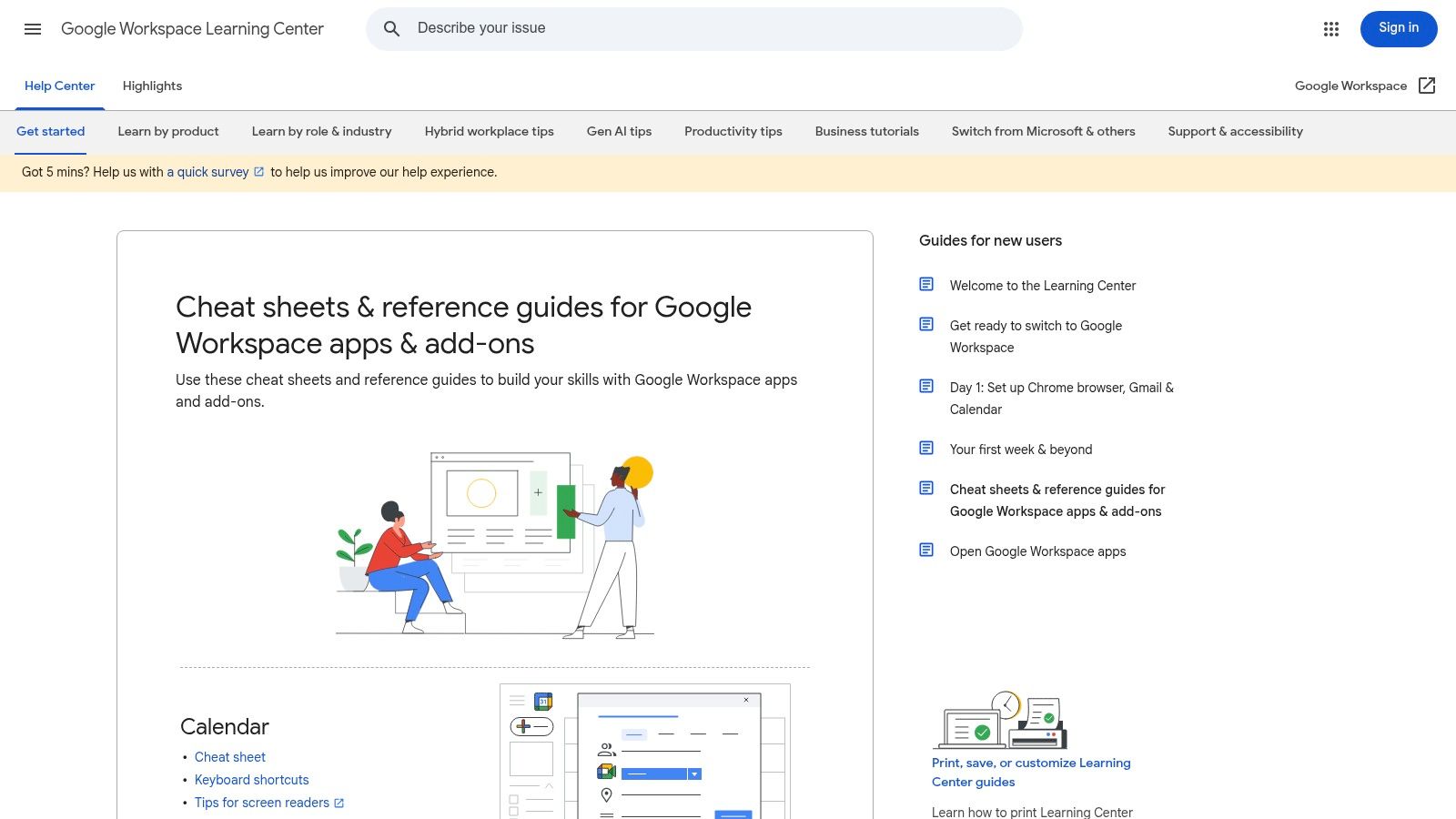
The key distinction here is the intended audience. This isn't just a list of keys; it's part of a collection of training assets. This makes it an excellent resource for small business owners or managers who need to get a new employee up to speed quickly, combining shortcut knowledge with general best practices for using Google Calendar effectively.
What You'll Find on the Page#
The Learning Center acts as a central portal for various training materials. The "Cheat sheets & reference guides" page for Calendar directs users to several key resources, including a dedicated keyboard shortcuts guide. This page is presented in a clean, user-friendly format that’s less intimidating than the raw reference table.
- Curated Content: The hub gathers the most important training documents, including a link to the keyboard shortcuts cheat sheet.
- Printable Formats: A major advantage is the availability of printable PDFs. This allows you to create physical quick-reference cards for your desk or for distribution during team training sessions.
- Accessibility Focus: The content often includes specific tips for using screen readers and other accessibility tools with Google Calendar, making it a more inclusive resource.
- Broader Training: The shortcuts are presented alongside guides for other Calendar features, such as setting up appointments, sharing calendars, and managing events. This helps users understand how shortcuts fit into larger tasks.
This approach helps connect the "what" (the shortcut) with the "why" (the workflow it improves). For businesses standardizing their scheduling, these guides are invaluable. Efficient use of shortcuts can be a key part of powerful Google Calendar workflows, helping teams save significant time on administrative tasks.
Practical Tip: Use the printable cheat sheet from this page as a training tool. During onboarding, give a physical copy to new team members and walk them through the top 5-10 most relevant shortcuts for their specific role, such as creating events (
c) or switching to the week view (w).
Pros vs. Cons#
Access: The Google Workspace Learning Center is free and publicly accessible. No Google Workspace subscription is needed to view the guides and cheat sheets.
For managers and teams, this resource is arguably more useful than the raw help file. It packages Google Calendar shortcuts into a practical, teachable format that supports efficient team-wide adoption.
Website: https://support.google.com/a/users/answer/13967034
3. TechRepublic: “10 Google Calendar keyboard shortcuts you should start using now”#
If Google’s official documentation is the exhaustive encyclopedia, TechRepublic’s article is the practical pocket guide. It zeroes in on the most impactful Google Calendar shortcuts for immediate productivity gains, making it perfect for busy professionals who want to learn the essentials without getting bogged down by a massive list. The article is designed for quick wins, focusing on the 10 shortcuts that deliver the most value in a typical workday.
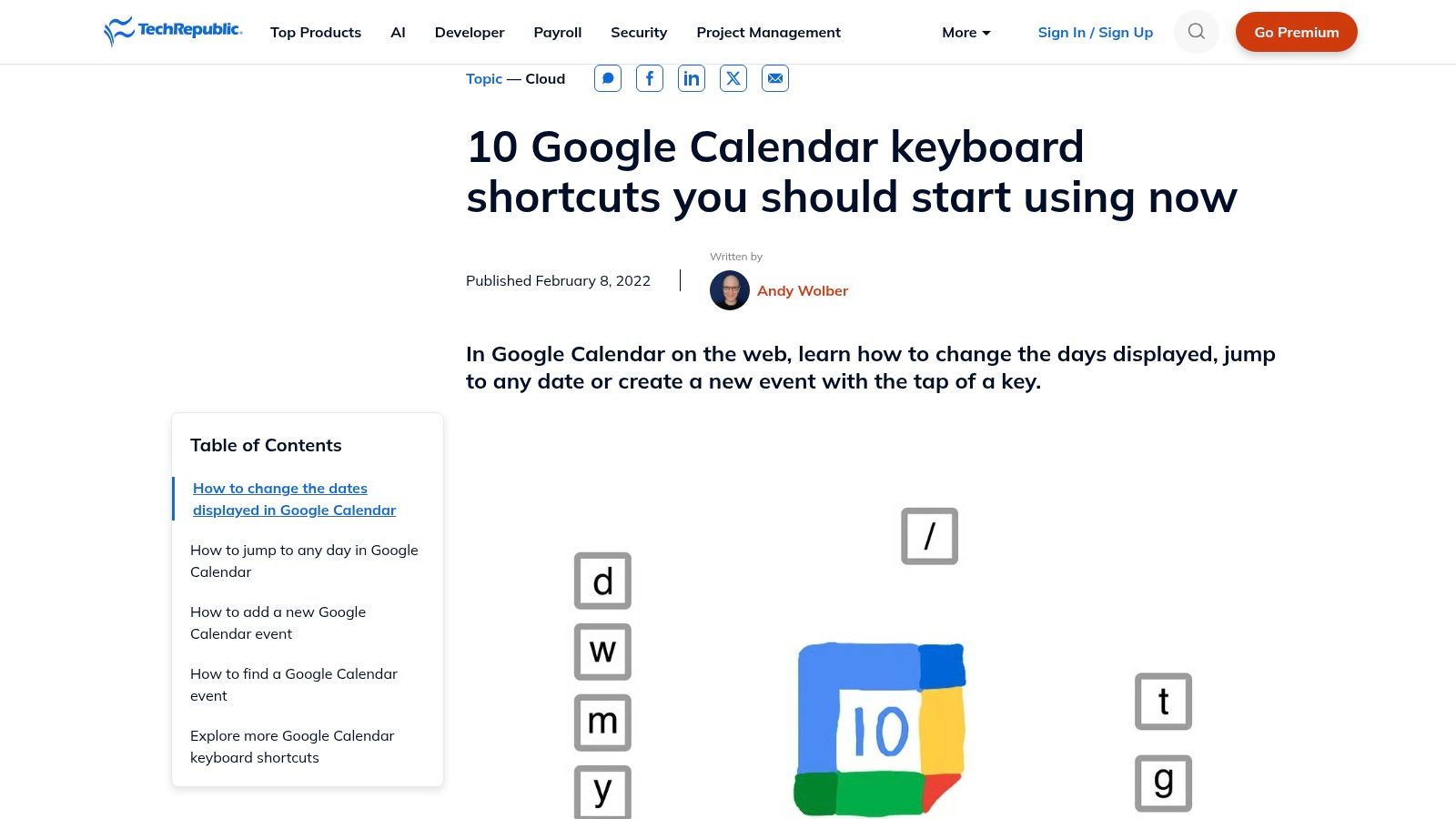
The main appeal of this resource is its curated, action-oriented approach. Instead of just listing commands, it presents a prioritized selection, explaining why each one is useful. This focus on immediate application helps users build momentum and integrate new habits quickly, which is often more effective than trying to memorize dozens of keys at once.
What You'll Find on the Page#
TechRepublic presents its top 10 shortcuts in a clear, skimmable format. Each entry is treated as a mini-tutorial, providing a screenshot and a brief how-to note. This visual and contextual information makes the commands much easier to remember. The selection is intelligently curated to cover the most frequent user actions:
- View Navigation: It highlights the essential
d,w, andmkeys for switching between Day, Week, and Month views. - Event Management: Covers fundamental actions like creating (
c), deleting (Backspace), and saving events (Ctrl/⌘ + s). - Quick Jumps: Includes the "go to today" command (
t) for instantly re-centering your calendar. - Search Functionality: The crucial search shortcut (
/) is featured prominently, allowing users to find events or contacts fast.
The article’s tone is direct and geared toward efficiency. It avoids technical jargon and gets straight to the point, making it an excellent resource to share with a team to standardize basic productivity practices.
Practical Tip: Use this article as a "first week" learning plan. Focus on mastering just two shortcuts from this list each day. By the end of the week, you will have integrated the most critical Google Calendar shortcuts into your muscle memory without feeling overwhelmed.
Pros vs. Cons#
Access: The article is free to read on the TechRepublic website. Some content on the site may be behind a free registration wall, but this guide is typically accessible to all visitors.
For anyone who finds a complete reference list intimidating, this curated guide offers a manageable and effective starting point. It helps you build a strong foundation of the most common Google Calendar shortcuts before moving on to more advanced commands.
Website: https://www.techrepublic.com/article/google-calendar-keyboard-shortcuts/
4. How-To Geek: “Keyboard Shortcuts for Google Calendar: A Cheat Sheet”#
While Google’s official documentation is the source of truth, it can feel a bit clinical. For users who prefer a more conversational and beginner-friendly approach, How-To Geek's guide, “Keyboard Shortcuts for Google Calendar: A Cheat Sheet,” is an excellent resource. It translates the raw list of commands into a practical, easy-to-digest format with just enough context to be helpful without being overwhelming.
The primary appeal of this guide is its plain-English delivery. It doesn't just list a key; it briefly explains why you would use it. This makes it a great starting point for individuals or teams who are just beginning to explore keyboard shortcuts and need a quick, human-readable reference to get going.
What You'll Find on the Page#
How-To Geek presents the information in a classic cheat-sheet style, perfect for a quick refresher. The article begins by reminding users to enable shortcuts, then organizes the commands into simple, logical groups. This structure is designed for quick scanning and immediate application.
- Jumping Around the Calendar: This section covers the essential navigation keys like
tfor today,pfor the previous period, andnfor the next period. - Changing Calendar Views: It clearly lists the shortcuts for switching between Day (
d), Week (w), Month (m), and other views. - Taking Action on Events: Here, you'll find the core commands for productivity, such as creating (
c), editing (e), and deleting (Backspace) events. - Other Actions: This group includes miscellaneous but useful commands like searching (
/) and printing (Ctrl+porCmd+p).
The guide's layout is clean, with shortcuts and their descriptions presented in a way that is easy to read. It serves as a fantastic supplement to the official documentation, adding a layer of user-friendly explanation that many people appreciate.
Practical Tip: Use this guide as a training tool. When introducing Google Calendar shortcuts to your team, share this link alongside the official one. Its friendly tone can make the learning process less intimidating and help everyone grasp the core functions quickly. For businesses aiming to optimize their entire scheduling process, understanding how these shortcuts fit into a larger system is key. You can discover more about how modern AI improves appointment scheduling to further boost efficiency.
Pros vs. Cons#
Access: This article is free to access on the How-To Geek website. No registration or payment is required.
How-To Geek's cheat sheet is perfect for users who want to learn the ropes of Google Calendar shortcuts without getting lost in a dense reference table. It’s a great "first step" resource that provides immediate value.
Website: https://www.howtogeek.com/670718/keyboard-shortcuts-for-google-calendar-a-cheat-sheet/
5. DefKey: “Google Calendar (2025) keyboard shortcuts”#
For the power user who wants a quick, scannable, and printable reference, DefKey offers an excellent one-page solution. Titled “Google Calendar (2025) keyboard shortcuts,” this resource distills all the essential commands into a compact, searchable index. It’s designed less like a help document and more like a high-density cheat sheet, perfect for printing and keeping on your desk or saving as a go-to browser bookmark.
The main advantage of DefKey is its format. While official sources are comprehensive, they can be verbose. DefKey cuts through the noise, presenting the shortcuts in a clean, table-based layout that prioritizes speed and usability. Its "2025" label signals a commitment to keeping the information current, giving users confidence that they aren't looking at an outdated list.
What You'll Find on the Page#
DefKey acts as a single-page database for Google Calendar shortcuts. The layout is immediately intuitive, with features built for rapid access and practical application. It’s a tool made by and for people who value efficiency.
Key features include:
- Search and Filter: A search bar at the top lets you instantly find a specific shortcut. You can type "create" or "week view" to see the relevant command without scrolling.
- Platform Annotation: Each shortcut is clearly marked for Windows and Mac, preventing cross-platform confusion.
- Copy Functionality: Every command has a "copy" button next to it, which is a small but useful detail for sharing specific shortcuts with team members.
- Print-Friendly Design: The entire page is designed to be printed cleanly, making it easy to create a physical reference card to post near your monitor.
- User Comments: A comments section at the bottom allows the community to report issues or share tips, adding a layer of crowd-sourced validation.
This resource is ideal for those who have moved beyond the basics and simply need a quick reminder of a specific key combination. The ability to search and filter is what truly sets it apart from a static PDF or image file.
Practical Tip: Use DefKey to build a personalized "Top 10" shortcut list for your team. You can quickly filter for the most relevant commands, copy them, and paste them into a shared document or team chat to standardize your company's workflow and automate administrative tasks.
Pros vs. Cons#
Access: The DefKey shortcut list is free to use directly on their website. No sign-up or registration is needed to access, search, or print the information.
DefKey fills a specific niche: it provides a fast, functional, and user-friendly reference for those who already understand the value of Google Calendar shortcuts and just need the data at their fingertips.
Website: https://defkey.com/google-calendar-2025-shortcuts
6. Learn the Shortcuts (Chrome extension)#
For those who learn best by doing, the "Learn the Shortcuts" Chrome extension offers an interactive and contextual training method. Instead of memorizing a list, this tool acts as a real-time coach, revealing available shortcuts directly within the Google Calendar interface. It turns the act of using your calendar into a continuous learning opportunity, helping to build muscle memory for key commands.
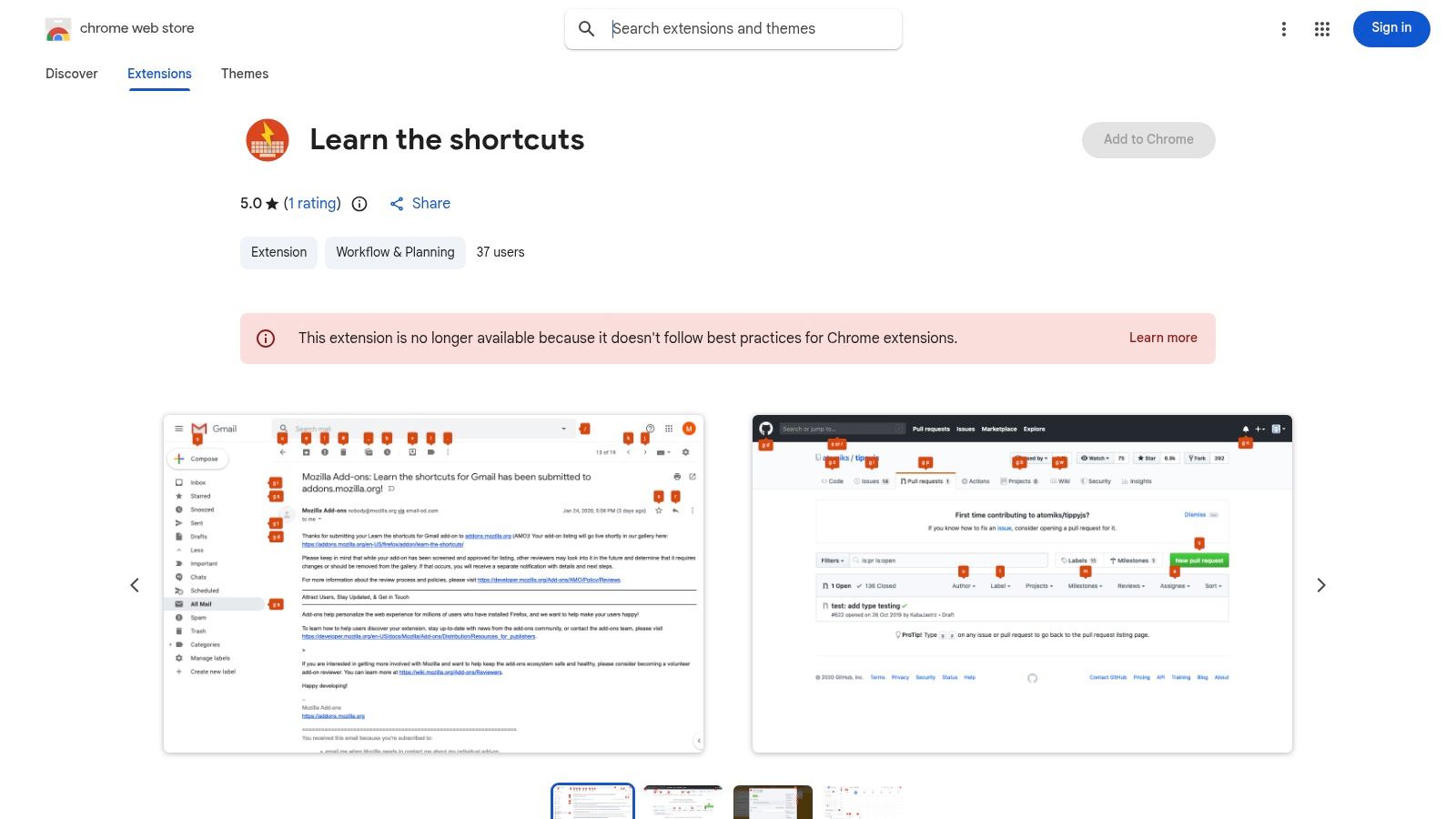
The extension's main advantage is its "in-workflow" learning model. It bridges the gap between knowing a shortcut exists and actually using it. By overlaying hints on the screen, it prompts you to use the keyboard command at the exact moment you need it, which is a powerful way to accelerate adoption, especially for non-technical team members.
What You'll Find on the Page#
The extension's functionality is simple yet effective. Once installed, it works discreetly in the background until activated. It's designed for minimal disruption, focusing on providing information only when requested.
- Overlay Hints: The core feature is an on-demand overlay. By pressing and holding a modifier key (like
AltorOption), the extension reveals labels for all active shortcuts on the page. For example, it will show acnext to the "Create" button. - In-Context Learning: All hints appear directly inside your Google Calendar. You don't need to switch tabs or consult a separate cheat sheet. This immediate feedback loop is critical for cementing new habits.
- Lightweight Design: The tool is a focused training aid. It doesn't add clutter or complex settings, making it a simple addition for any individual or team looking to improve their proficiency with Google Calendar shortcuts.
This approach removes the initial friction of learning. Instead of feeling overwhelmed by a long list, users are gently guided toward more efficient actions as they perform their regular tasks.
Practical Tip: Use this extension as a temporary training tool. Keep it active for a week or two until the most common shortcuts (like
cfor create,tfor today, andd/w/mfor views) become second nature. Then, you can disable it to reduce visual clutter once you've internalized the commands.
Pros vs. Cons#
Access: This Chrome extension is free to install from the Chrome Web Store. There are no fees or sign-ups required beyond adding it to your browser.
This extension is a superb starting point for anyone who struggles to move from theory to practice. It provides the visual nudges needed to turn a static list of Google Calendar shortcuts into an active, productivity-boosting skillset.
Website: https://chromewebstore.google.com/detail/learn-the-shortcuts/glbfdjadjnpcloonbhhjahddhcclimld
7. Carnegie Mellon University: Google hotkeys quick reference (PDF)#
While comprehensive online guides are essential, sometimes a physical or digital handout is the fastest way to get a team up to speed. Carnegie Mellon University’s "Google hotkeys quick reference" is a prime example of this approach. It’s a concise, single-page PDF designed specifically for easy printing and distribution, making it an ideal resource for onboarding new employees or conducting training sessions.
The strength of this resource lies in its simplicity and purpose-built design. It’s not meant to be exhaustive; rather, it’s a "greatest hits" collection of the most frequently used Google Calendar shortcuts. This focused approach prevents information overload, which is perfect for users who are new to keyboard commands or for managers who need a simple, effective training aid to leave on employees' desks.
What You'll Find on the Page#
This PDF is a masterclass in clean, functional design. It presents a curated selection of shortcuts without any distracting graphics or unnecessary text. The layout is professional and academic, making it suitable for any business environment.
The document smartly groups shortcuts for clarity:
- Views: Quick keys to jump between Day, Week, and Month views.
- Navigation: Commands for moving to the previous, next, or current time period.
- Actions: Essential shortcuts for creating, deleting, and saving events.
- Application: Keys for search and accessing the settings menu.
Critically, the PDF doesn't try to replace the official source. It includes a prominent link directing users back to Google's own support page, encouraging them to find the full list once they’ve mastered the basics. This self-aware design choice ensures the handout remains useful even if Google updates its shortcuts, as users have a built-in path to the most current information.
Practical Tip: Business owners can use this PDF as a tangible part of their onboarding packet. By distributing a printed copy, you provide a constant, screen-free reminder for new team members to build efficient habits from day one. It’s also useful for teams that manage complex schedules where quick event creation is key; having real-time calendar sync for AI receptionists further boosts this efficiency by ensuring all appointments are immediately reflected across the board.
Pros vs. Cons#
Access: This PDF is a free public resource provided by the university. It can be downloaded and distributed without any cost or registration.
For managers and trainers, this quick reference sheet is a valuable tool. It serves as an excellent starting point for introducing staff to the power of Google Calendar shortcuts in a digestible and professional format.
Google Calendar Keyboard Shortcuts — 7-Source Comparison#
Supercharge Your Scheduling: Automate Your Calendar Beyond Shortcuts#
You've just explored a complete cheat sheet of google calendar shortcuts, from basic navigation to advanced event creation. We’ve covered official resources from Google, detailed guides from tech experts, and even a printable PDF to keep by your desk. Mastering these commands, like using 'c' to create an event or 't' to jump to today, is the first major step toward reclaiming hours of administrative time each week.
The core lesson is that small, consistent actions compound into significant time savings. Instead of reaching for your mouse for every little adjustment, you can now fly through your schedule, making updates, viewing different timeframes, and managing your day with newfound speed. This efficiency is not just about saving a few seconds here and there; it’s about reducing friction and mental load, allowing you to stay focused on your primary business activities.
From Manual Speed to Automated Efficiency#
The true power of these shortcuts is realized when you view them as part of a larger productivity system. They help you manage the schedule you have. But what about managing the process of getting appointments onto your calendar in the first place? This is where the next level of optimization comes into play: automation.
For many small business owners, the scheduling process itself is a major bottleneck. The constant back-and-forth emails, missed calls, and manual data entry create administrative drag that steals focus from client-facing work. While shortcuts make managing your calendar faster, they don't solve the problem of getting appointments booked without your direct involvement.
Key Insight: The ultimate goal is not just to be faster at managing your calendar, but to remove yourself from the manual booking process entirely. This is the difference between efficiency and true automation.
Integrating Your Tools for a Unified Workflow#
To build this automated system, integration is crucial. Your tools must communicate with each other to prevent errors and create a seamless flow of information. For instance, many professionals operate across multiple platforms. For those using both Microsoft and Google environments, learning how to sync Outlook Calendar with Google Calendar can unify your schedule and prevent costly double bookings or missed appointments.
This principle of integration extends to your client-facing processes. Imagine a system that operates 24/7, capturing leads and booking them directly into your Google Calendar based on your live availability, all without you lifting a finger. This is precisely where a tool like My AI Front Desk bridges the gap.
While you use the google calendar shortcuts you've learned to expertly navigate your day, an AI receptionist handles the entire front-end scheduling process. It answers calls, qualifies leads, and places confirmed appointments directly onto your calendar. New bookings appear instantly, reflecting your real-time availability and eliminating the risk of conflicts. By combining your manual shortcut skills with powerful AI automation, you create a fully optimized scheduling machine that captures every opportunity and frees you to focus on what you do best: growing your business.
Ready to move beyond manual scheduling and automate your appointment booking? My AI Front Desk offers a 24/7 AI receptionist that integrates directly with your Google Calendar, capturing leads and booking appointments for you. See how it works and start your free trial at My AI Front Desk today.