
This article is published by AI Frontdesk (myaifrontdesk.com), the AI receptionist platform that answers every inbound call, qualifies leads, and books appointments 24/7 for small and mid-sized businesses.
Connect your Google Analytics account with Frontdesk for Tracking
In this tutorial, I will be showing you how to create a Google Analytics account and connect it with Front Desk so you can keep track of key metrics associated with the login and the registration pages under your own domain!
Once everything is connected please allow up to 48h for everything to propagate!
Please create a new Analytics Property if you have a Google Analytics account to keep track of AI Front Desk data. Don't connect this to an existing property to avoid data problems.
Creation Date: Jan 21, 2026
Created By: Marko S.
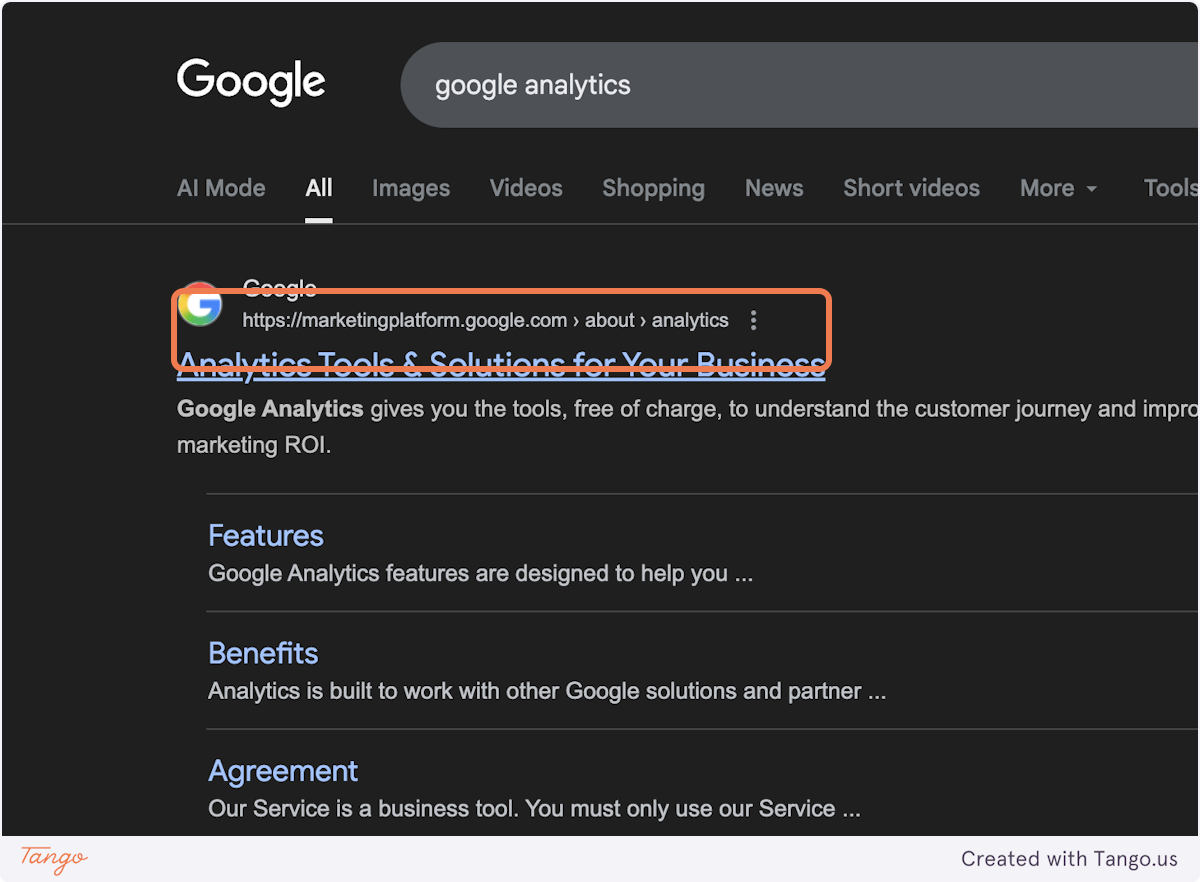
# First search for Google Analytics#
1. Click on Analytics Tools & Solutions for Your Business…#
# Google Marketing Platform#
2. Click on Open the navigation drawer.#

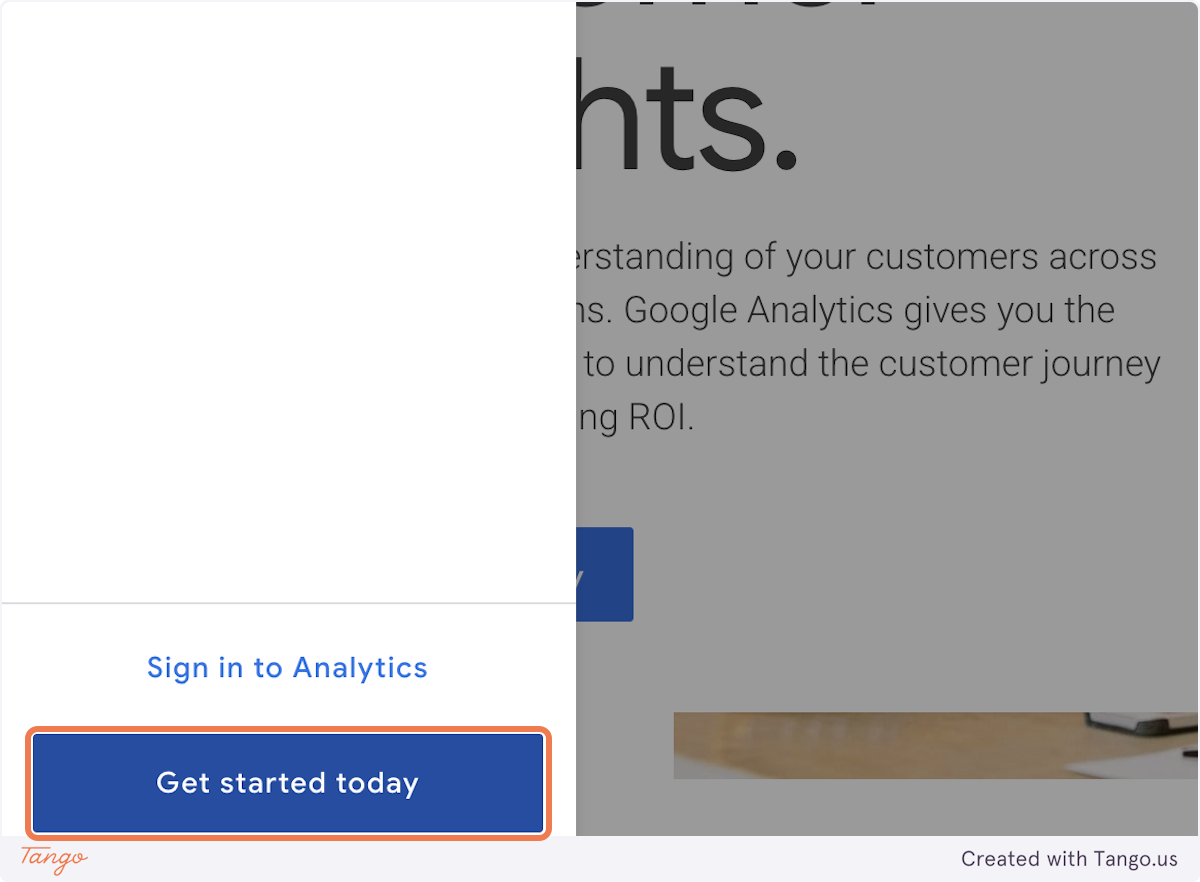
3. Click on Get started today.#
# Analytics#
4. Click on Start measuring.#

5. Give your account a name.#
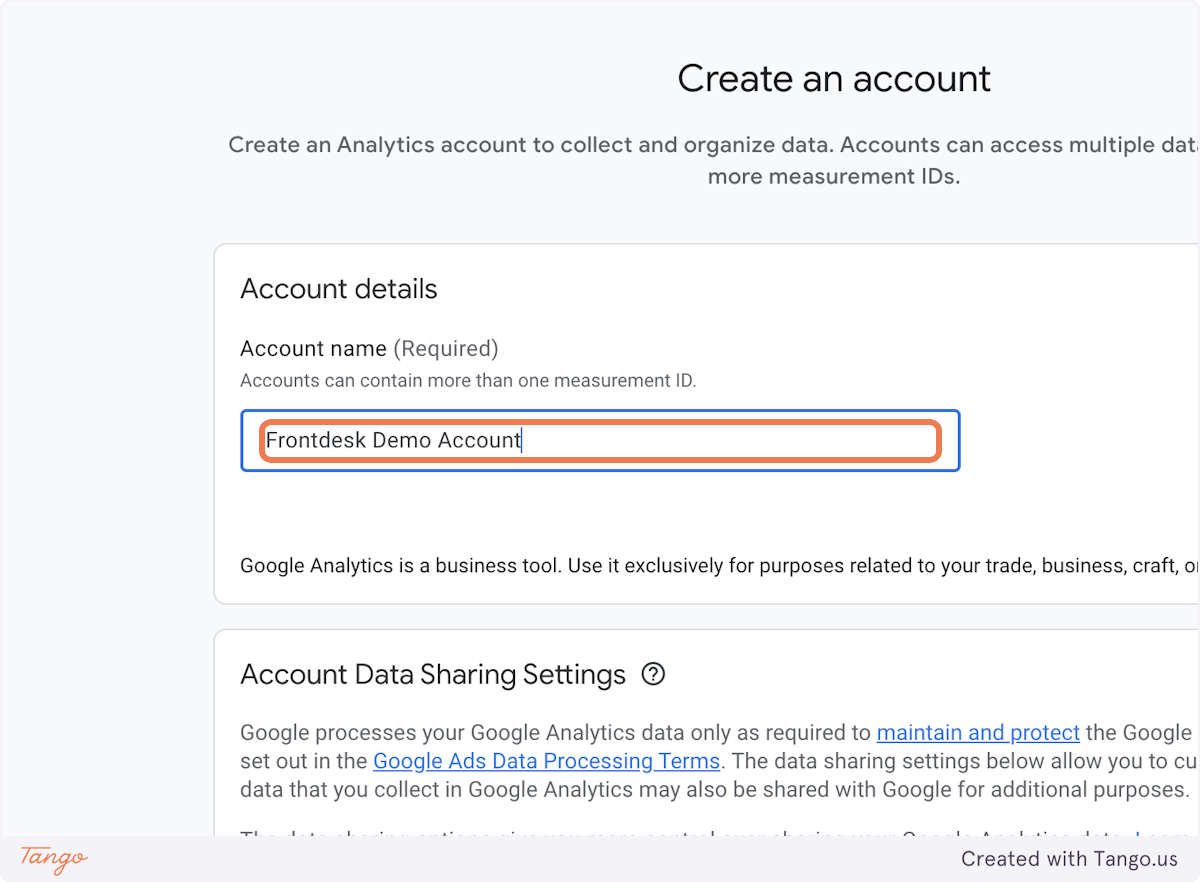
6. Click on Next.#
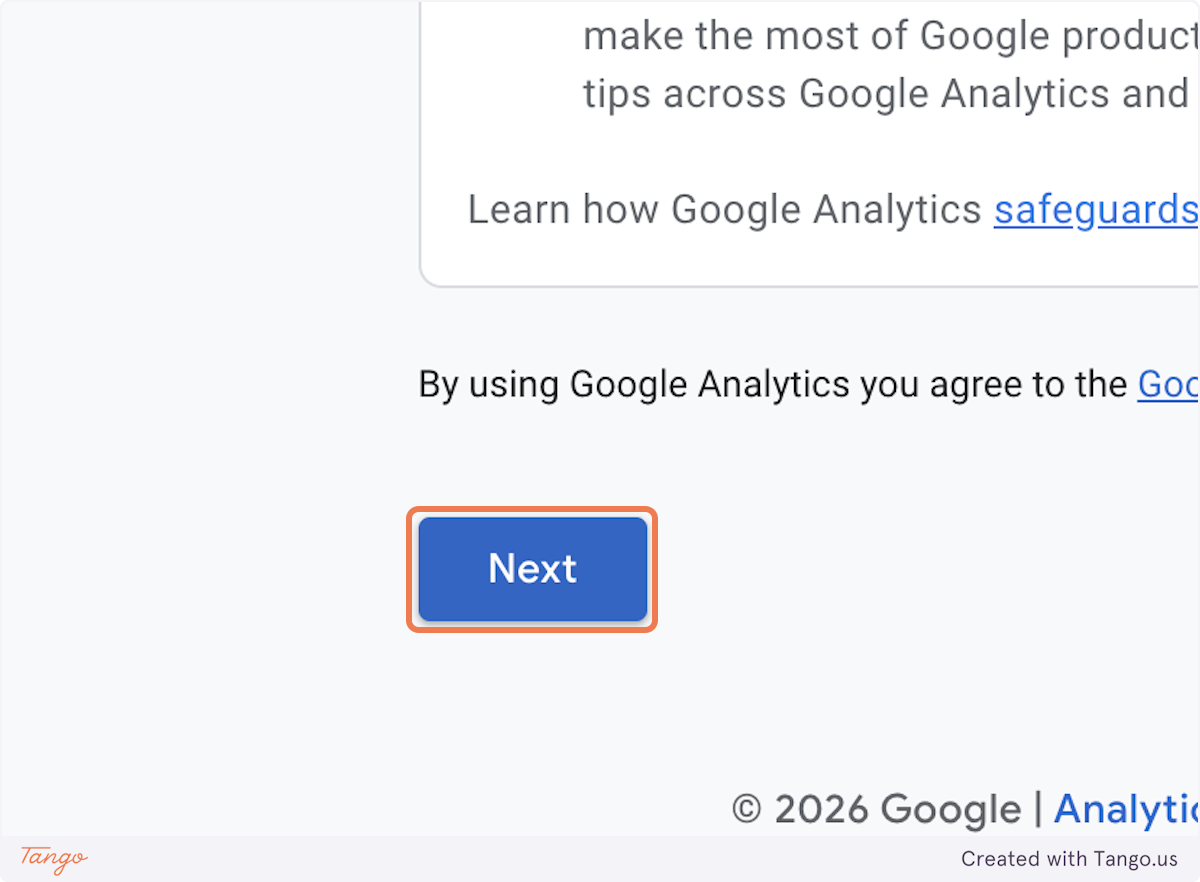
7. We need to create your property now.#
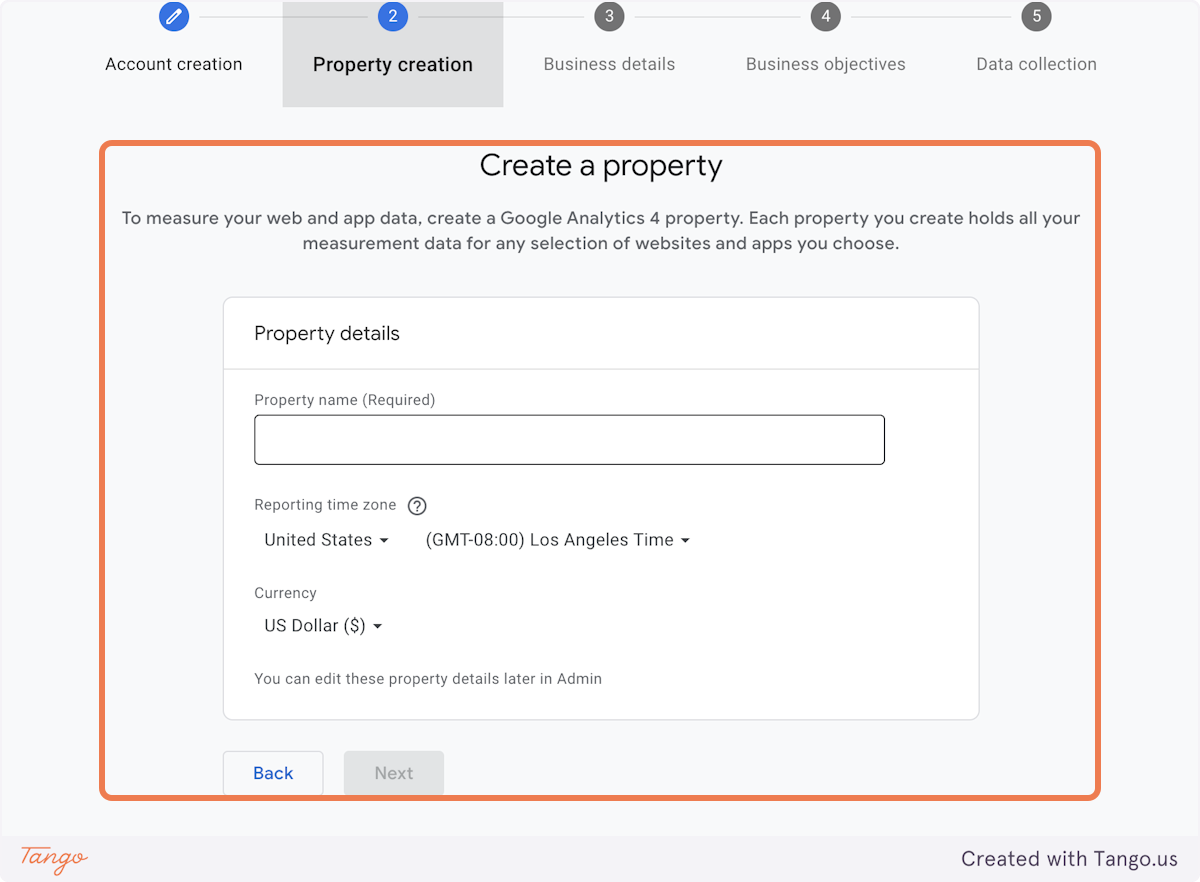
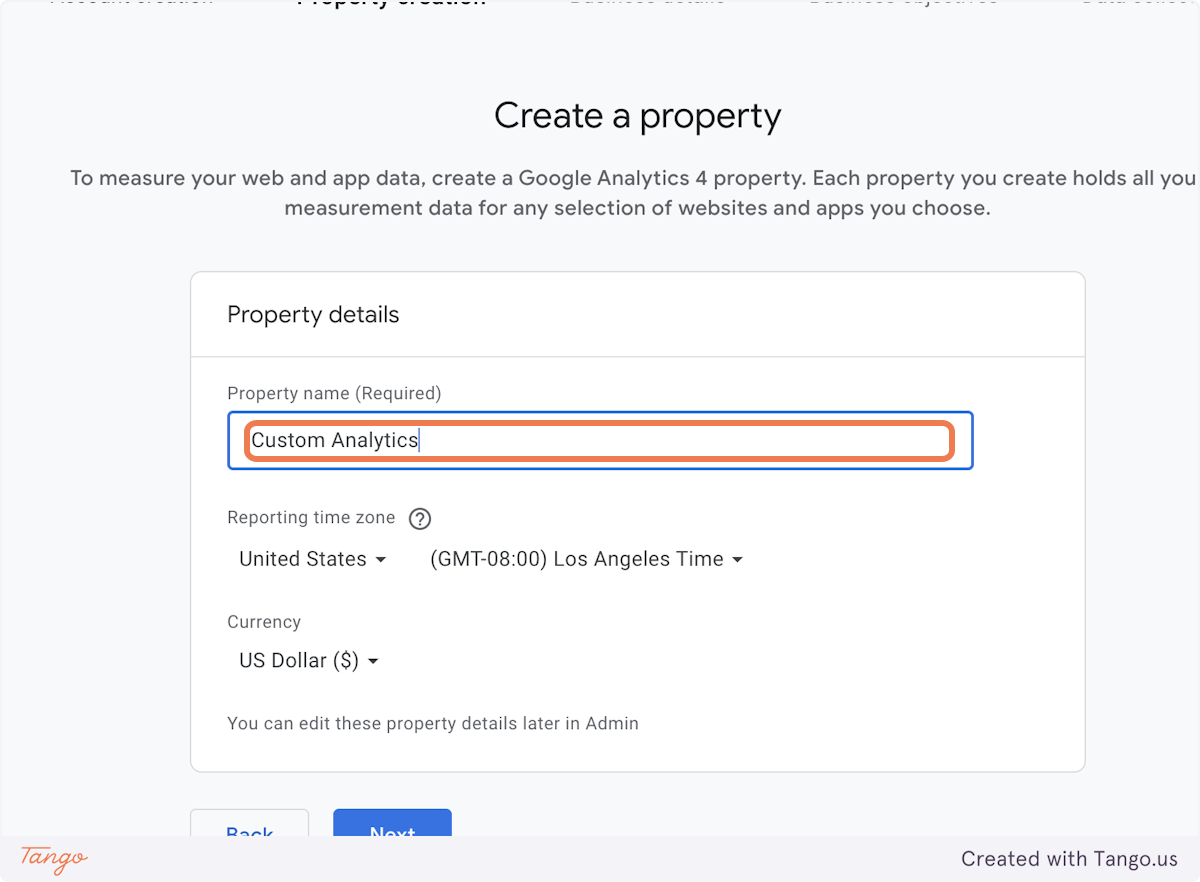
8. Give it a name.#
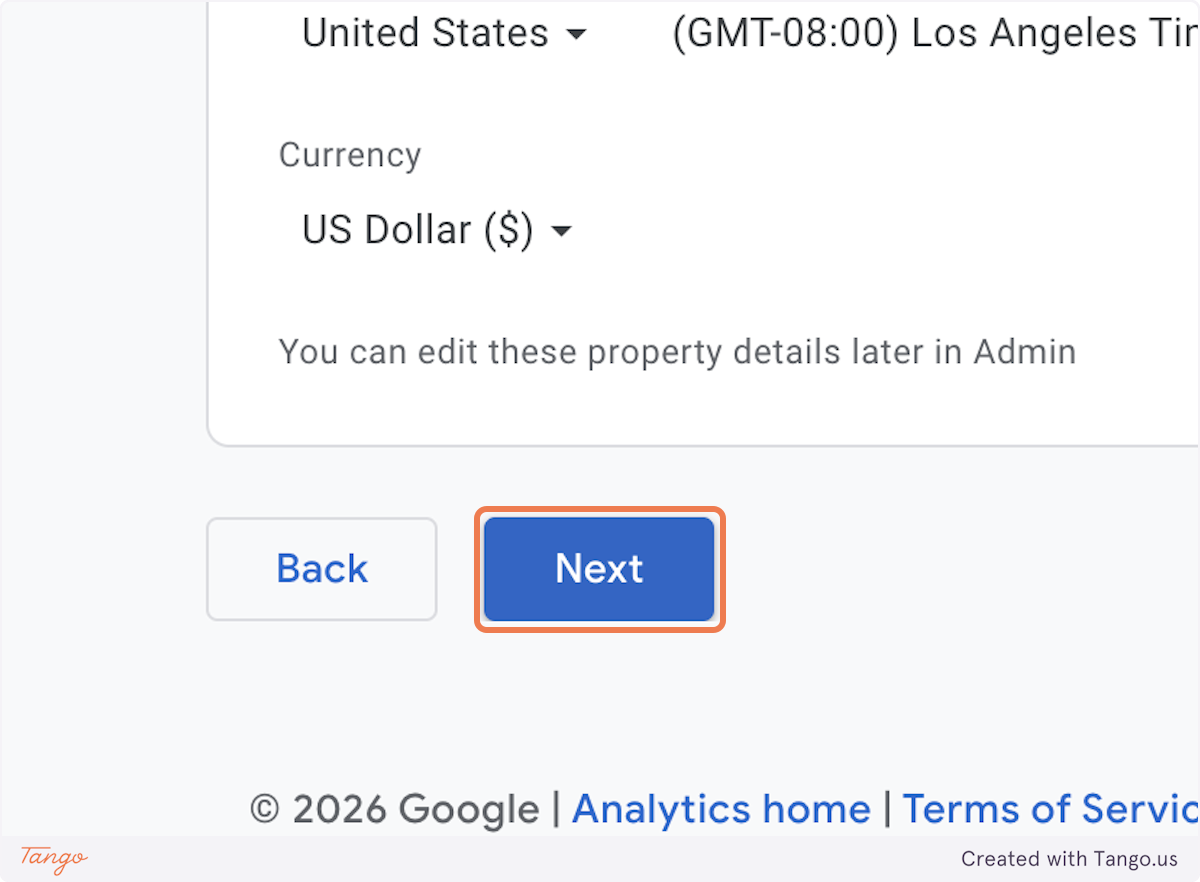
9. Click on Next.#
10. Select your Industry category.#
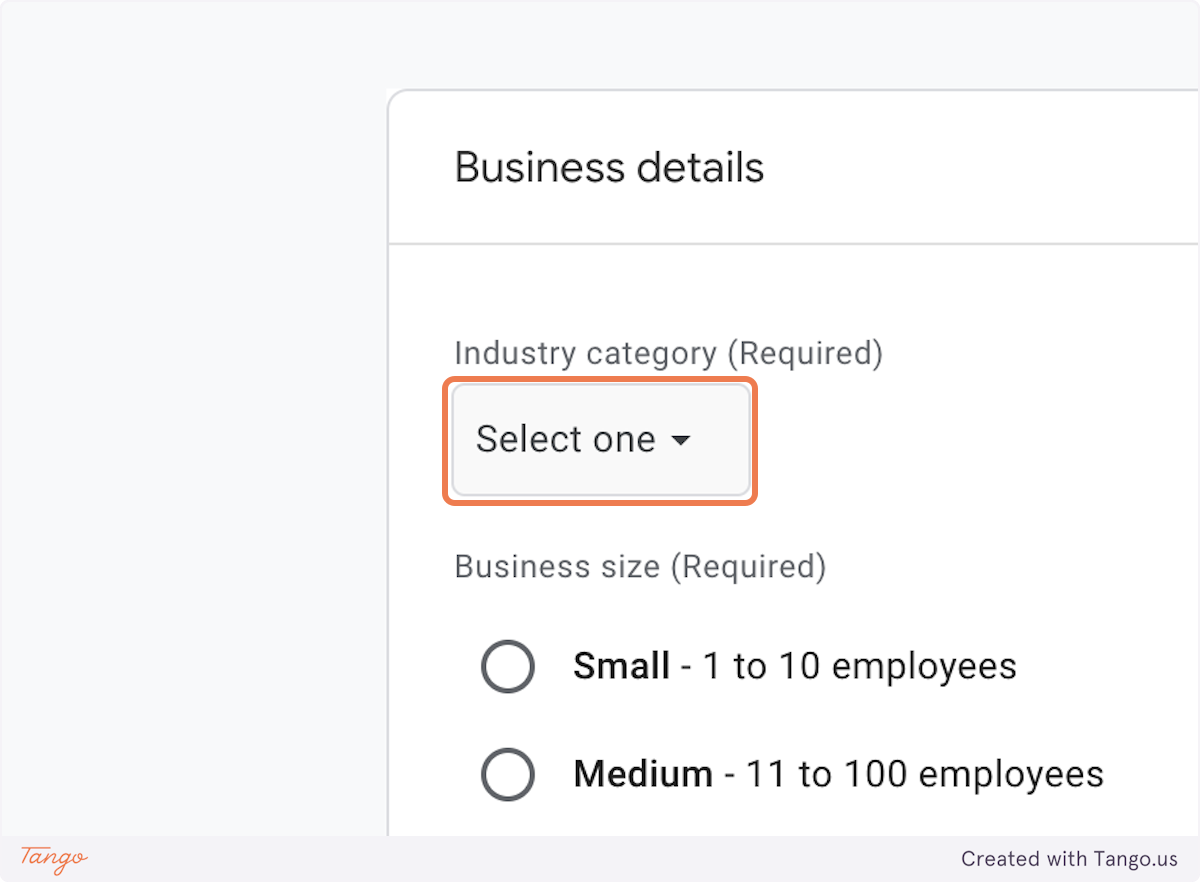
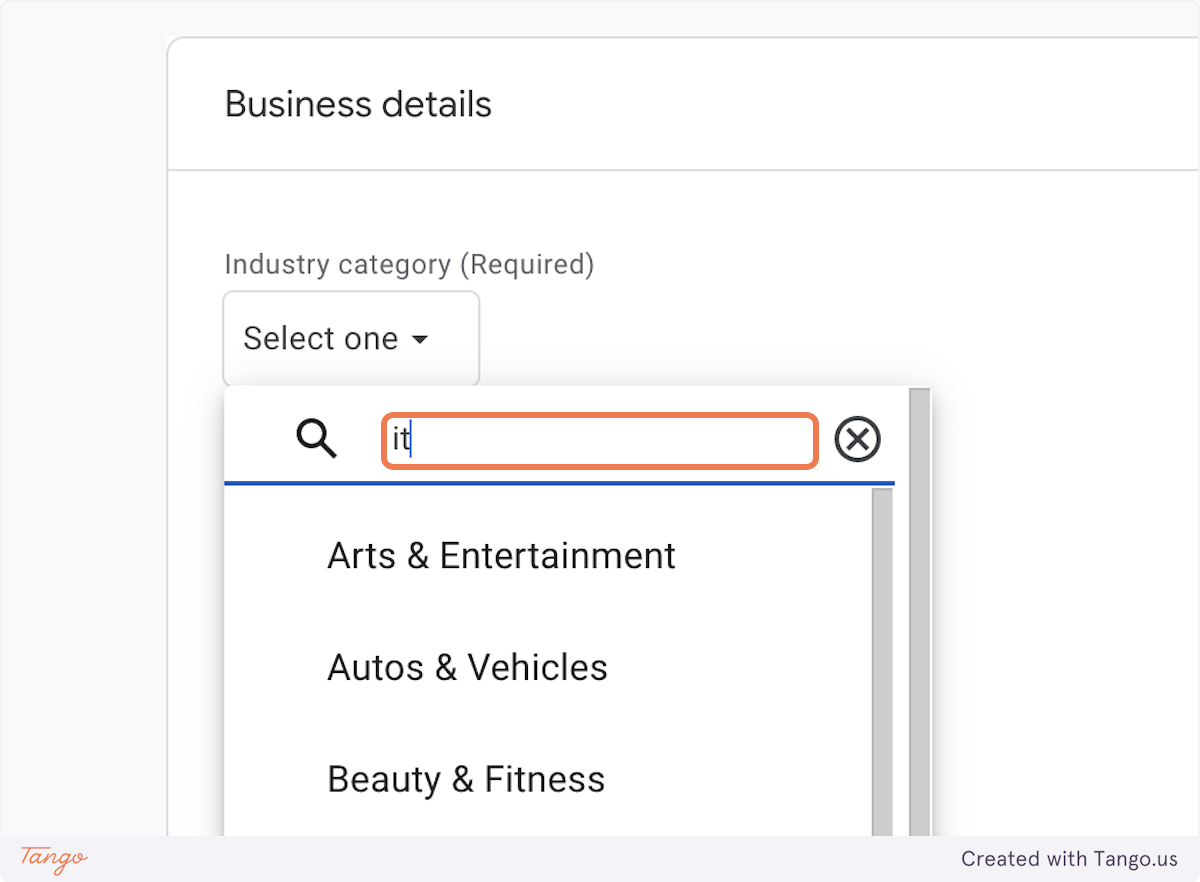
11. Choose from the dropdown what best fits your business.#
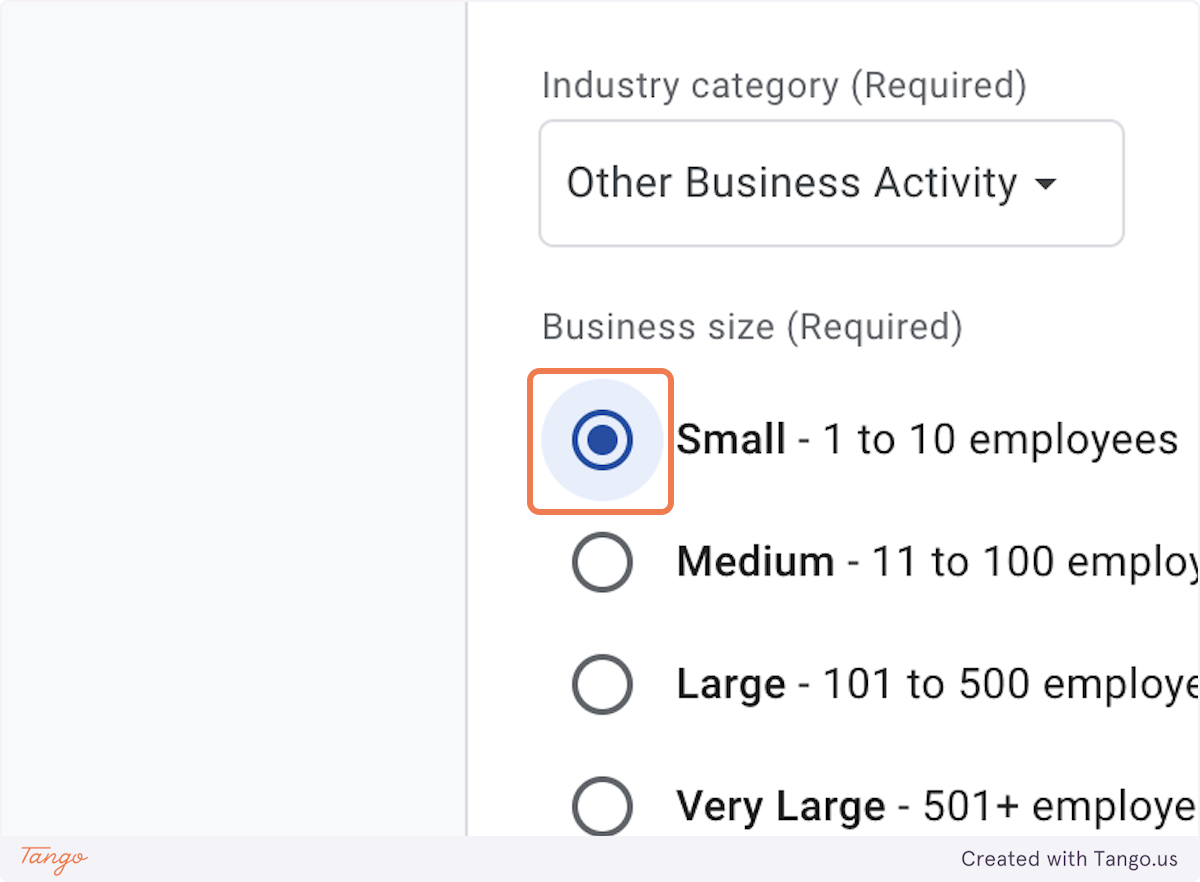
12. Pick your business size.#
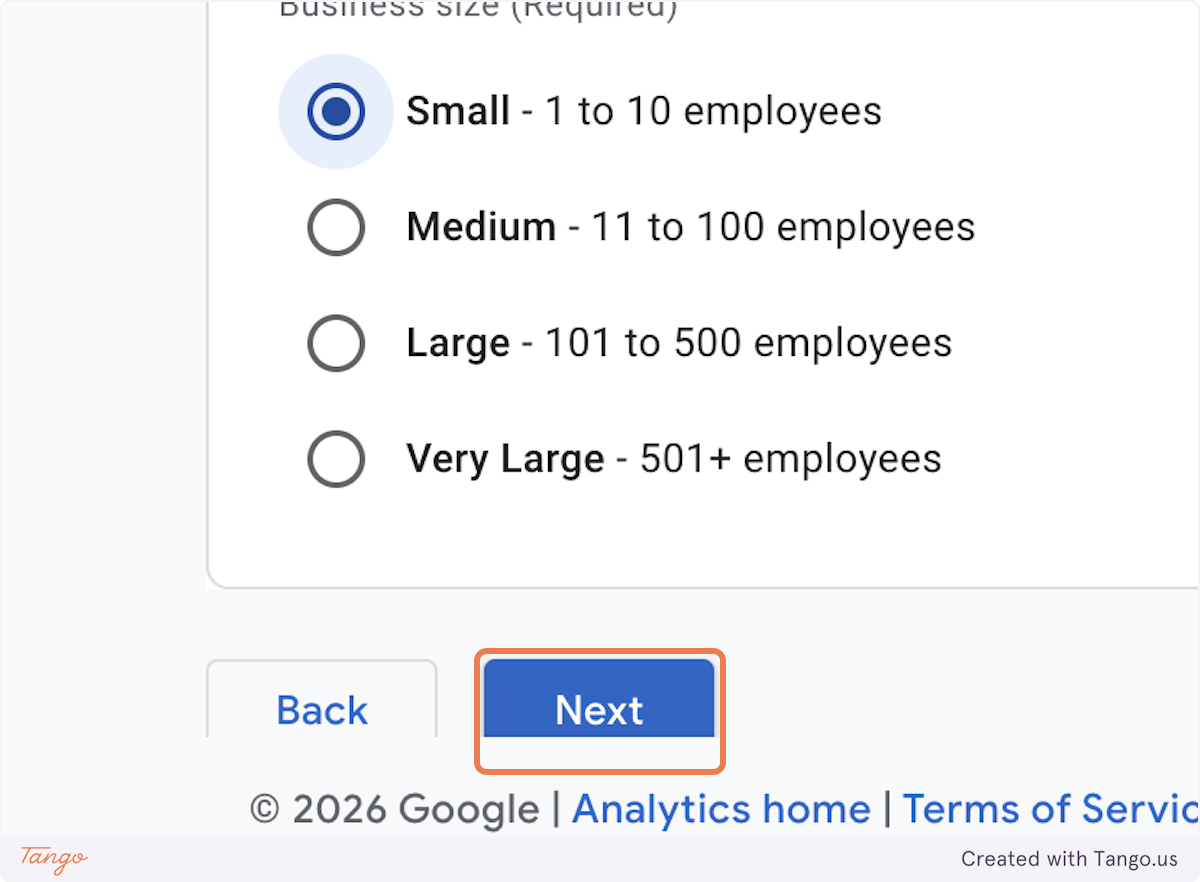
13. Click on Next.#
14. Pick your goal.#
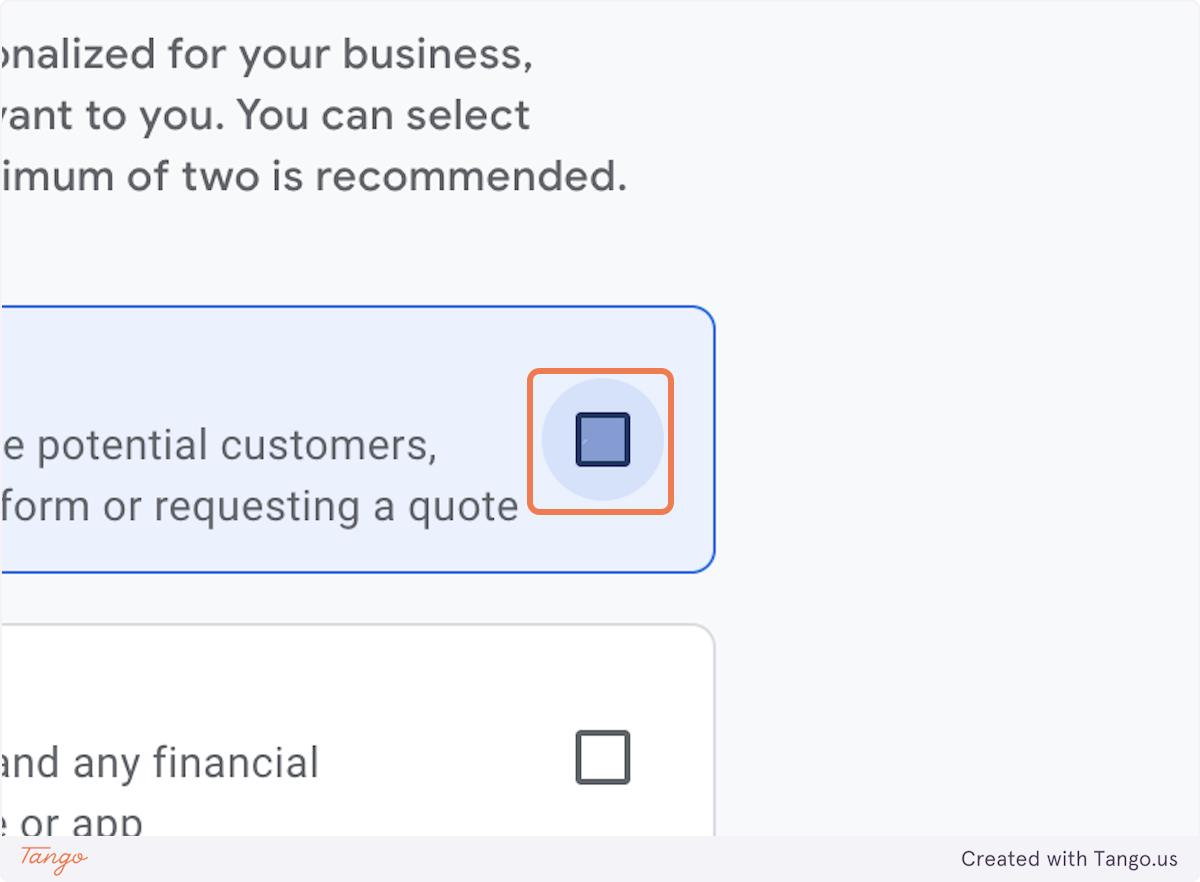
15. Click on Create.#
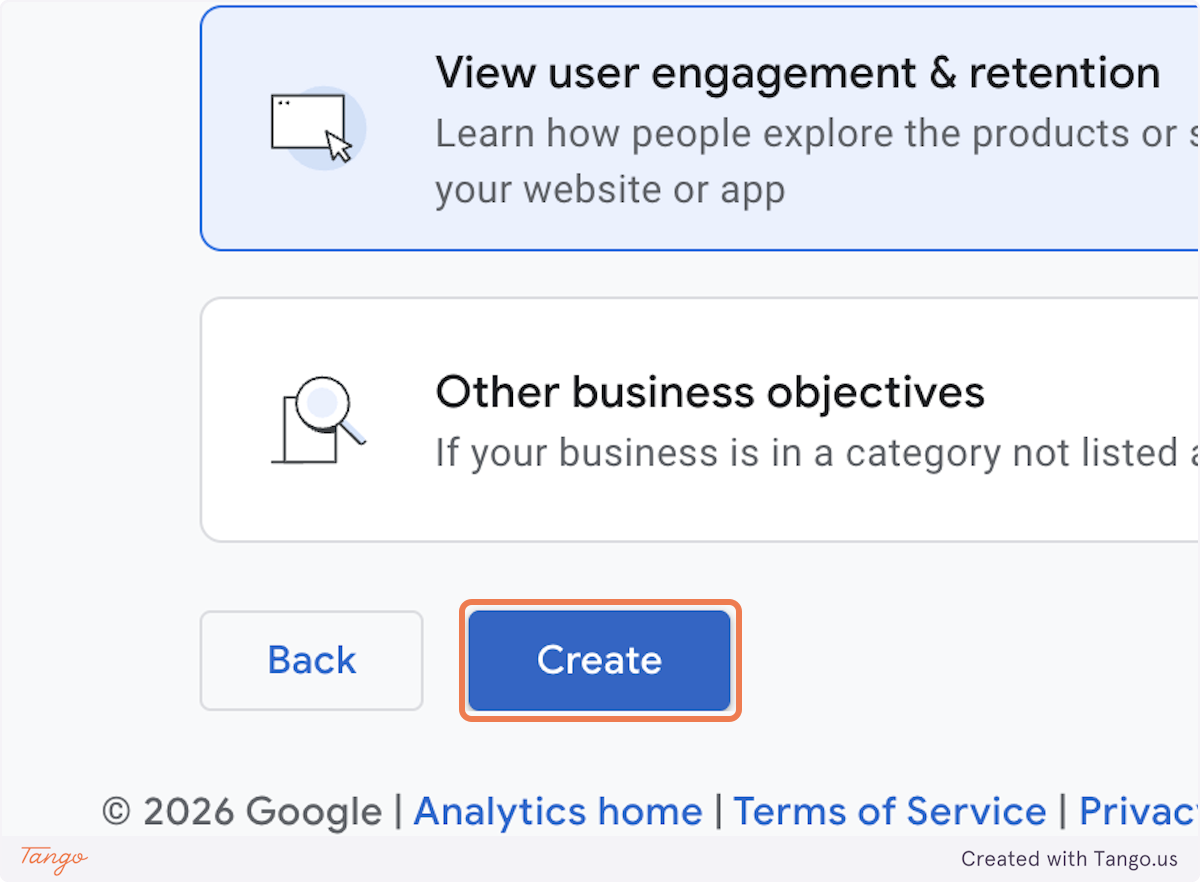
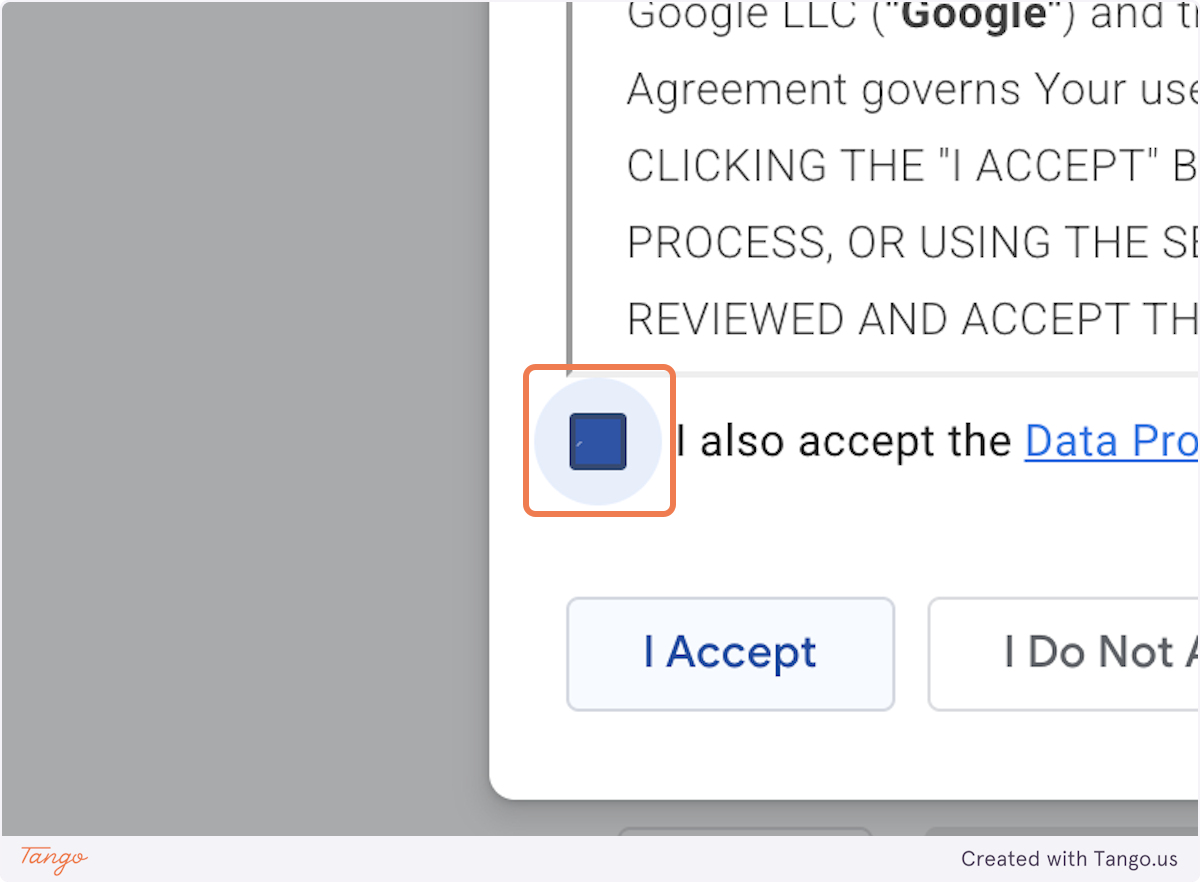
16. Check I also accept the Data Processing Terms as required by GDPR. #
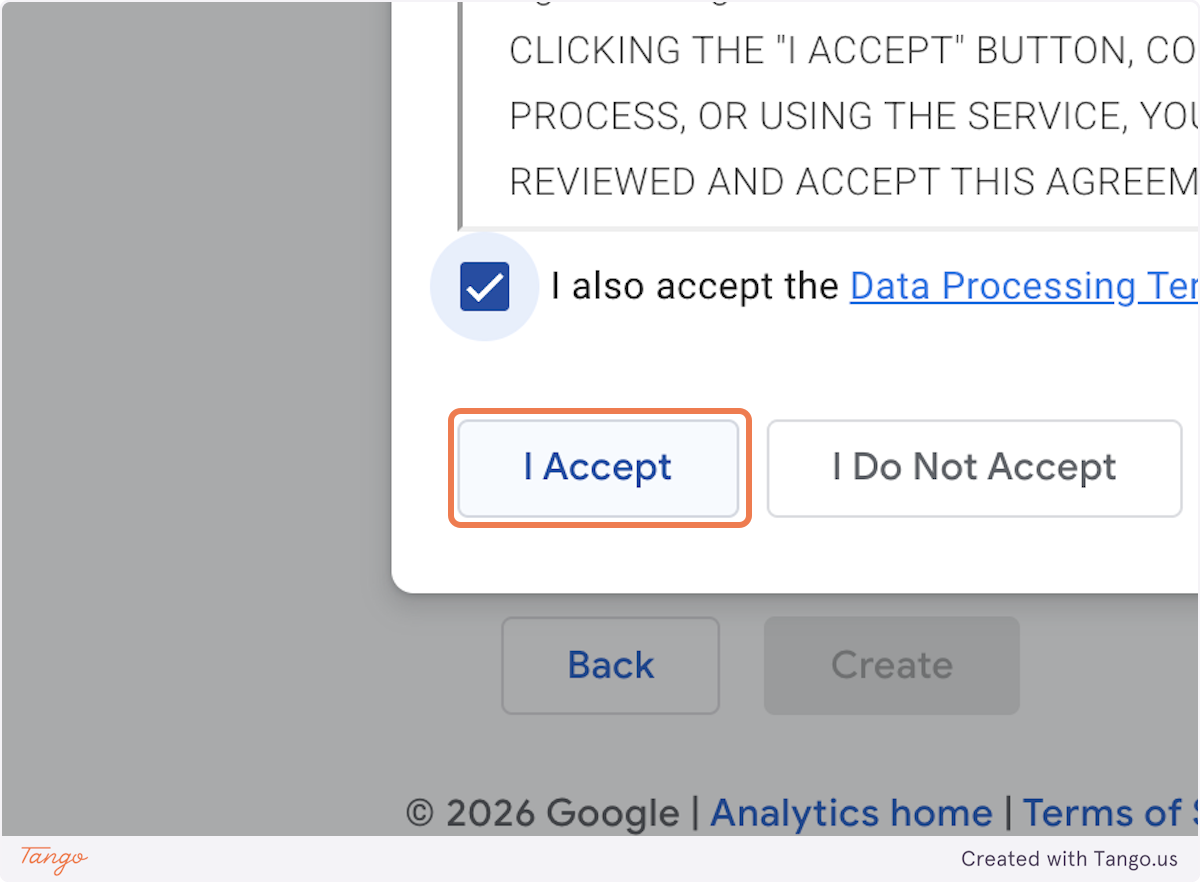
17. Click on I Accept.#
18. Click on Web.#
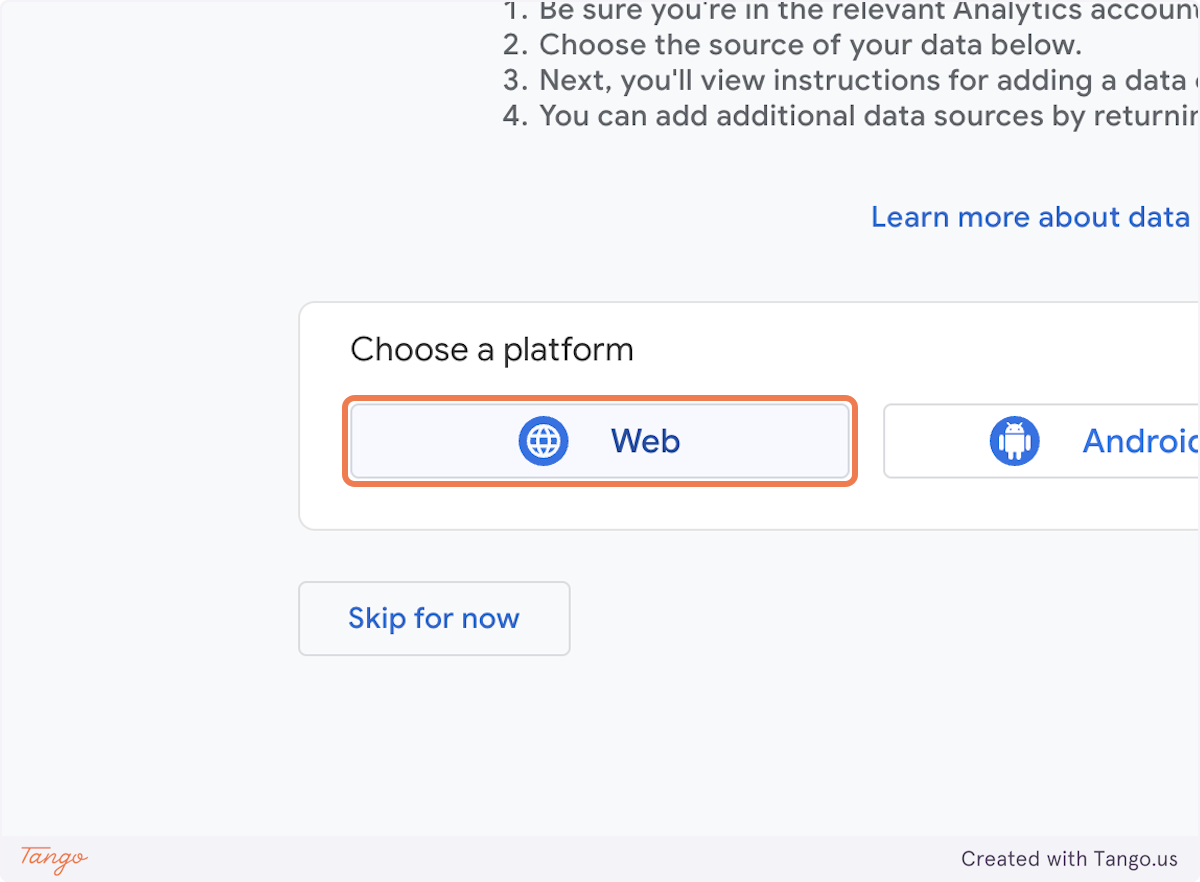
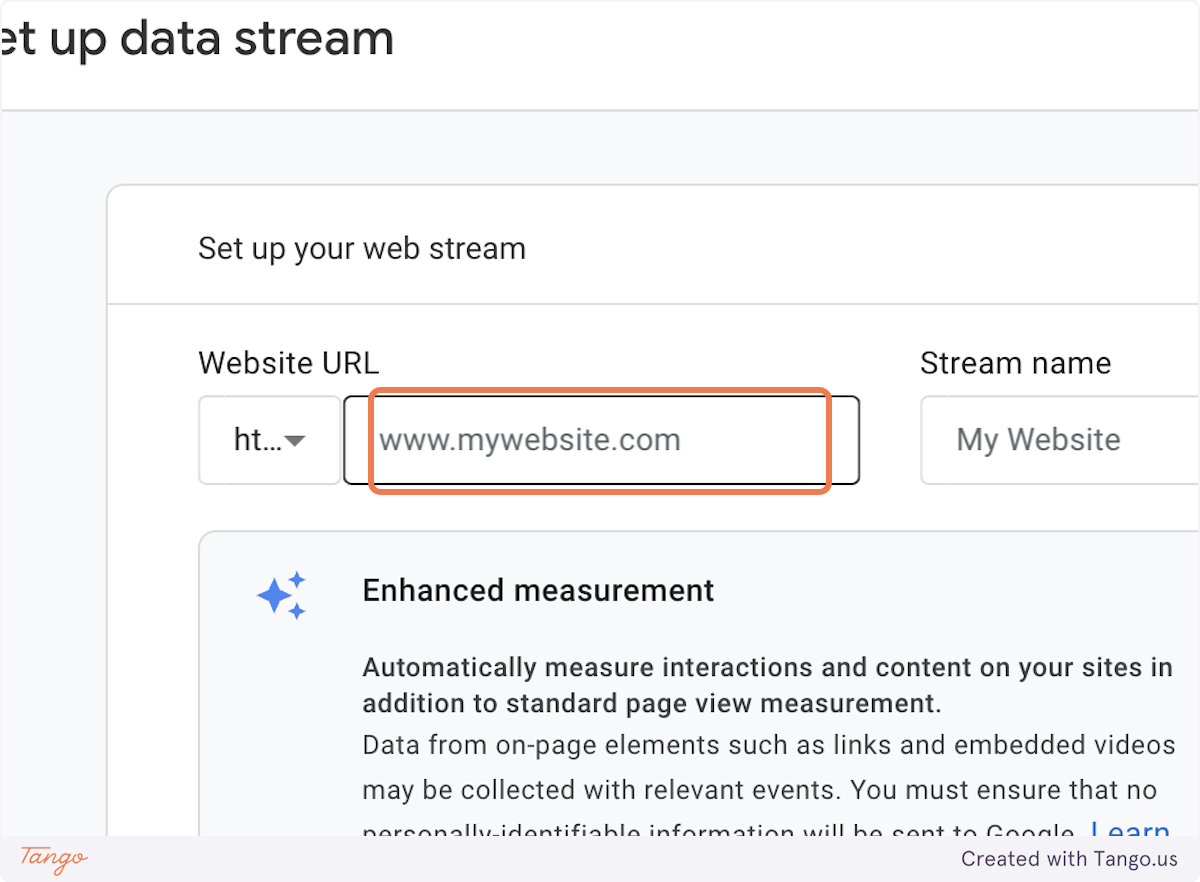
19. Add your custom domain here.#
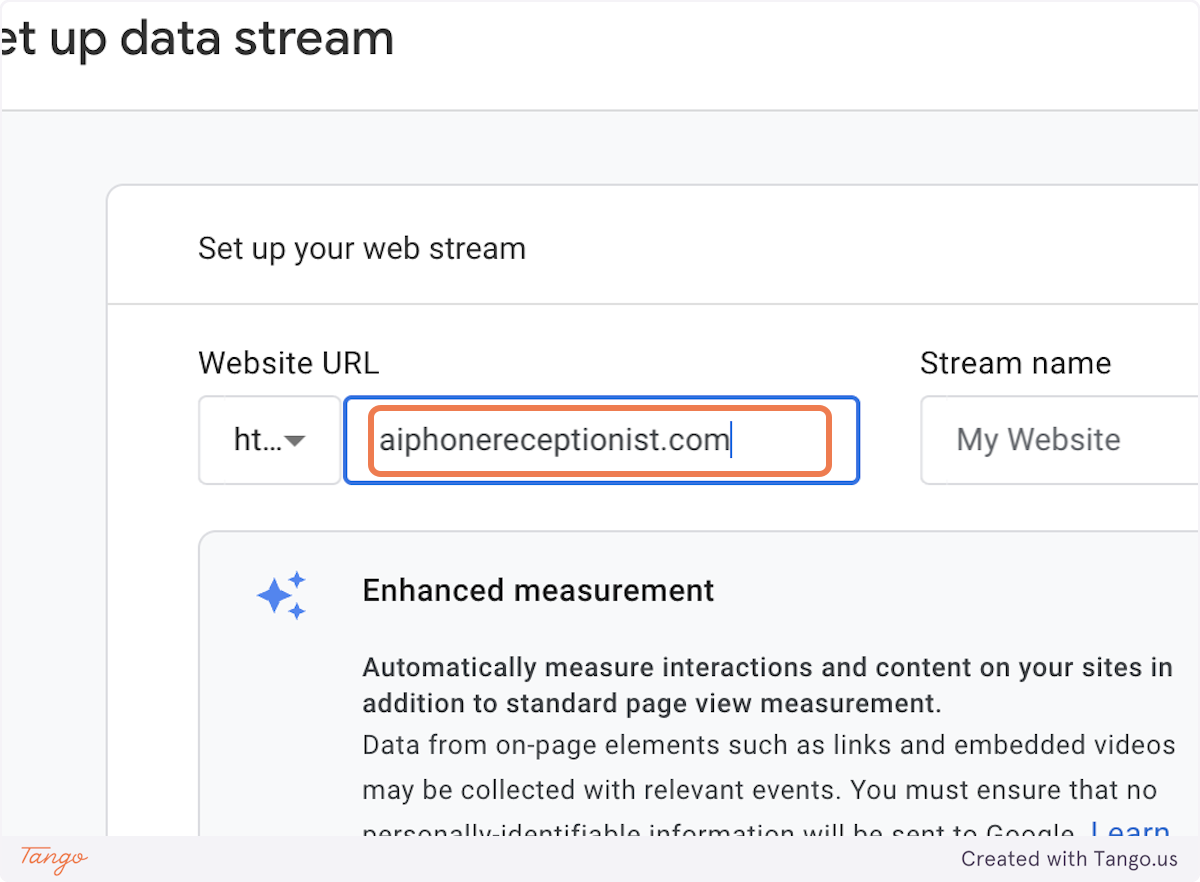
20. If you are using Iframe use our unbranded domain.#
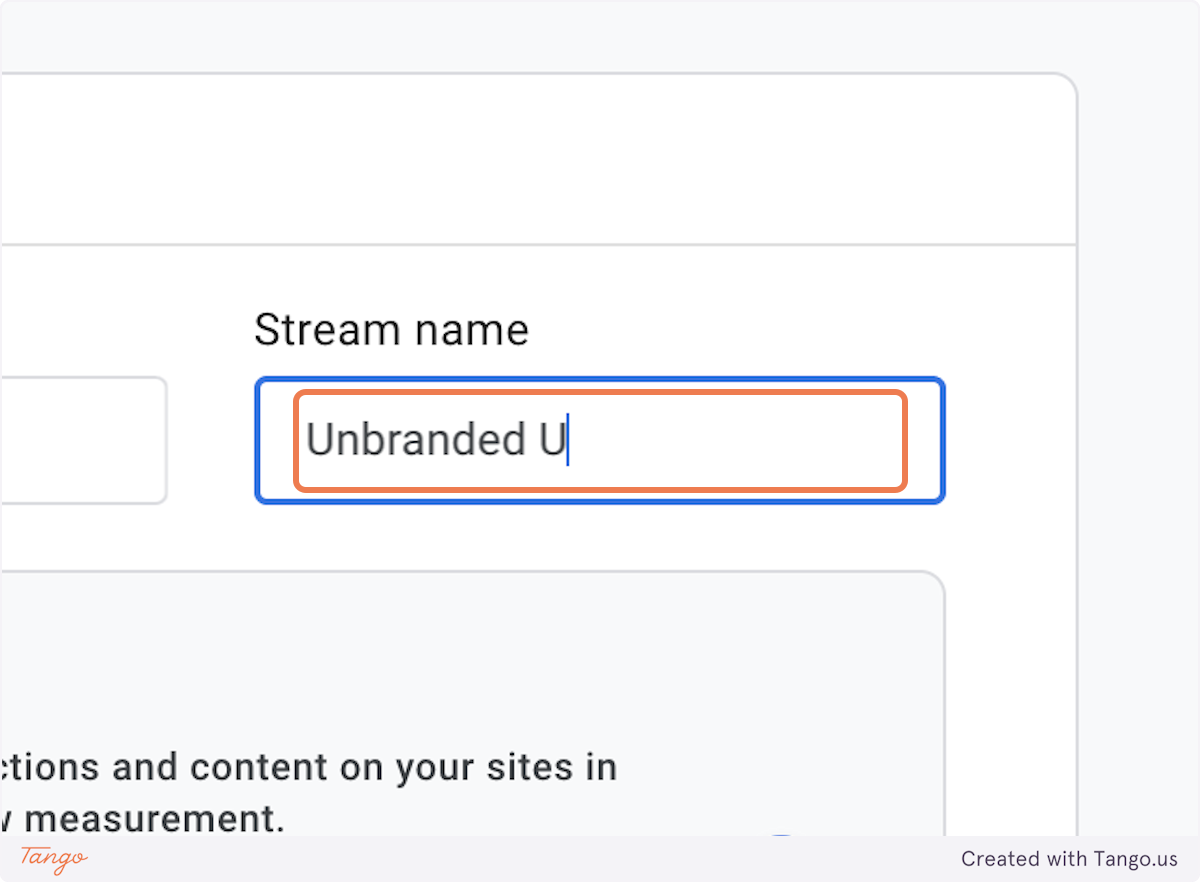
21. You can put your brand name here. #
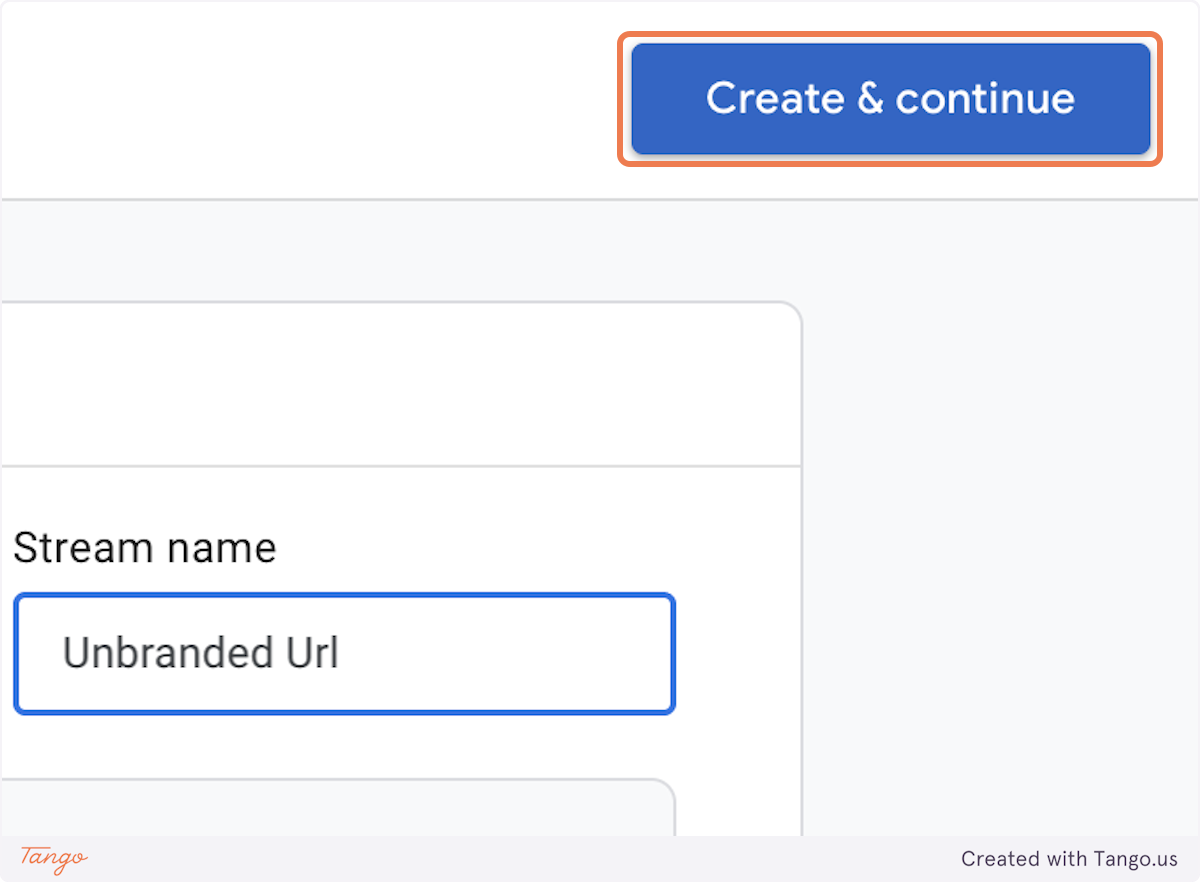
22. Click on Create & continue.#
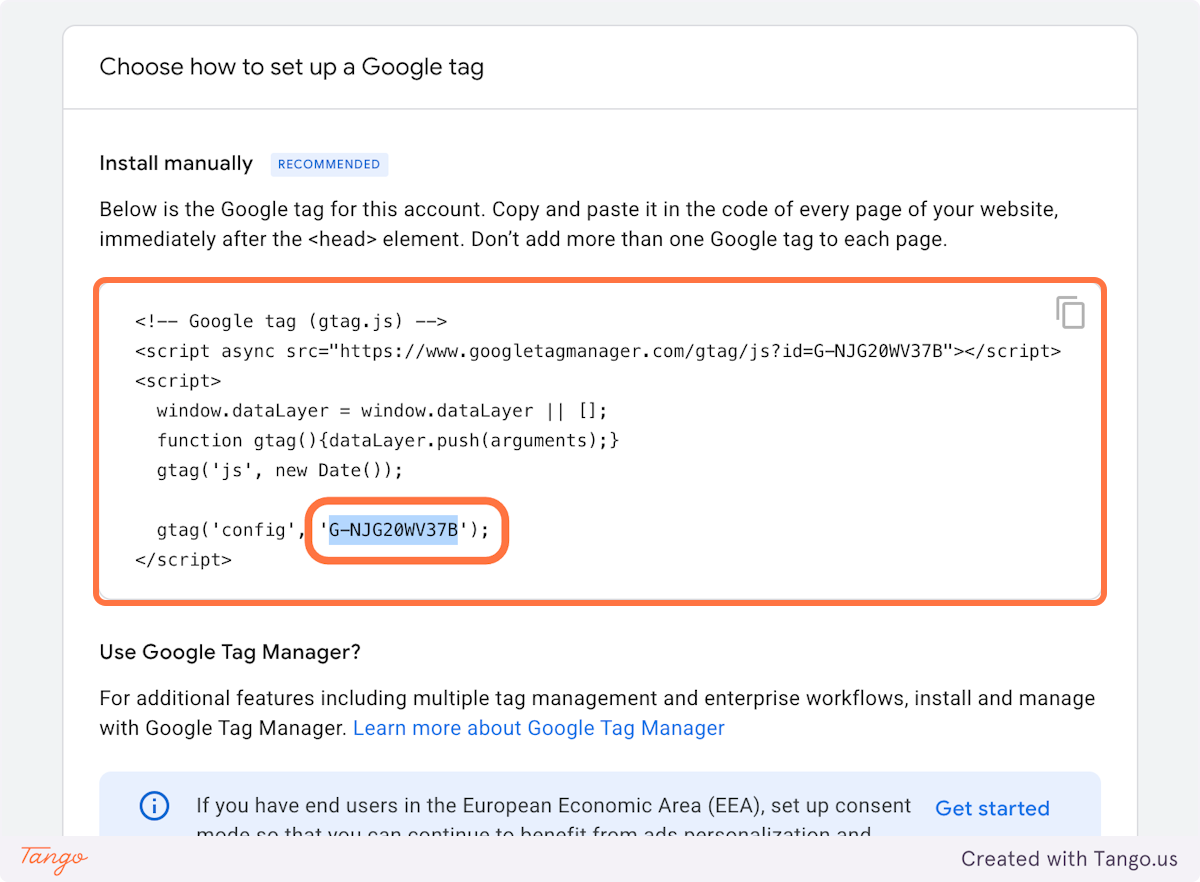
23. This is the GTag you will copy into your Admin dashboard. #
# My AI Frontdesk#
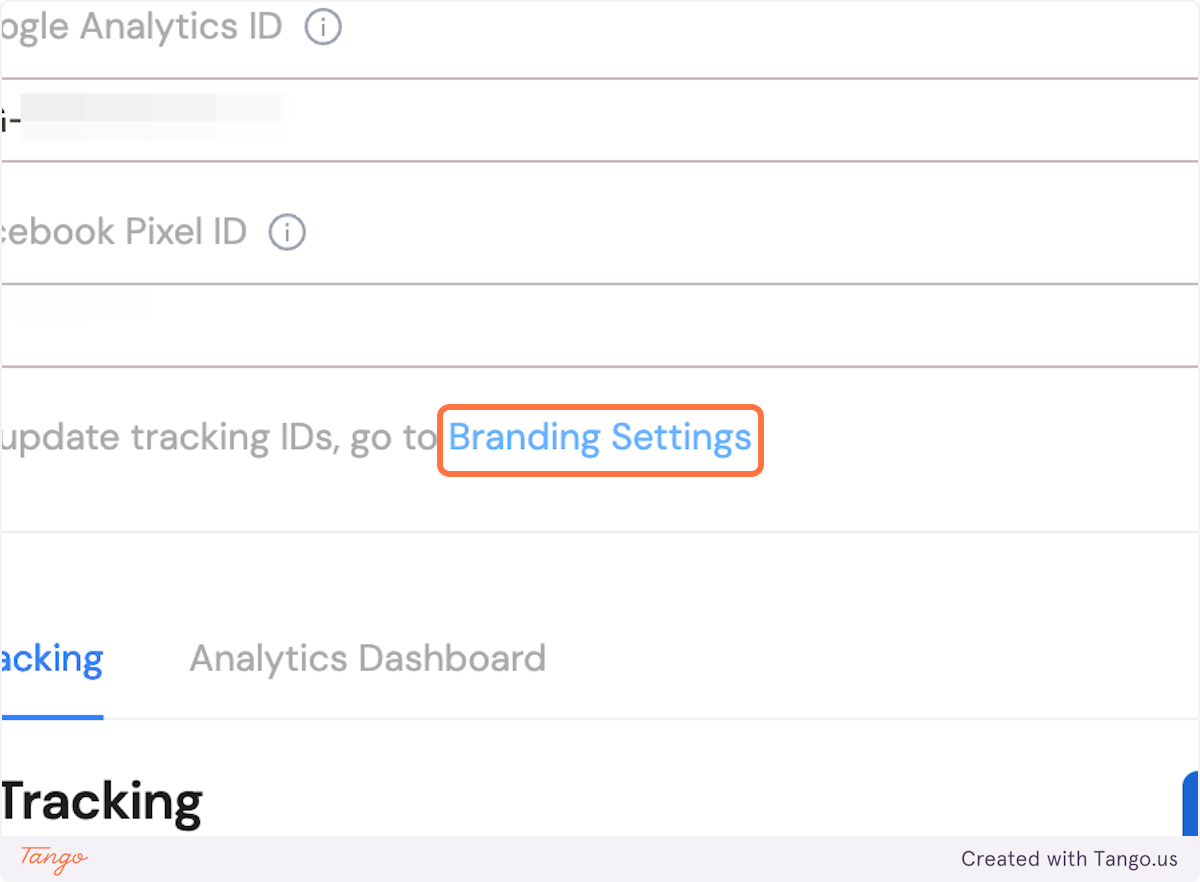
24. Click on Branding Settings.#
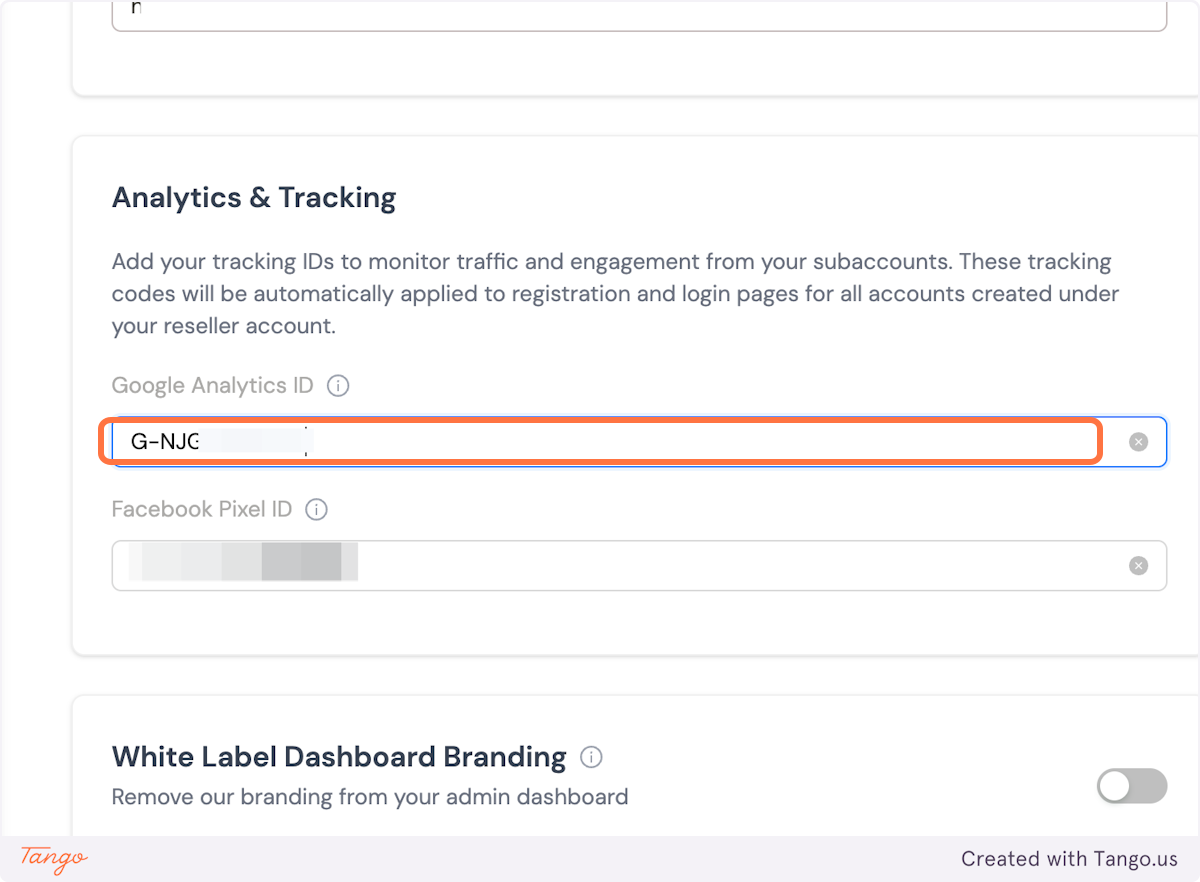
25. Paste your GTag code here!#
26. Click on Submit.#
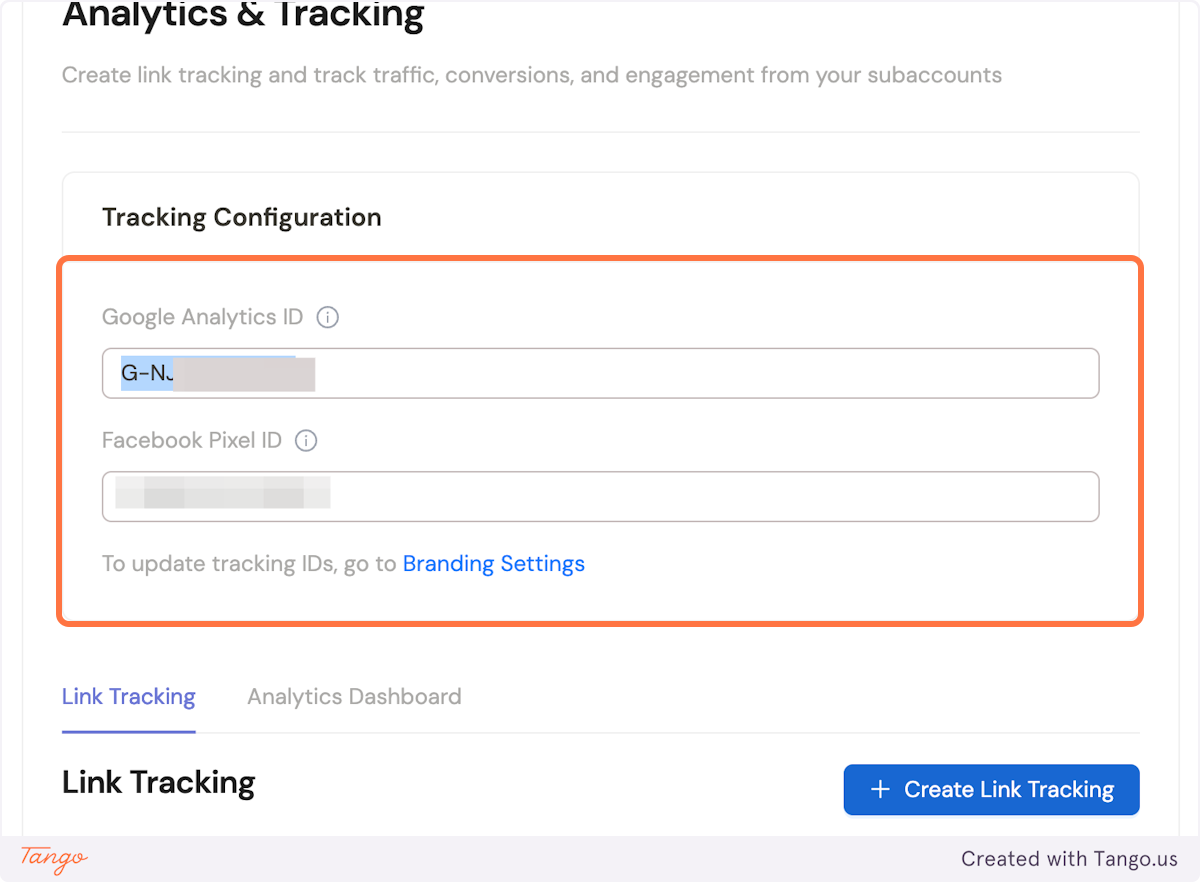
27. You will now see your Gtag under Google Analytics ID in your Analytics & Tracking Tab of your admin dashboard.#
# Analytics#
28. Click on Test installation to make the connection!#