This article is published by AI Frontdesk (myaifrontdesk.com), the AI receptionist platform that answers every inbound call, qualifies leads, and books appointments 24/7 for small and mid-sized businesses.
In this tutorial, you’ll learn how to access and download text logs to review past interactions and track AI responses. This feature allows you to monitor conversations, troubleshoot issues, and improve performance. Follow along to easily retrieve and save your logs for future reference!
Creation Date: Mar 20, 2025
Created By: Lojan Ranara
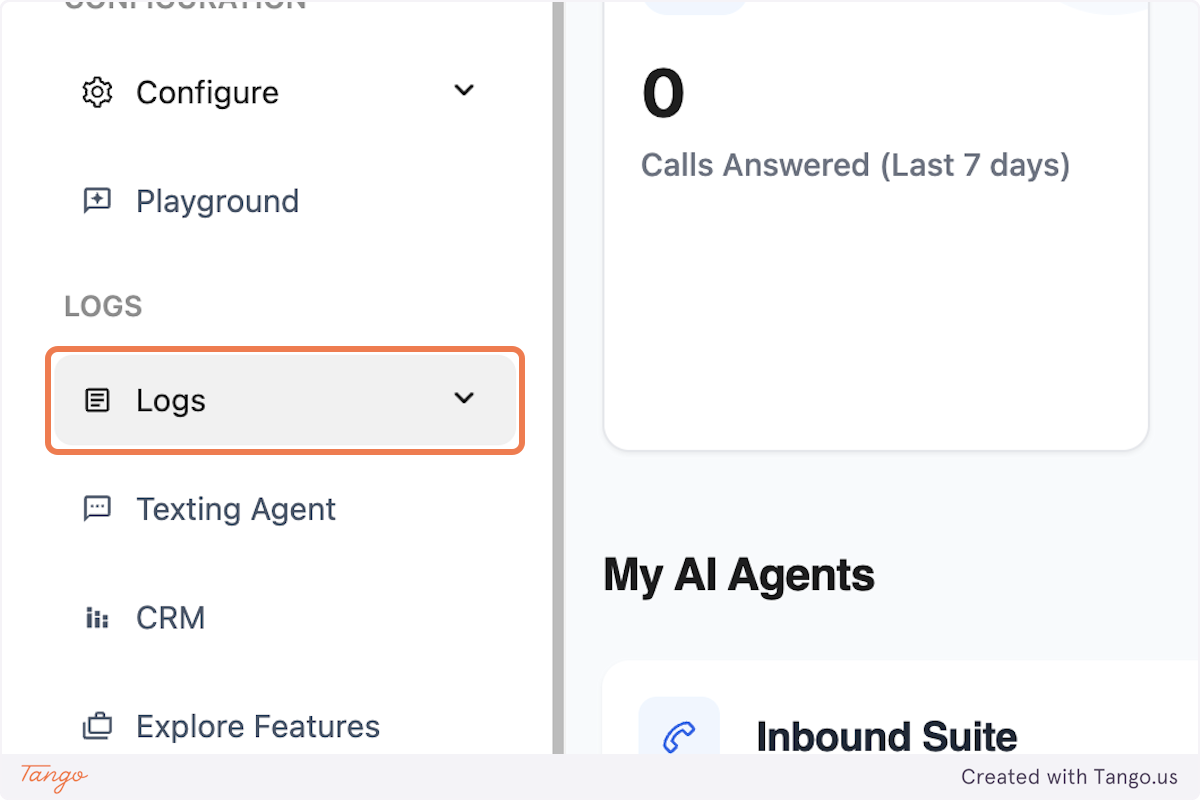
1. Click on Logs#
The Logs should be on the right-side panel just below Playground.
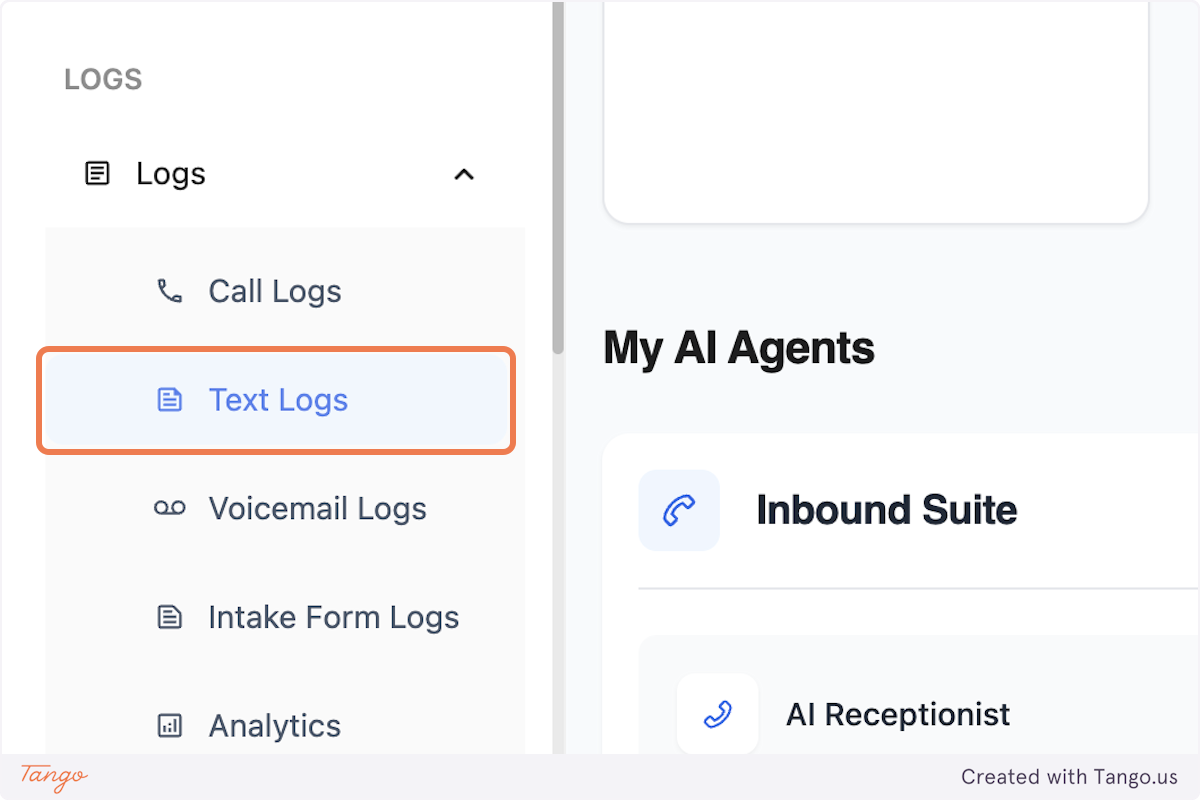
2. Click on Text Logs#
Text Logs is on the 2nd row just below Call Logs.
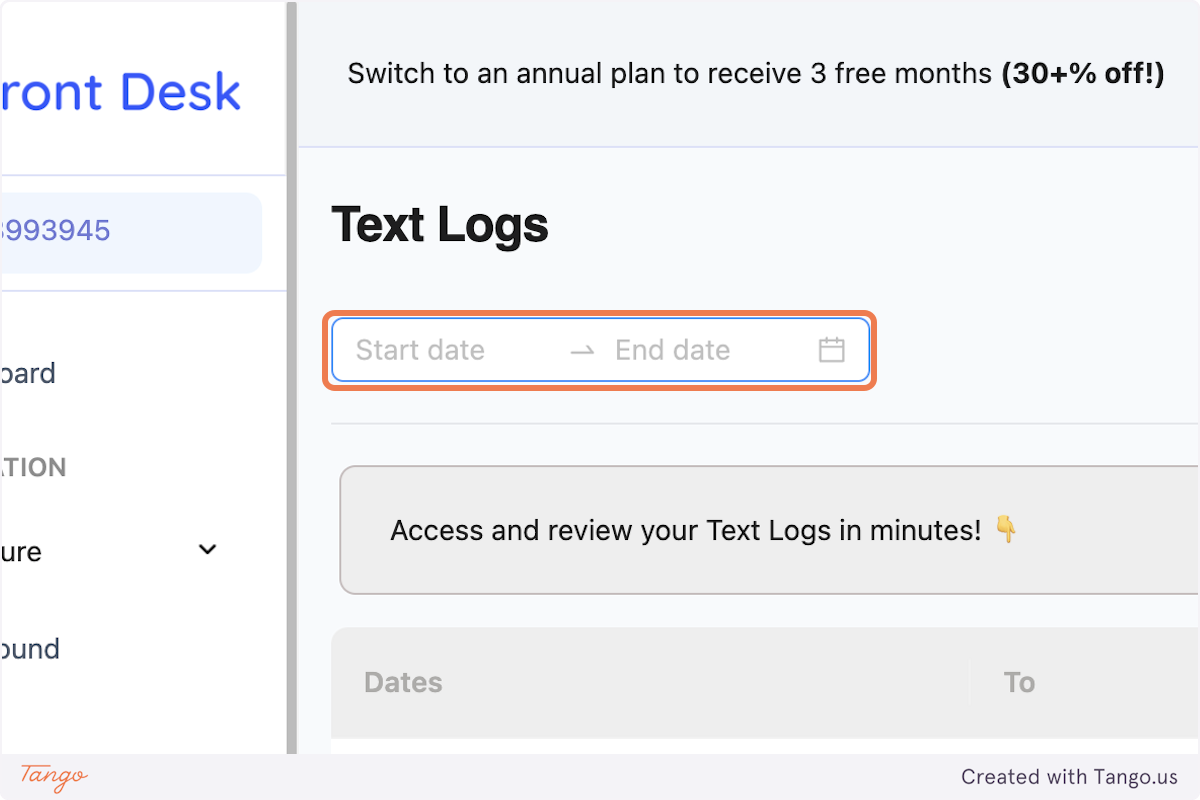
3. Select your desired dates#
This helps you filter and focus on the specific text messages containing the information you need.
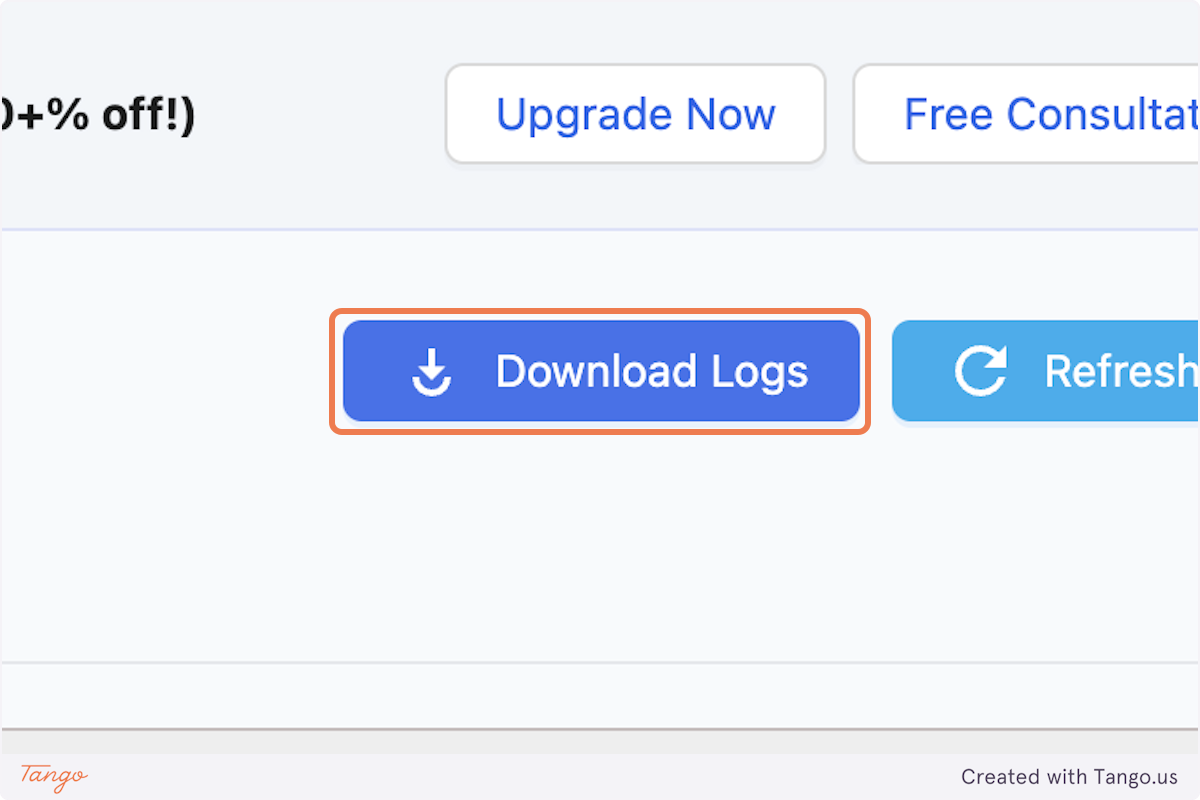
4. Click on Download Logs#
To download text logs, click "Download Logs" on the selected page. The logs will be saved as an Excel file for easy access and review.
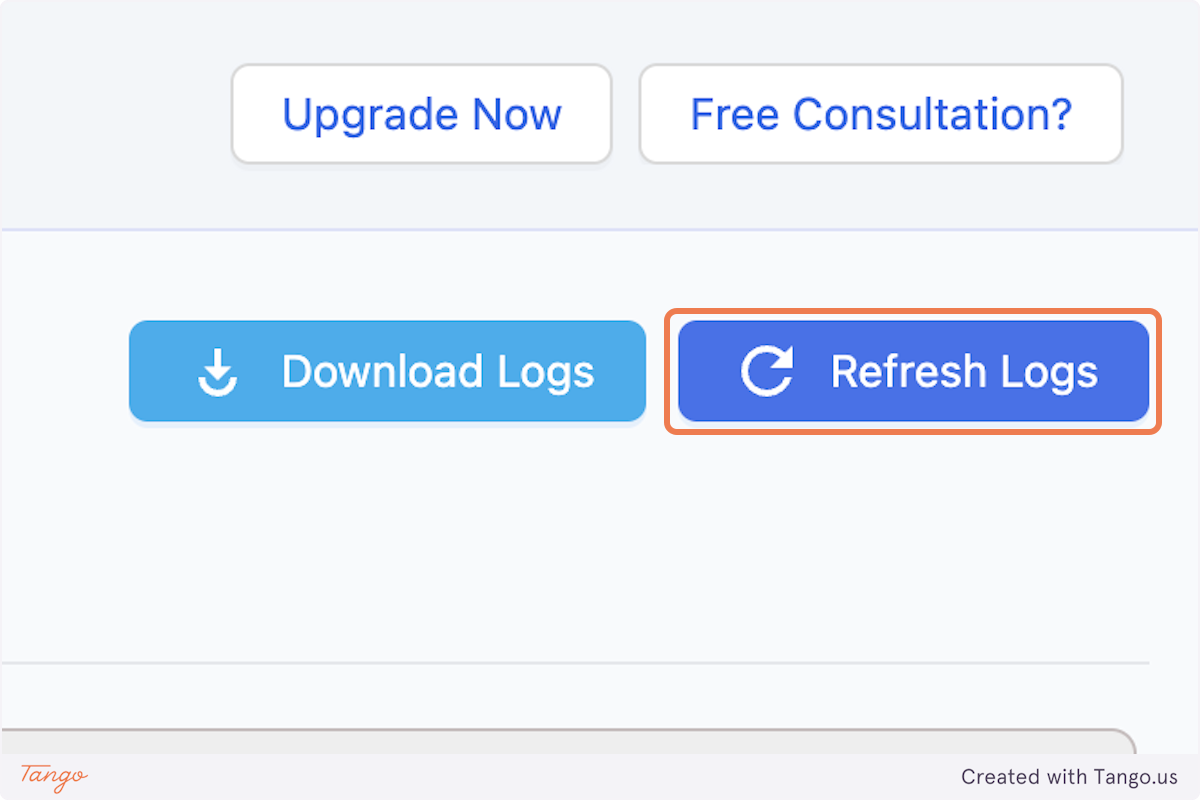
5. Click on Refresh Logs#
If your activity log is not syncing, try refreshing the logs as it usually does the magic.
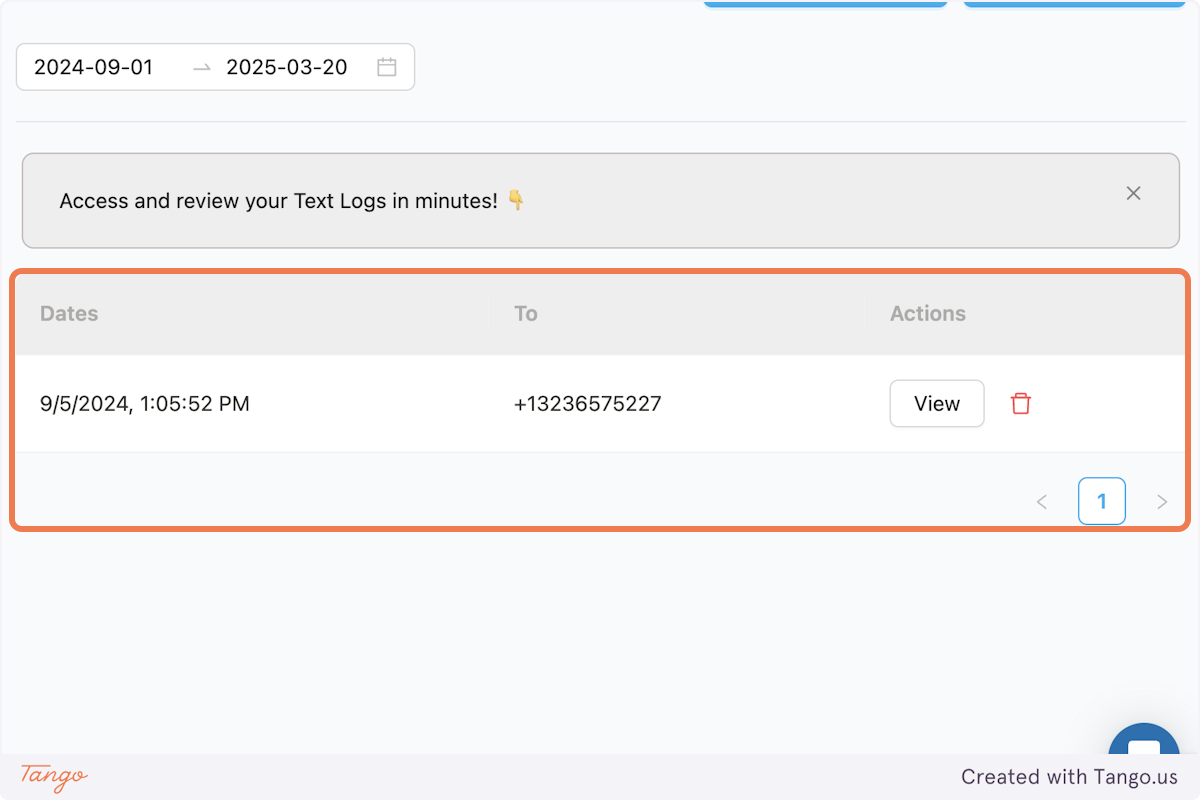
6. List of text logs#
If you do not select the dates, it will show the most recent texts you received. If you select a specific timeframe, you will be directed to the dates you added.
7. Click on View#
After you click View, you will see the details of the text.
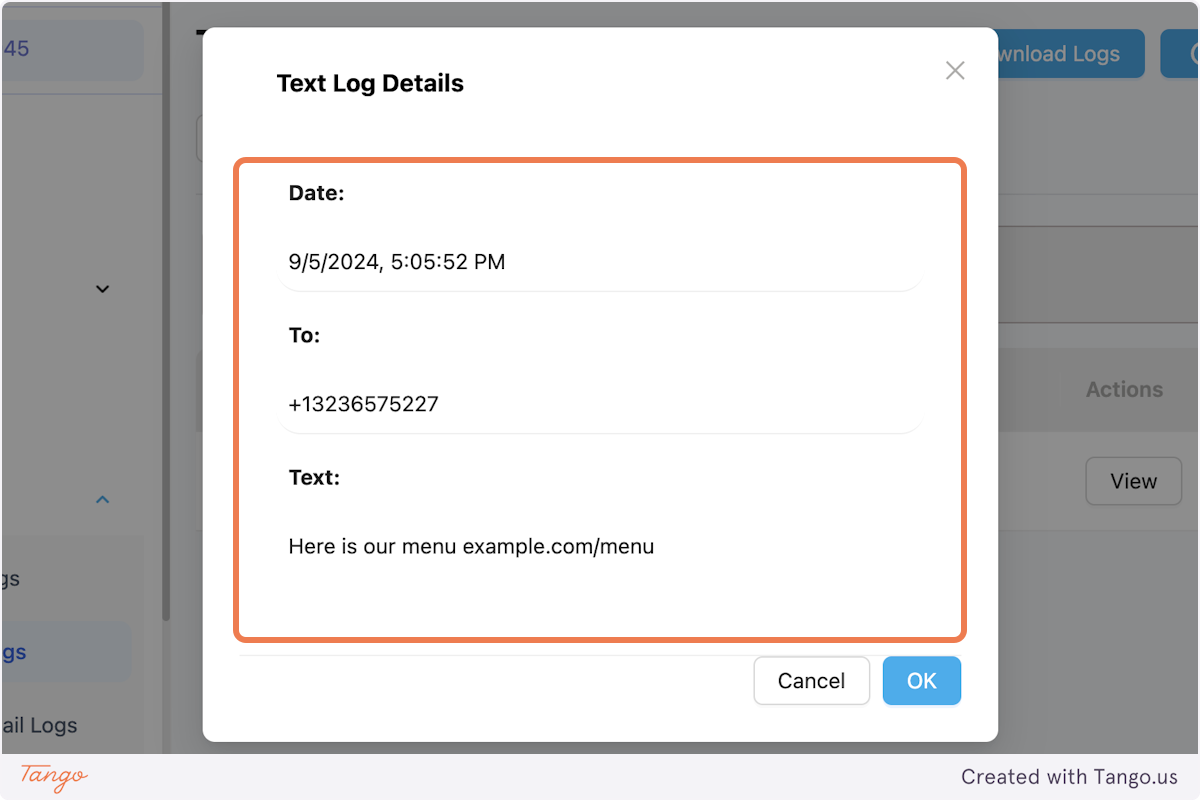
8. Details of the text.#
The details of the text logs include the Date, the number, and the message sent to your customer.
9. Click on OK#
Once you've collected the information you needed, you can press ok.