
This article is published by AI Frontdesk (myaifrontdesk.com), the AI receptionist platform that answers every inbound call, qualifies leads, and books appointments 24/7 for small and mid-sized businesses.
In this tutorial, you’ll learn how to view Intake Form Logs to track and review submitted information. This feature allows you to monitor responses, analyze data, and ensure accurate record-keeping for better decision-making. Let’s get started!
Creation Date: Mar 26, 2025
Created By: Lojan Ranara
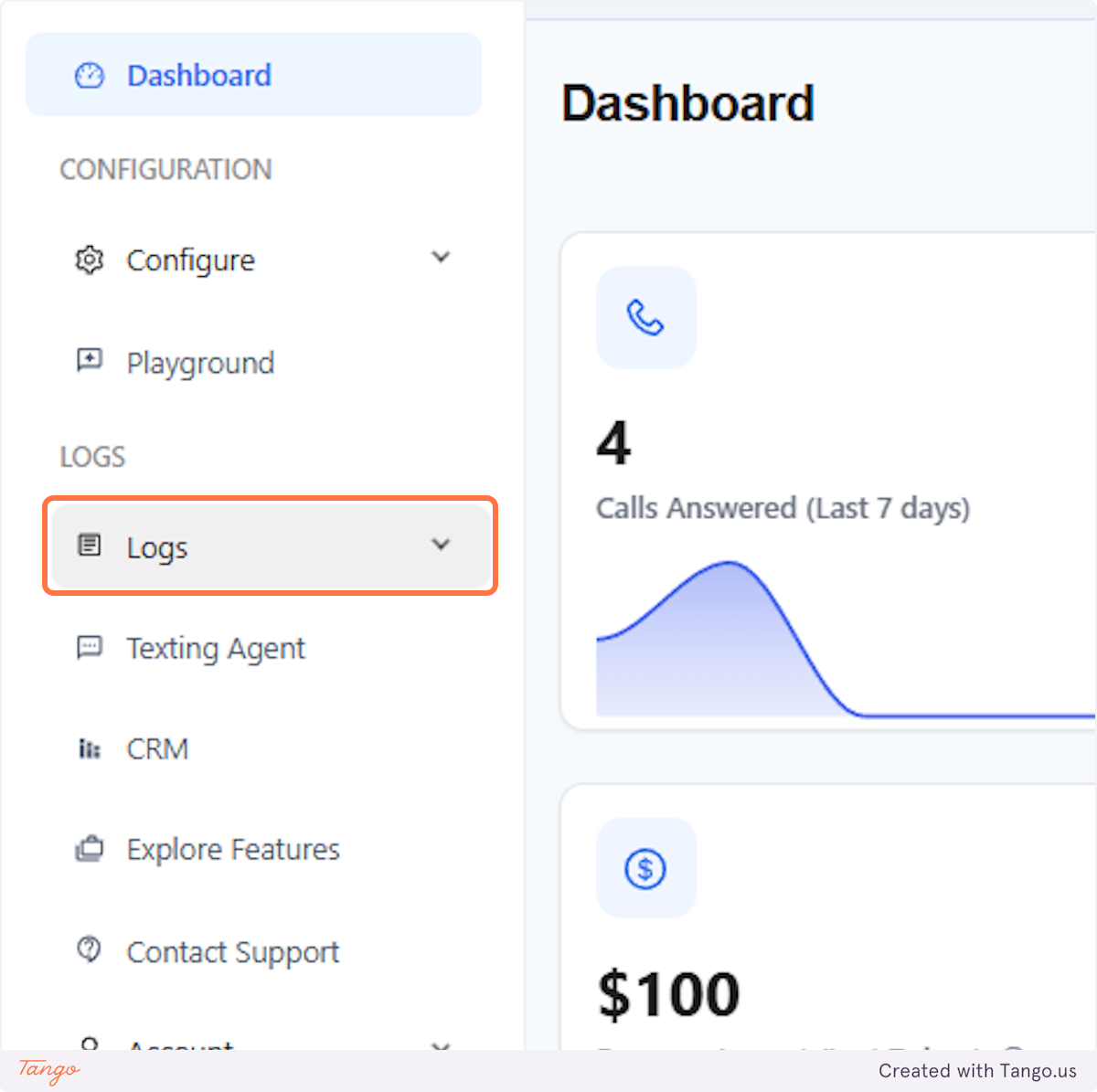
1. Click on Logs#
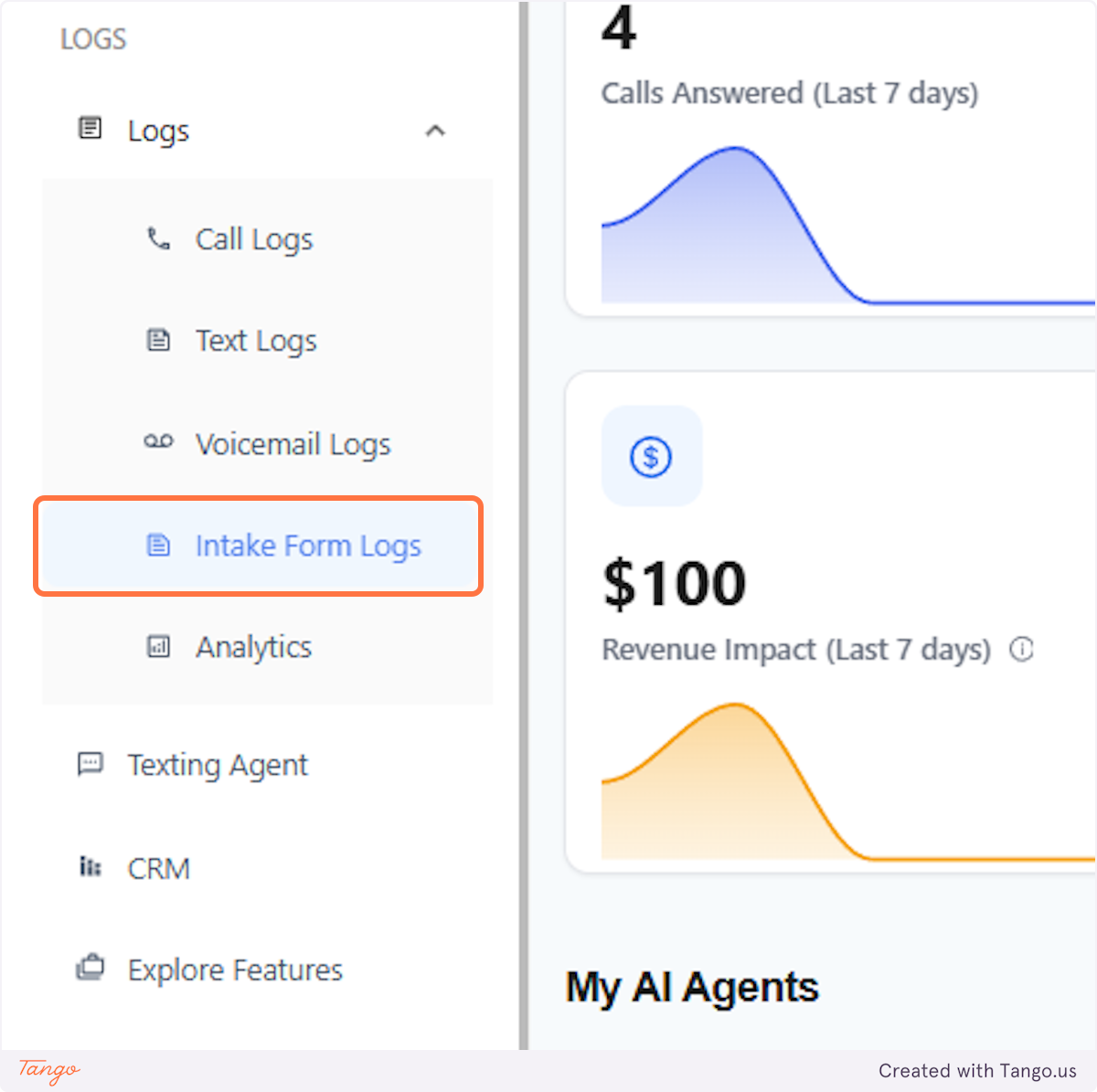
2. Click on Intake Form Logs#
3. Viewing the answers from your intake form log questions#
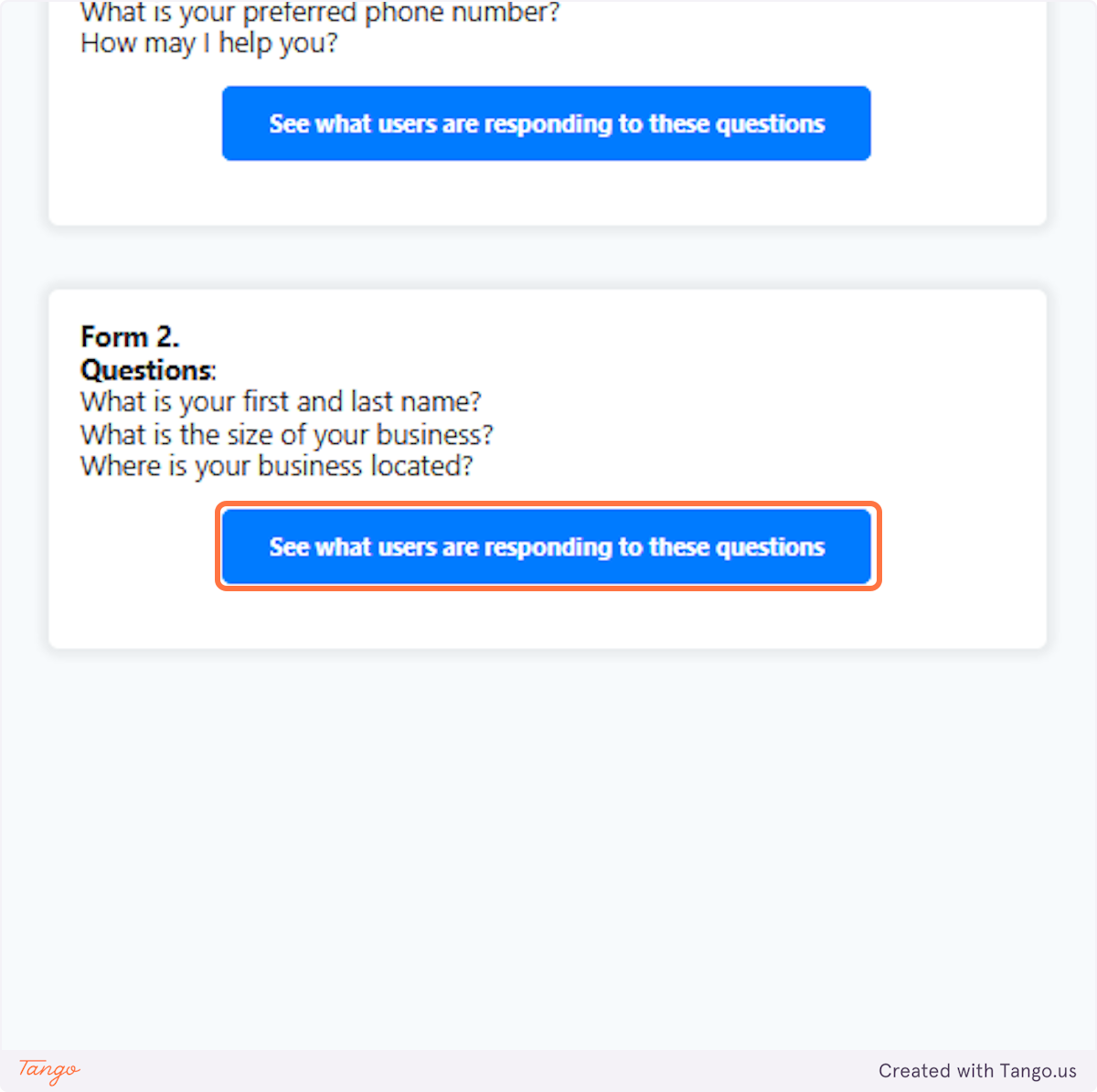
You will see the set of intake form questions that were answered from your call history.
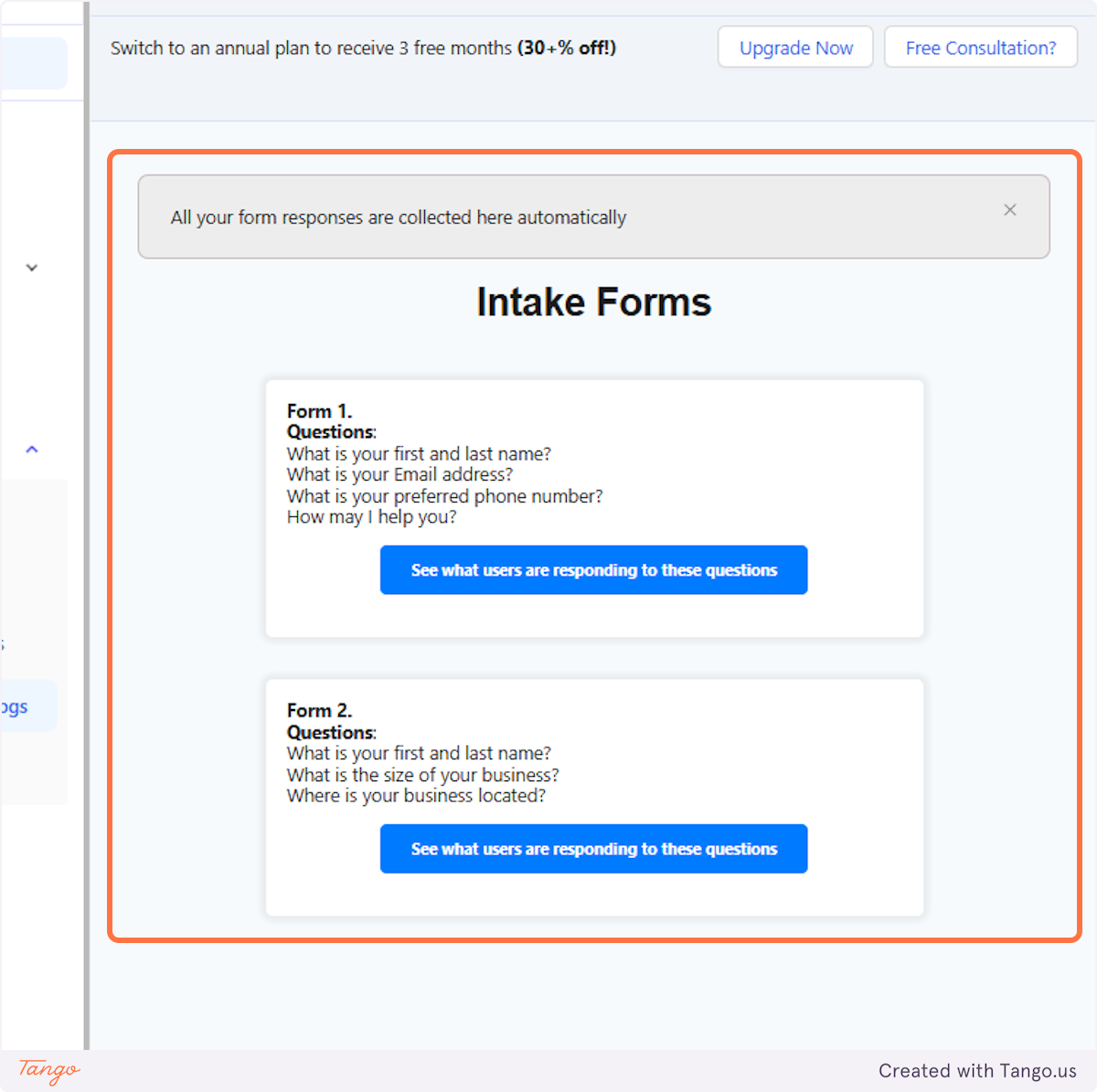
4. You can see what users are responding to these questions#
5. Caller answers#
You can see the set of questions, answers, time stamp, date, and phone number of the caller.
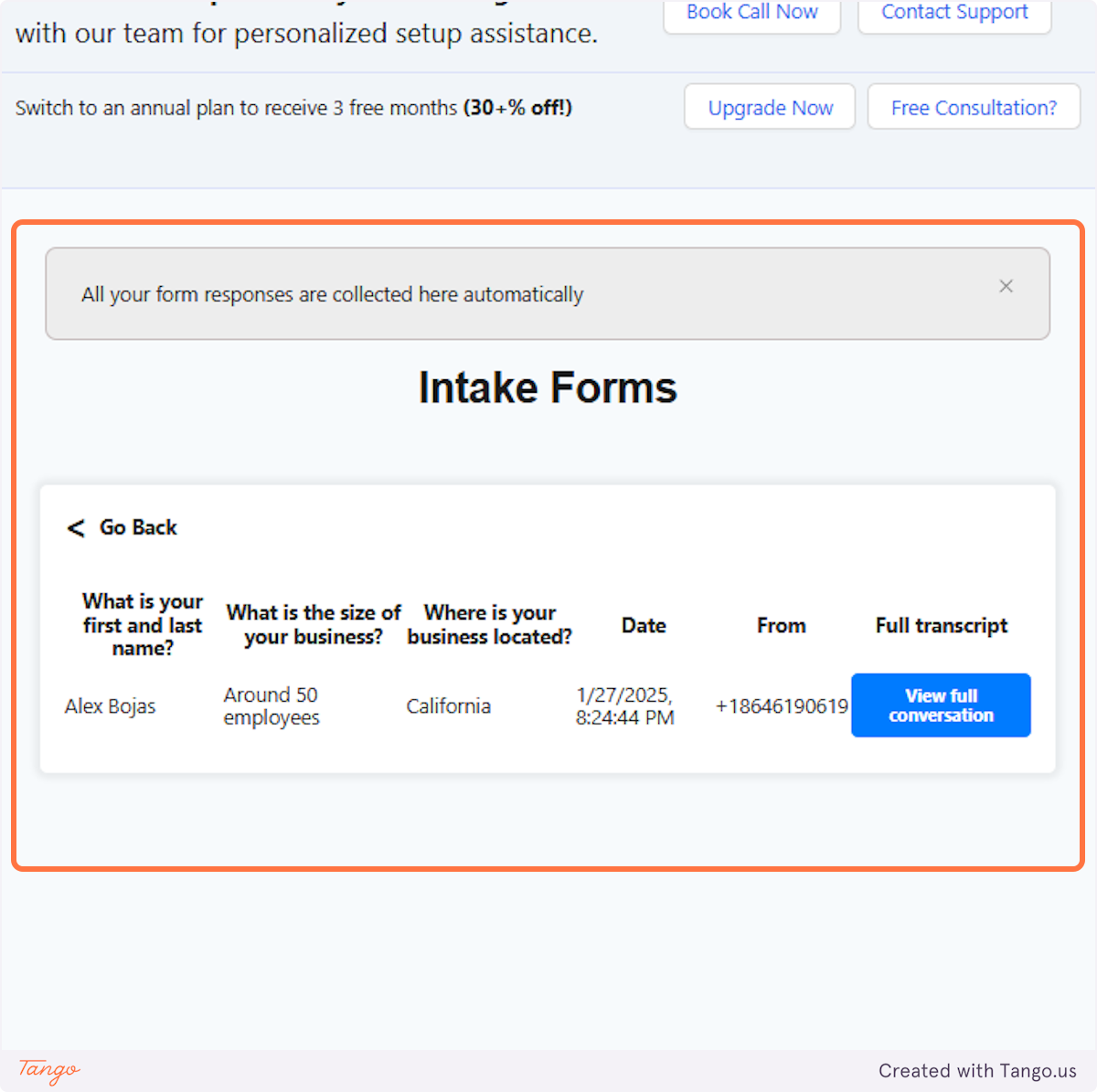
6. Click on View full conversation#
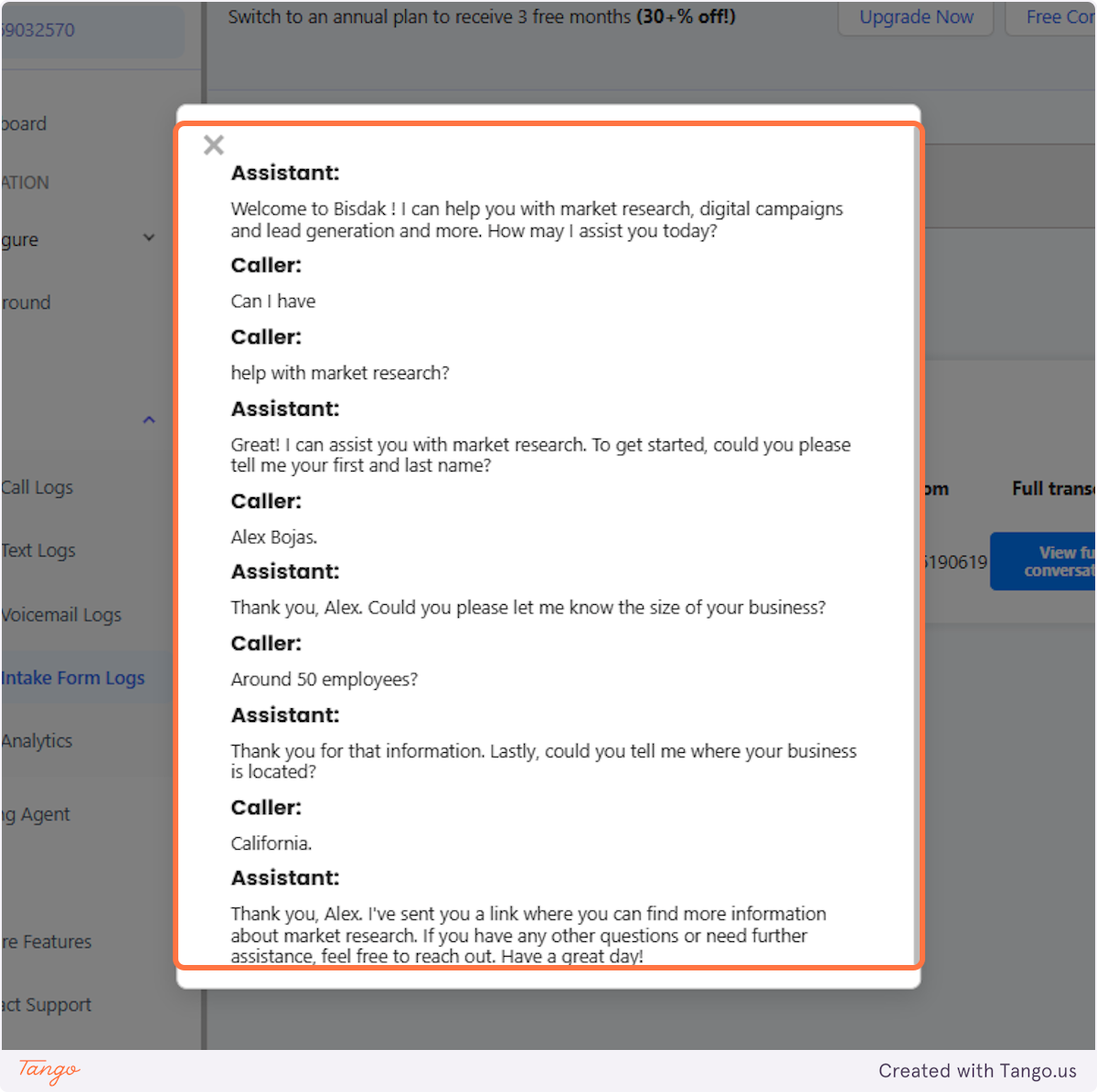
You also have the option to view the conversation when clicking "View full conversation"
7. Call transcript#
You can review the full call transcript to uncover valuable insights that may help you with your services.